2 Operating the System
August 2010 AS-Series Operator Manual 2-29
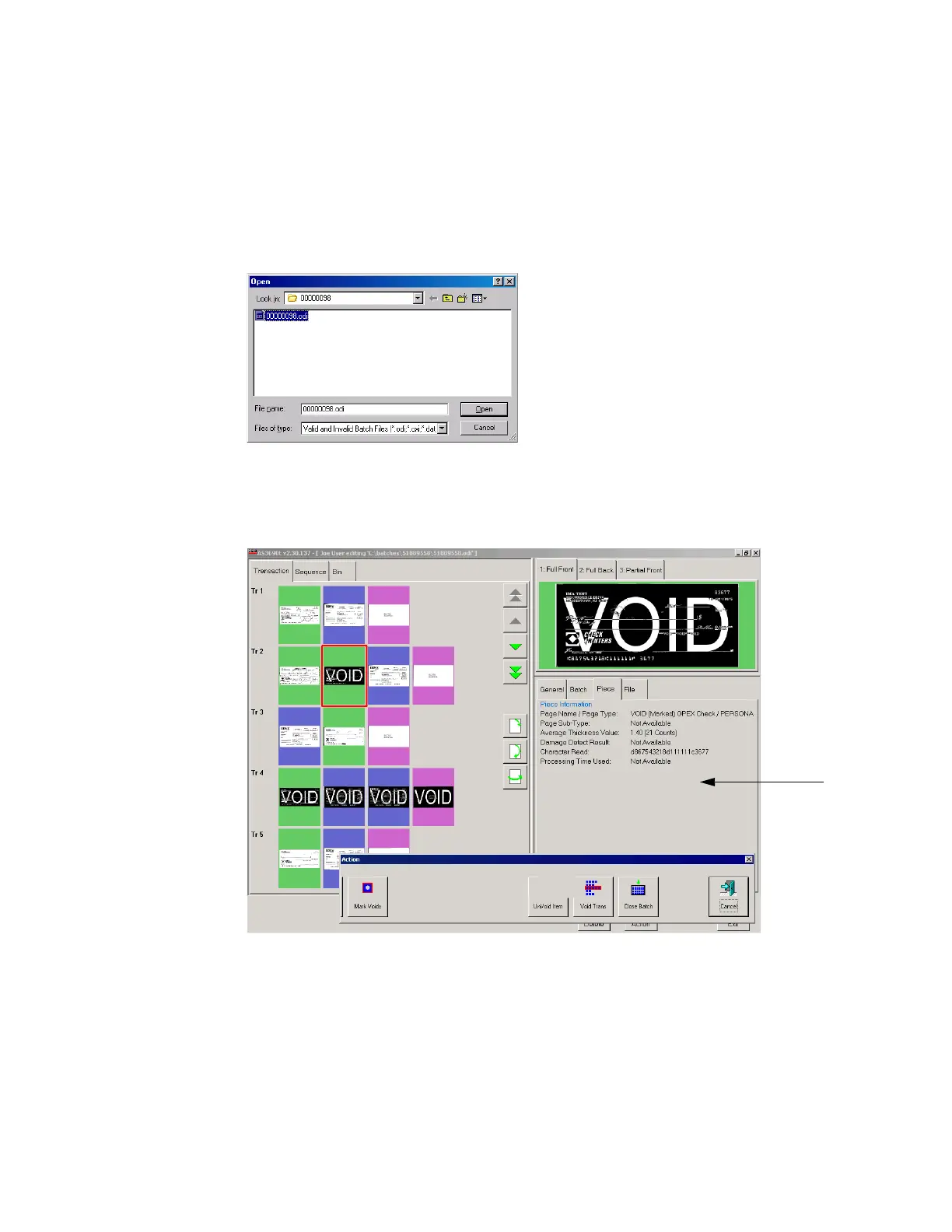
2 Click the Open button.
3 Navigate to the directory on your network where your batches are saved (see your
AS-Series Administrator). The batches are saved in folders by their batch number.
Open the folder for the batch you want to view and double-click on the .odi, .oxi,
or .dat file to view the batch.
NOTE: If you do not know the batch number you are looking for, try to use the date
the batch’s folder was last modified for reference.
FIGURE 18: Opening the batch
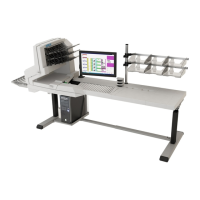
4 View, delete, and void the document thumbnails in the same way as in the Run
screen (see “Using the Run screen” on page 2-8).
FIGURE 19: Viewing the batch
When voiding documents and transactions in the Batch Editor, check the Mark
Voids button (shown in Figure 19) to mark the images in the resulting batch file as
void.
NOTE: View the piece information data on the Run screen to determine if the image
was marked (as VOID in the batch file) or unmarked. From the batch editor
you can decide whether or not to mark the voided images in the resulting
batch file by using the Mark Voids button.


 To Next Page