Operation 29
FalconV User Manual - Standard Scanning - OPEX Corporation
Runscreen Thumbnail and Preview Image Icons
While scanning items in CertainScan, the host software displays thumbnail
images in the main left panel and preview images in a smaller panel in the
upper right corner of the runscreen. When images are readily available in the
host software’s cache or when the system is not busy, images will display as
expected. Under some conditions, when images are not immediately available,
the host software will display one of the icons shown in Table 2 where the
image would have been.
Note: When a batch is opened in CertainScan Edit or CertainScan, a subset of
the same icons will appear. Whether or not it should appear is indicated in
the last column. Refer to the “CertainScan Edit” manual for more details
on using CertainScan Edit.
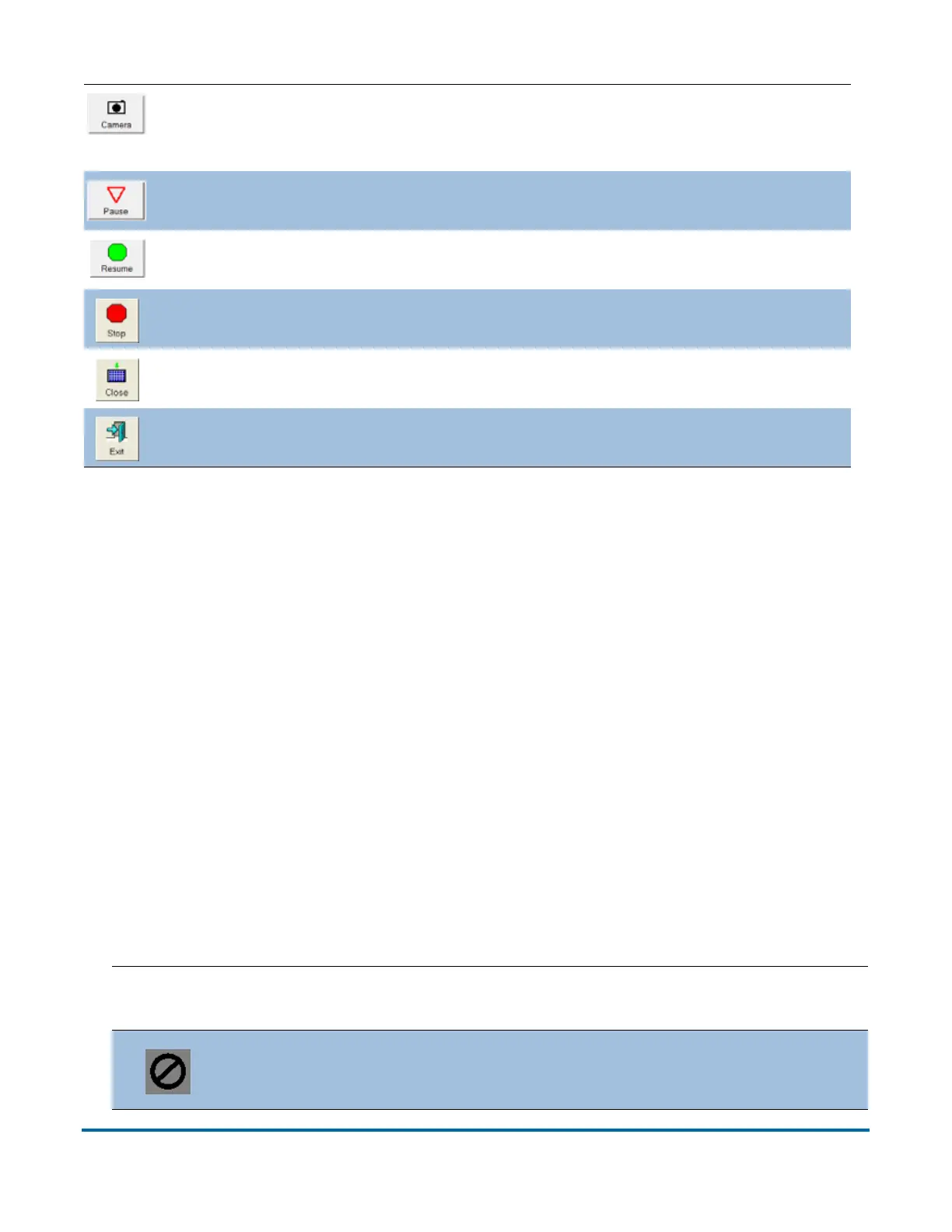
Press the Camera button to insert up to two images at a time from an
external camera into the batch. Additional information about using this
feature can be found in the CertainScan Advanced Features Manual.
Pause the machine. Once pressed, the Resume button appears.
Press to Resume scanning. Once pressed, the Pause button appears.
Stop the machine. This does not end the current batch or set.
Close the current batch. The Close Batch confirmation prompt appears.
Exit the current job and close the Run screen.
Table 2: Runscreen Thumbnail and Preview Image Icons
Icon Description
Appears in
CertainScan Edit?
Image Blank Image is known to be
blank according to batch’s image data.
Yes


 To Next Page