B A S I C O P E R A T I O N S
23
Pause and Frame-by-Frame
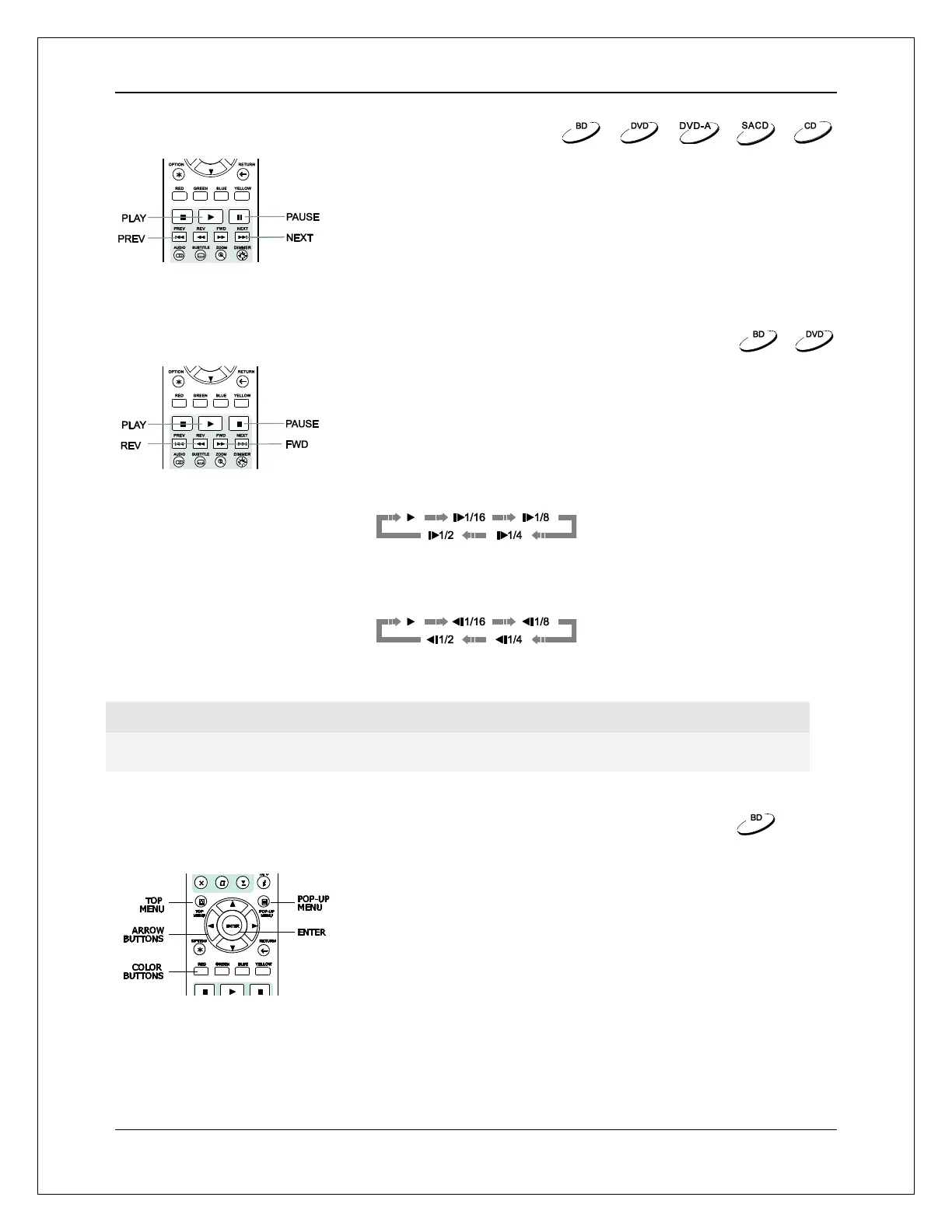
1. During playback, pressing the PAUSE button temporarily
pauses the program. In this mode, a PAUSE icon will appear on
the TV screen.
2. While a DVD or Blu-ray Disc is paused, pressing the PREV or
NEXT button reverses or advances the video frame-by-frame.
3. Pressing the PLAY button resumes normal playback.
Slow Playback
To play the video in slow-motion, follow these steps:
1. Press the PAUSE button on the remote control to pause
playback.
2. Press the FWD button to select a forward slow playback speed.
Each press of the FWD button increases the playback speed in
the following increments:
3. Press the REV button to select a reverse slow playback speed. Each press of the REV button
reverses the playback speed in the following increments:
4. To exit the slow playback mode, press the PLAY button.
NOTE
Certain Blu-ray Discs utilizing BD-Java technology may not support slow playback.
Blu-ray Disc Menu Navigation
1. Blu-ray Discs usually contain a Top Menu and a Pop-up
Menu. The Top Menu normally appears at the beginning of
playback, after the previews and copyright messages. The
Pop-up Menu can be accessed during the movie without
interrupting playback.
2. During playback, press the POP-UP MENU button to
access the Pop-up Menu. Press the TOP MENU button to
access the Top Menu.
3. Navigate the menu using the ARROW buttons, and then
press the ENTER button to make a selection.
4. Some menus make use of the COLOR buttons. You can
select menu functions by pressing the corresponding
COLOR button on the remote control.


 To Next Page