A D V A N C E D O P E R A T I O N S
30
Subtitle Shift
For customers using a 2.35:1 “Constant Image Height” video
projection system, subtitles may get cut off because they are
positioned outside of the active video area.
The Subtitle Shift feature can be used to shift subtitles up or down
so they are displayed within the active video area.
To shift the display position of subtitles, please follow these steps:
1. When playing a DVD, Blu-ray Disc or other video programs recorded with subtitles, select the desired
subtitle from the disc menu or by using the remote. (Refer to page 26 for more information.)
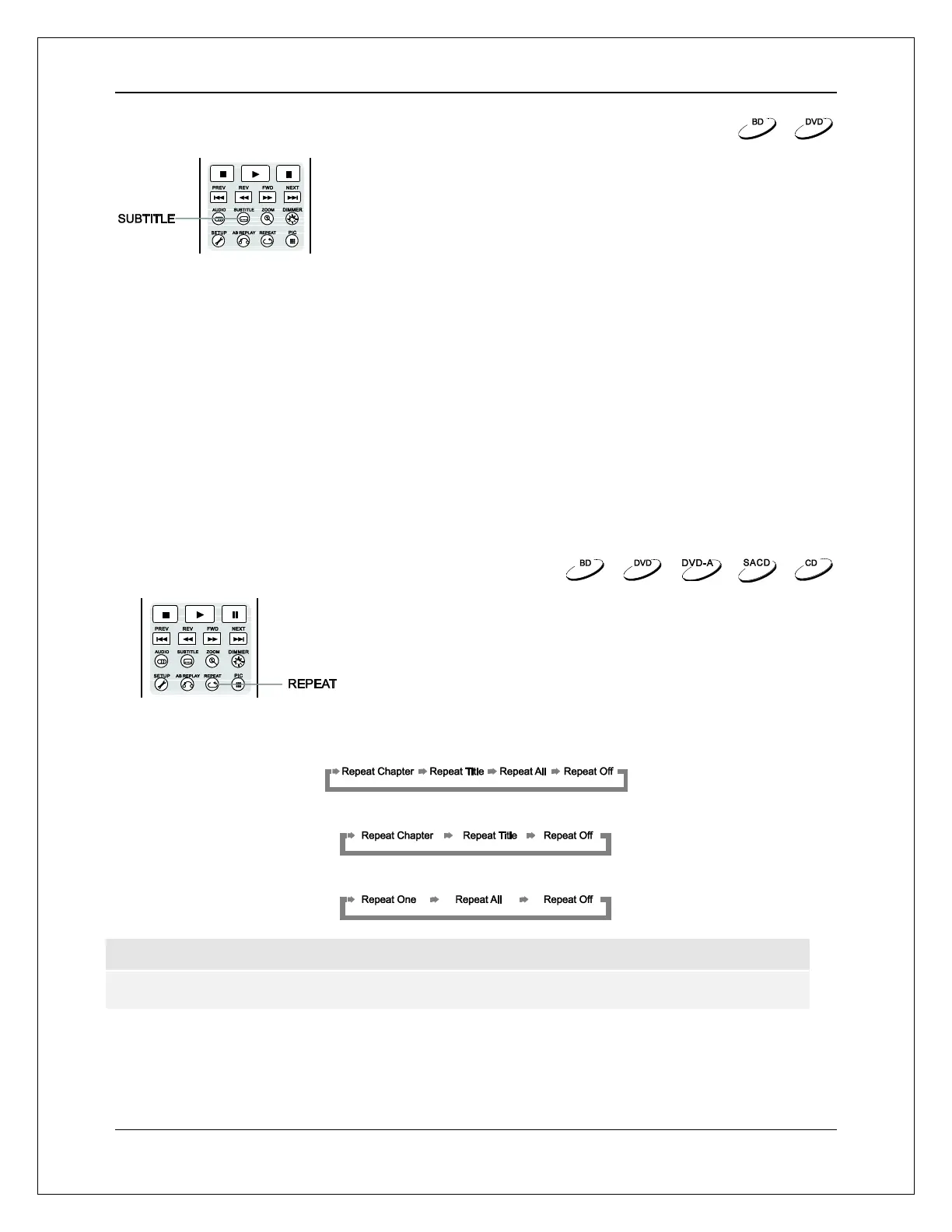
2. Press and hold the SUBTITLE button on the remote control until the Shift Subtitle Position prompt
appears on the screen.
3. Wait until subtitle text is shown on the screen, and then use the UP/DOWN ARROW buttons to move
the subtitle text to the desired position.
4. Press the ENTER button to set the subtitle display position.
Once the Subtitle Shift position is set, it is saved by the player in the Playback Setup > Subtitle Shift
setup menu option. The setting will be applied to subtitles of all future DVD and Blu-ray Discs. You can
also change the setup menu item directly.
Repeat Playback
To repeat a certain chapter, title, track or disc, press the REPEAT
button on the remote control.
Each press of the REPEAT button changes the repeat mode using
the following sequence:
DVD and DVD-Audio:
Blu-ray Disc:
CD and SACD:
NOTE
Certain Blu-ray Discs may not allow for repeating.


 To Next Page