M E D I A F I L E P L A Y B A C K
41
Viewing Photo Files
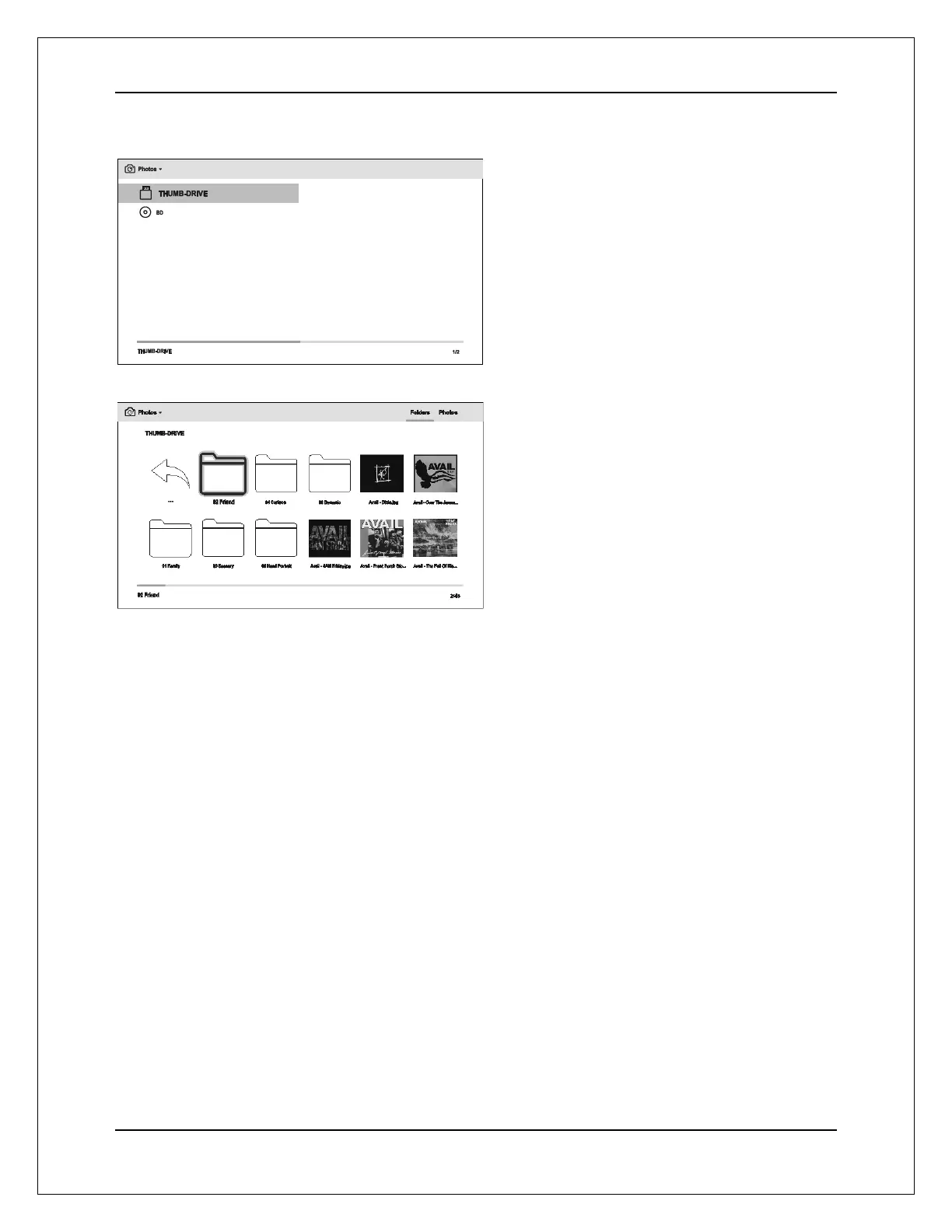
To view digital photo files stored on an optical
disc or USB drive, select Photos from the Home
Menu. A file browser will appear to assist you in
navigate the files and folders.
The first step is to select the Data Disc or USB
device that contains the photo files. The player
will take a moment to read the media and list the
folders and photo files.
In the photo browser, you can perform the
following operations:
Press the UP/DOWN/LEFT/RIGHT
ARROW or PAGE UP/DOWN buttons to
move the cursor and select photo files.
Press the TOP MENU button to move the
cursor to the category menu in the top of
the screen.
When a photo file is highlighted by the cursor, press the ENTER or PLAY button to play
back the photos as a full screen slideshow.
The following operations are available during the photo slideshow:
Show EXIF Information: GREEN color button
Normal playback controls: PLAY, STOP, PAUSE, and PREV/NEXT
Adjust slideshow speed: REV and FWD
Zoom: ZOOM. Once zoomed in, the ARROW buttons can be used to pan around the photo.
Reflect (flips the photo horizontally to make it upside-down): UP ARROW
Mirror (flips the photo vertically to make it a mirror image): DOWN ARROW
Rotate left (counterclockwise): LEFT ARROW
Rotate right (clockwise): RIGHT ARROW
Repeat: REPEAT
Play in random sequence: BLUE color button
Change slideshow transition effect: YELLOW color button.
Press the OPTION button to access to features like Image Zooming and Image Rotation.
Details can be found on page 21.


 To Next Page