S E T U P M E N U O P T I O N S
44
The preceding diagram should give a good description of the various elements and their context. In this screen
we could, for example, instruct you to set the Auto Resume parameter to Off in the Playback Setup section.
To indicate where we were, you would see the following: Playback Setup>Auto Resume>Off.
NOTE
It is possible that some setup items may be grayed-out and inaccessible. This may be caused
by several reasons: playback is ongoing; a disc is in the tray; or a prerequisite setup item
excludes some options. Please stop playback and eject the disc before trying to change these
setup items. If you still cannot access the setup item, please check for configuration conflicts.
For example, if Network Setup > Internet Connection is set to Ethernet, the Wireless
Setting menu item will be grayed-out. Setting Internet Connection to Wireless will enable
the Wireless Setting menu.
The Setup Menu can be accessed by pressing the SETUP button on the remote control, or by selecting the
“Setup” icon from the Home Menu screen. The following steps are an example of setting Playback
Setup>Auto Resume to Off.
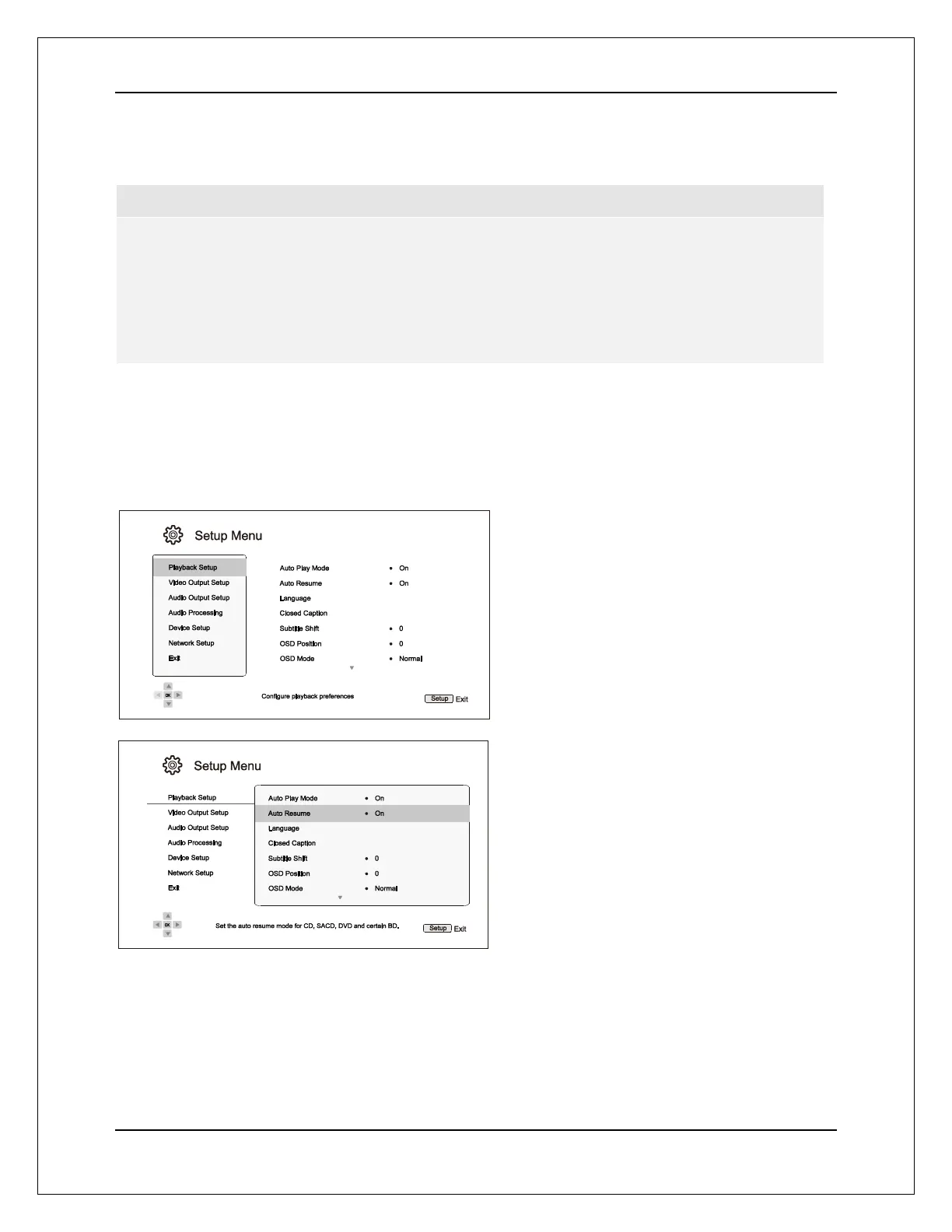
1. Press the SETUP button on the remote control, and the TV screen displays the following:
2. Press the UP/DOWN ARROW buttons to
select the section. Press the ENTER
button or the RIGHT ARROW button to
enter the selected section.
3. Press the UP/DOWN ARROW buttons to
select the setup item to be changed, and
press the ENTER or RIGHT ARROW
button to change the setting. When the
scroll icon is shown at the top or bottom of
the Setup Menu, it indicates that there are
more menu items that can be accessed by
scrolling with the UP/DOWN ARROW
buttons.
For example, in the Playback Setup
section, you may use the UP/DOWN
ARROW buttons to select the Auto
Resume setup item, and press the ENTER
button to change the Auto Resume
setting.


 To Next Page