Outlaw Audio
28
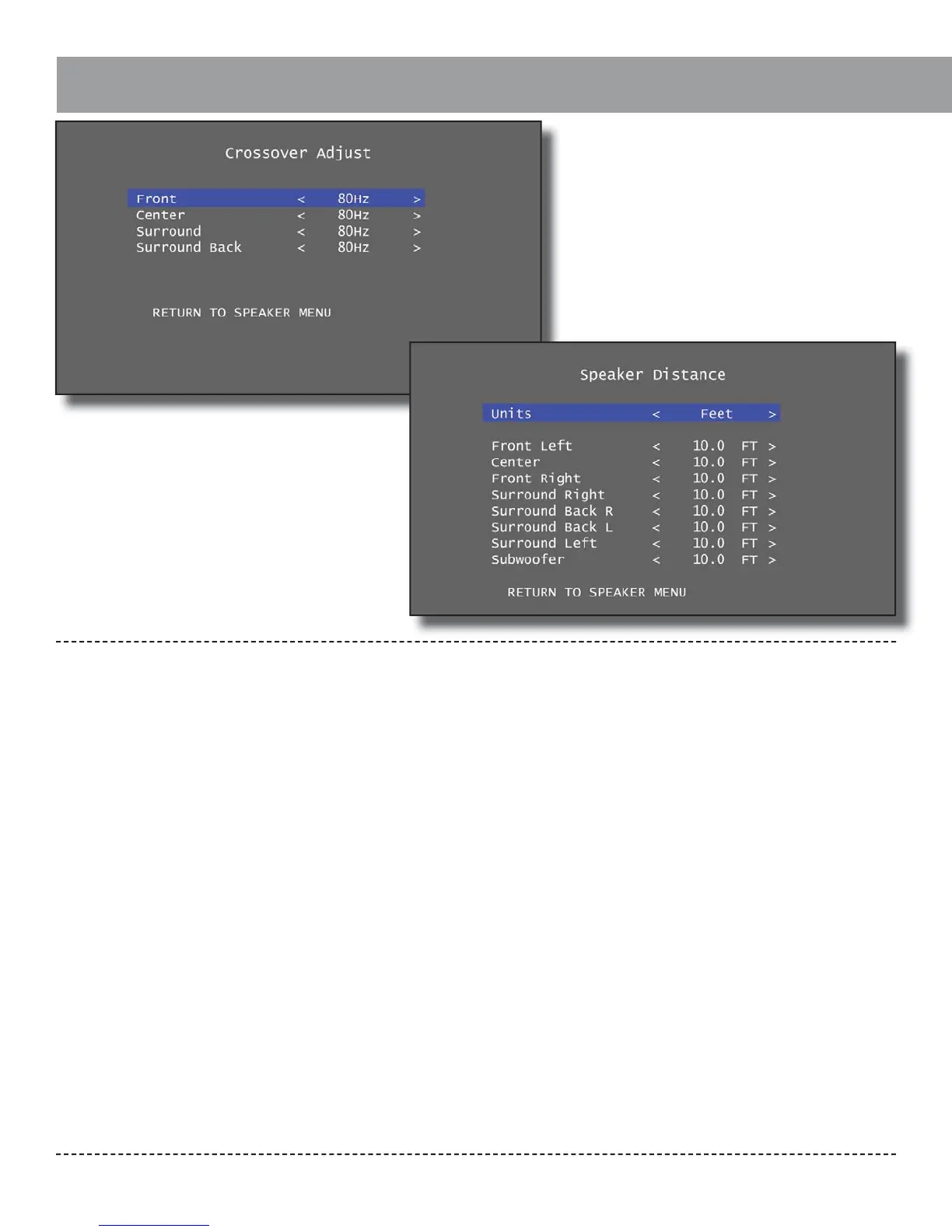
Crossover Adjust Sub-Menu:
Each of the rst four speaker options from the
Speaker Con guration menu has a separate
crossover setting that can be adjusted in this
menu. Crossovers may be set from 40Hz to
200Hz in 10Hz increments, with the default
crossover setting being 80Hz for each speaker.
This crossover will only be applied if speakers
are set to “Small” in the Speaker Con gura-
tion menu. To adjust the crossover settings,
highlight a speaker set with the up and down
navigation buttons and use the left and right
navigation buttons to select the desired cross-
over setting for each.
Deciding what crossover setting to use can be
di cult. For smaller tower speakers, a crossover
point of 40 or 50 Hz is usually about right. For
bookshelf speakers, center speakers and sur-
round speakers, 80 Hz usually works. For satel-
lite, center and surround speakers with woofers
smaller than 5 inches in diameter, 120 or 150
Hz will probably work best. The maximum cross-
over frequency of 200 Hz should be used only
with very small, “cube”-type satellite speakers.
Speaker Distance Sub-Menu
You may choose to skip this step if you plan to use
the auto setup feature, as the Model 976 will set the
speaker distances. Some users may prefer to double-
check the measurements, however.
Grab a tape measure and measure the distances from
each speaker (and the subwoofer) to where your head
would be positioned when you’re in your favorite
listening seat. Measure to the nearest 6 inches if
you’re using English measurements, or to the nearest
1/10th of a meter if you’re using metric. Write these
numbers down.
If you’re still in the Speaker Con guration submenu,
hit the MENU button to back out of it. If you’re start-
ing from scratch, hit MENU then hit ENTER to select
the Speaker Setup submenu.
Press the down arrow (▼) key to select the Speaker
Distance submenu, then hit ENTER.
Use the left and right arrow keys (◄►) to select entry
in feet or meters.
Press the down arrow key to move to Front Left. Now
use the left and right arrow keys to set the distance
for the front left speaker.
Repeat the process for all speakers in the system.
Note that any speakers set to “None” in the Speaker
Con g menu will be disabled here.
Level Trim Sub-Menu
The Model 976 includes an automatic speaker setup
tool that adjusts channel levels, but we also o er the
ability to manually adjust levels. If you plan to use
the automatic setup tool, you may choose to skip this
menu. If you want to make your own adjustments
manually, this is the place to do it.
While it’s possible to “rough in” the channel levels by
ear, you’ll get much better results by using a sound
pressure level (SPL) meter. You can use either a dedi-
cated meter like those sold under the RadioShack
and Galaxy brands, or if you have a smartphone, use
an SPL meter app. Search your iPhone’s App Store
or your Android’s Play Store for “SPL meter.” Most are
available for free or at low cost.


 To Next Page