197
5
Editing and Printing Images
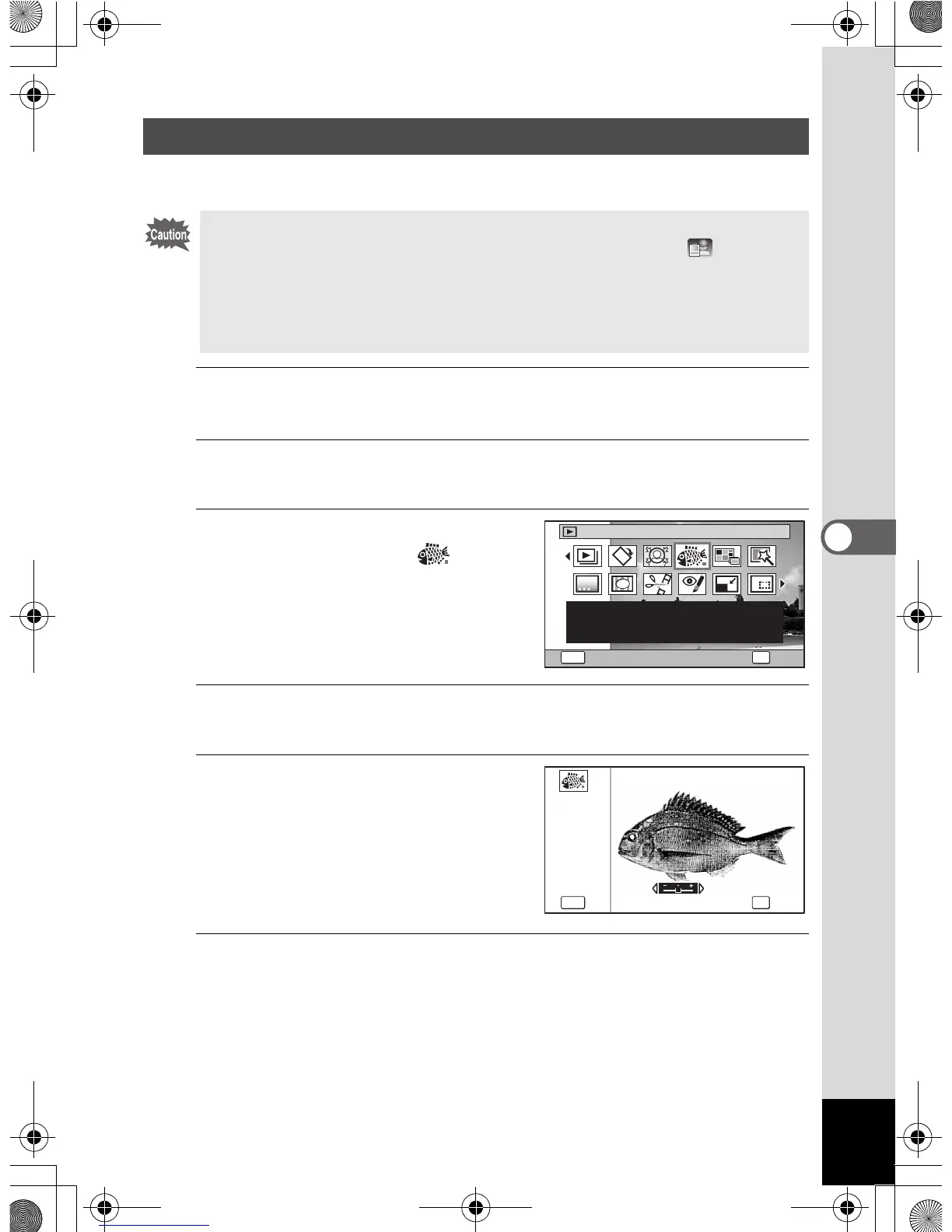
You can edit the image to look like an ink rubbing.
1
Enter Q mode and use the four-way controller
(2345) to choose the image you want to edit.
2
Press the four-way controller (3).
The Playback Mode Palette appears.
3
Use the four-way controller
(2345) to select (Ink
Rubbing Filter).
4
Press the 4 button.
The preview image of the results of the filter effect appears.
5
Use the four-way controller
(45) to choose the effect.
You can adjust the effect in five levels.
F Weak
G Standard
H Strong
6
Press the 4 button.
A confirmation dialog for overwriting the image appears.
If the selected image is protected, the processed image is saved as a
new image and the following confirmation does not appear.
Using the Ink Rubbing Filter
The Ink Rubbing Filter cannot be used on the following images.
• Movies or images taken with F (Digital Panorama) or (Report)
modes
• Images that have recorded pixels of h, h, l, or m
• Images taken with other cameras
An error message appears in step 4.
1/2
OKMENU
Cancel
OK
Ink Rubbing Filter
Creates an image similar
to ink rubbing from
original pictures
Ink Rubbing Filter



 To Next Page
 Loading...