C-863.12 Mercury Controller MS249E Version: 1.2.1 61
10. Repeat steps 8, 2, 6 and 7 for every additional controller of the daisy chain network,
which you want to connect.
If you want to terminate communication with one of the controllers of the daisy chain network:
➢ Select the Connections > Close menu item for the corresponding controller in the main
window.
Establishing communication with PITerminal
Via the Mercury button PITerminal supports controllers with older firmware versions that are
not compatible with GCS.
➢ Make sure that the Mercury button is not activated in PITerminal.
1. Start PITerminal.
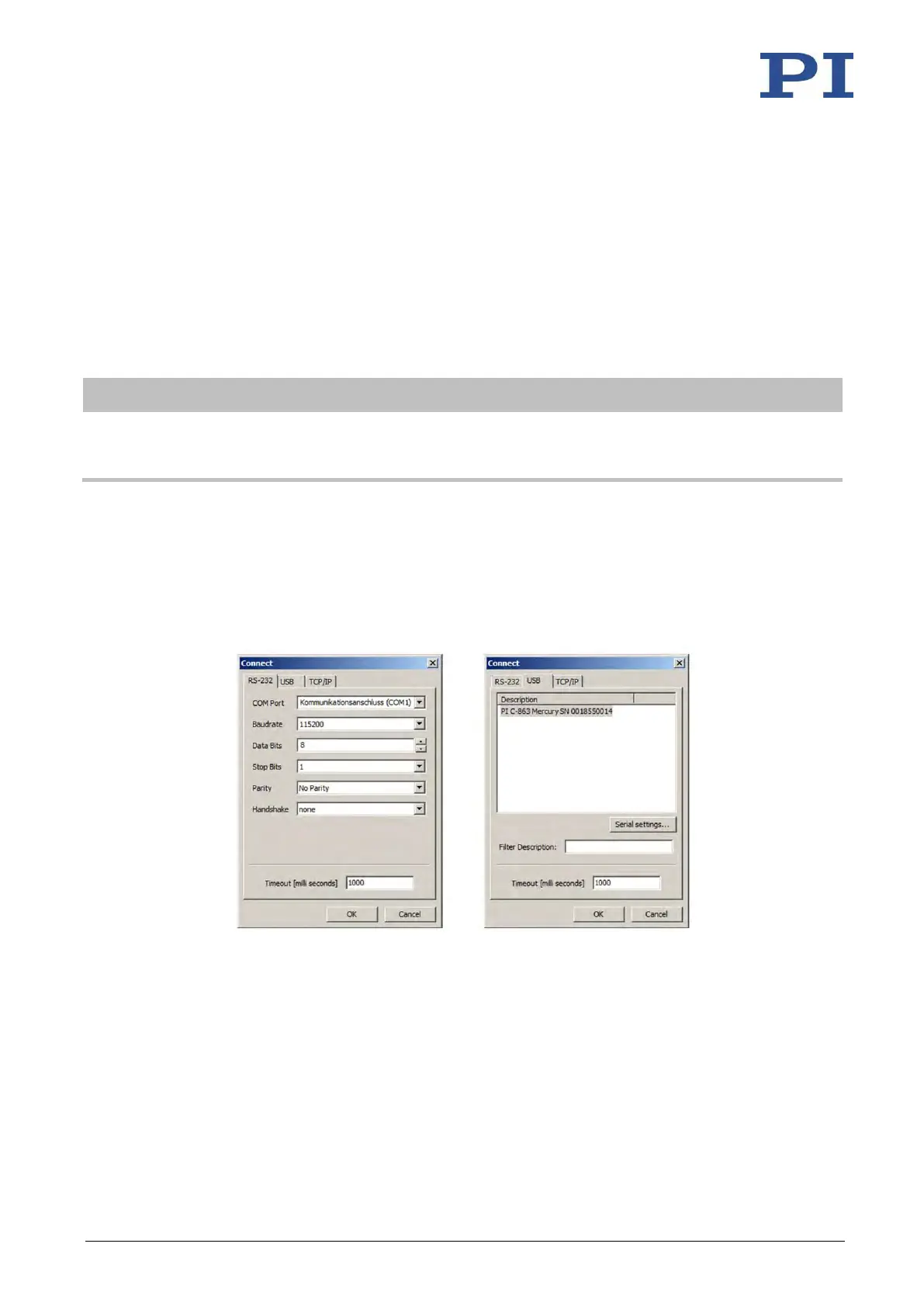
2. Click on Connect….
The Connect window opens.
3. Select the RS-232 or USB tab in the Connect window according to the interface you
used to connect the first controller in the chain to the PC.
4. Make the settings for the interface in the selected tab:
− RS-232 tab:
Select the COM port of the PC connected to the C-863.12 in the COM Port field.
Set the value of the C-863.12 in the Baudrate field with DIP switches 5 and 6.
− USB tab:
Select the C-863.12 connected.
5. Click OK to establish communication.


 To Next Page