PicoQuant GmbH HydraHarp 400 Software V. 3.0.0.1
4.4. The Control Panel
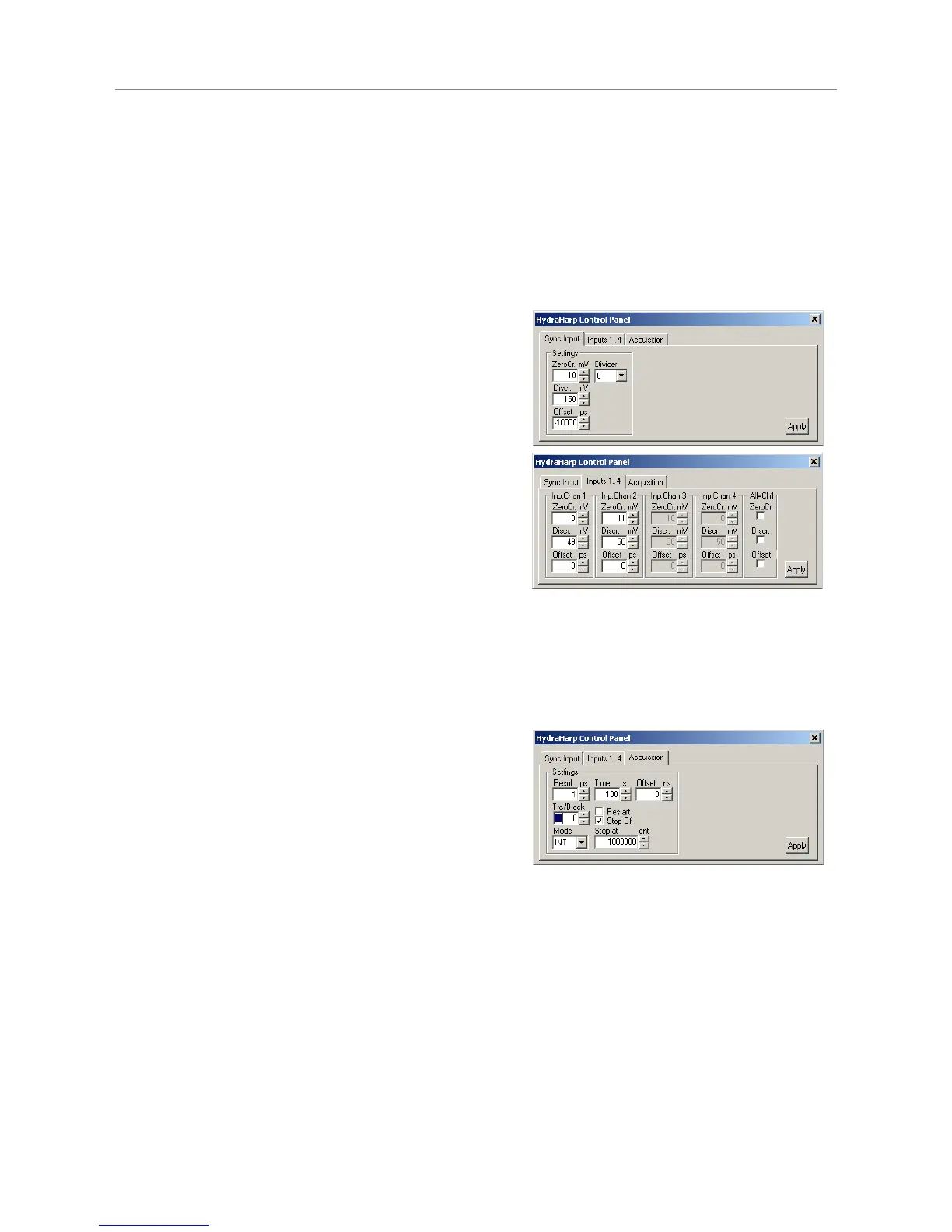
The HydraHarp control panel is a dialog box for setting the parameters for hardware adjustment and data
acquisition. It is implemented as a ‘non–modal’ dialog box, i.e. it does not have to be closed before the main
window can continue. This way you can make changes to your settings in the control panel and watch their
effect on a running measurement in the main window immediately. Nevertheless, you may close the control
panel and restore it at any time by clicking the control panel button on the toolbar or pressing <Alt>+C.
The control panel consists of several pages (tabbed sheets) containing groups of edit boxes and other controls
for related parameters. These pages and their respective controls are:
Sync–Input
Zero Cross edit box and spin control
Discriminator Level edit box and spin control
Offset edit box and spin control
Sync Divider edit box and spin control
Inputs 1…4
Zero Cross edit box and spin control
Discriminator Level edit box and spin control
Offset edit box and spin control
All=Ch1, ZeroCr. tick box
All=Ch1, Discr. tick box
All=Ch1, Offset tick box
Controls for channels that do not exist are gray.
Inputs 5…8
This page only exists when more than 4 input channels are installed. It has the same controls as the
page for inputs 1..4 and follows the same logic of operation.
Acquisition
Resolution edit box and spin control
Time edit box and spin control
Offset edit box and spin control
Trc/Block trace colour indicator,
edit box and spin control
Restart check box
Stop on Overflow check box
Mode drop down selection box
Stop At edit box and spin control
Edit boxes are for keyboard entry. The values must be confirmed with either the <Enter> key or the Apply
button. The spin controls can be used to increment or decrement the edit box values. In this case the changes
take effect immediately without need for <Enter> or Apply. Check boxes have their denoted effect when the
tick is shown. They can be toggled with a mouse click. Groups of radio buttons are like check boxes but
mutually exclusive.
Note that the settings of the control panel as well as the positions of control panel and main window on the
screen will be stored in the Windows registry and retrieved during the next program start. The registry settings
are kept separately per user. When a HydraHarp data file is loaded, the control panel settings will change
according to the settings in that file.
The individual control panel items are discussed in the section 6.4 Control Panel in the Controls and
Commands Reference.
Page 22


 To Next Page