PicoQuant GmbH HydraHarp 400 Software V. 3.0.0.1
6. Controls and Commands Reference
6.1. Main Window
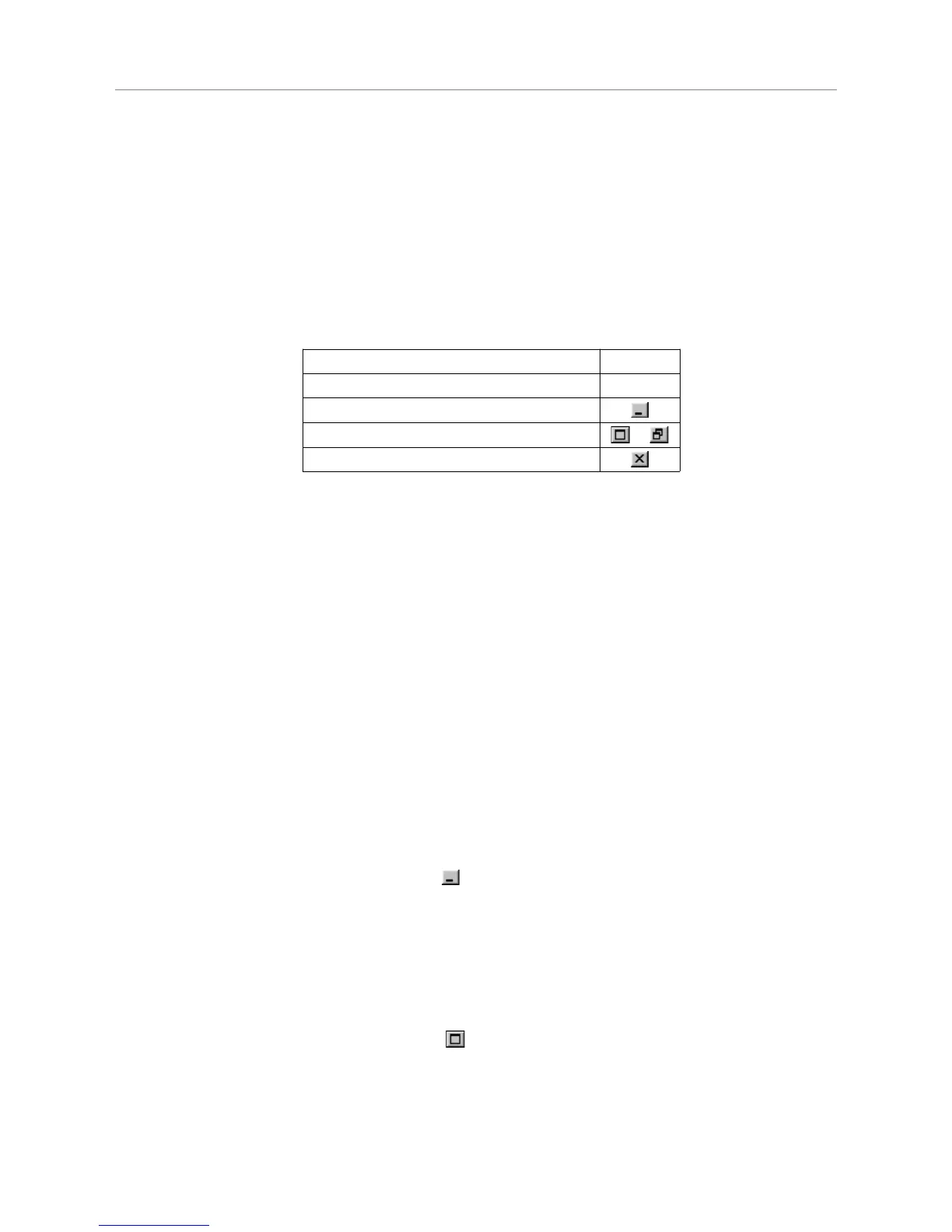
The Title Bar
The title bar is located along the top of a window. To move the window, drag the title bar. Note: You can also
move dialog boxes by dragging their title bars. The title bar may contain the following elements:
System Menu
HydraHarp – [Name of the file or dialog]
Minimize Button
Maximize or Restore Button, resp. /
Close Button
Scroll bars
Displayed at the right and bottom edges of the HydraHarp window if a certain minimum window size is
reached. The scroll boxes inside the scroll bars indicate your vertical and horizontal location in the display area.
You can use the mouse to scroll to other parts of the window.
Size command
Use this command to resize the active window.
Note: The command is unavailable for already maximized or minimized windows.
Shortcut
Mouse: Drag the corners or edges of the window.
Keys: <Alt>+<Space> S
Minimize command
Use this command to reduce the HydraHarp window to an icon. Running measurements will continue.
Note: The command is unavailable for already minimized windows.
Shortcut
Mouse: Click the minimize button on the title bar.
Keys: <Alt>+<Space> N
Maximize command
Use this command to enlarge the active window to fill the available space.
Note: The command is unavailable for already maximized windows.
Shortcut
Mouse: Click the maximize button on the title bar;
or double–click the title bar of a not–enlarged window.
Keys: <Alt>+<Space> X
Page 41


 To Next Page