PicoQuant GmbH HydraHarp 400 Software V. 3.0.0.1
4.5. The Axis Panel
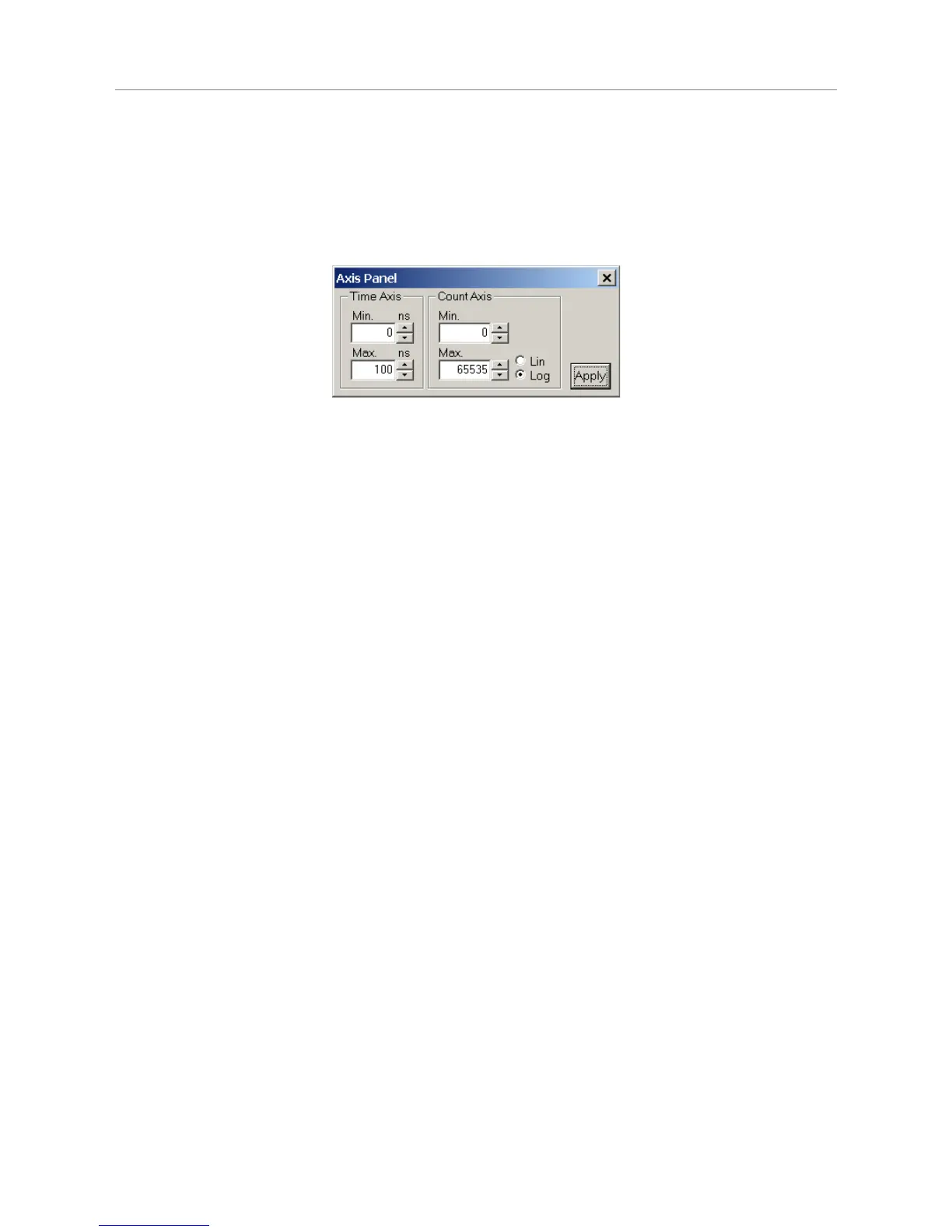
The axis settings panel is a dialog box for setting the axis range for the histogram display in the main window. It
is implemented as a ‘non–modal’ dialog box, i.e. it does not have to be closed before the main window can
continue. This way you can make changes in the axis panel and watch their effect in the main window
immediately. Nevertheless, you may close the axis panel and restore it at any time by clicking the axis panel
button on the toolbar or pressing <Alt>+A. The panel will also open if you double–click the axes in the main
window.
The axis panel consists of two groups containing edit boxes and other controls for related parameters. These
groups and their respective controls are:
Time Axis
Minimum edit box and spin control
Maximum edit box and spin control
Count Axis
Minimum edit box and spin control
Maximum edit box and spin control
Linear radio button
Logarithmic radio button
The edit boxes are for keyboard entry. The values must be confirmed with either the <Enter>–key or the
Apply–button. The spin controls can be used to increment or decrement the edit box values. In this case the
changes take effect immediately without need for <Enter> or Apply. Check boxes have their denoted effect
when the tick is shown. They can be toggled with a mouse click. Groups of radio buttons are like check boxes
but mutually exclusive. They work like on an old radio: one that was pressed pops out when another one is
pressed.
Note that the settings of the axis panel as well as the positions of the panel on the screen will be stored in the
Windows registry and retrieved during the next program start. The registry settings are kept separately per
user.
The individual axis panel items are discussed in the section 6.5. “Axis Panel“ in the Controls and Commands
Reference.
To begin, use logarithmic display to make sure even weak signals can be seen.
Page 23


 To Next Page