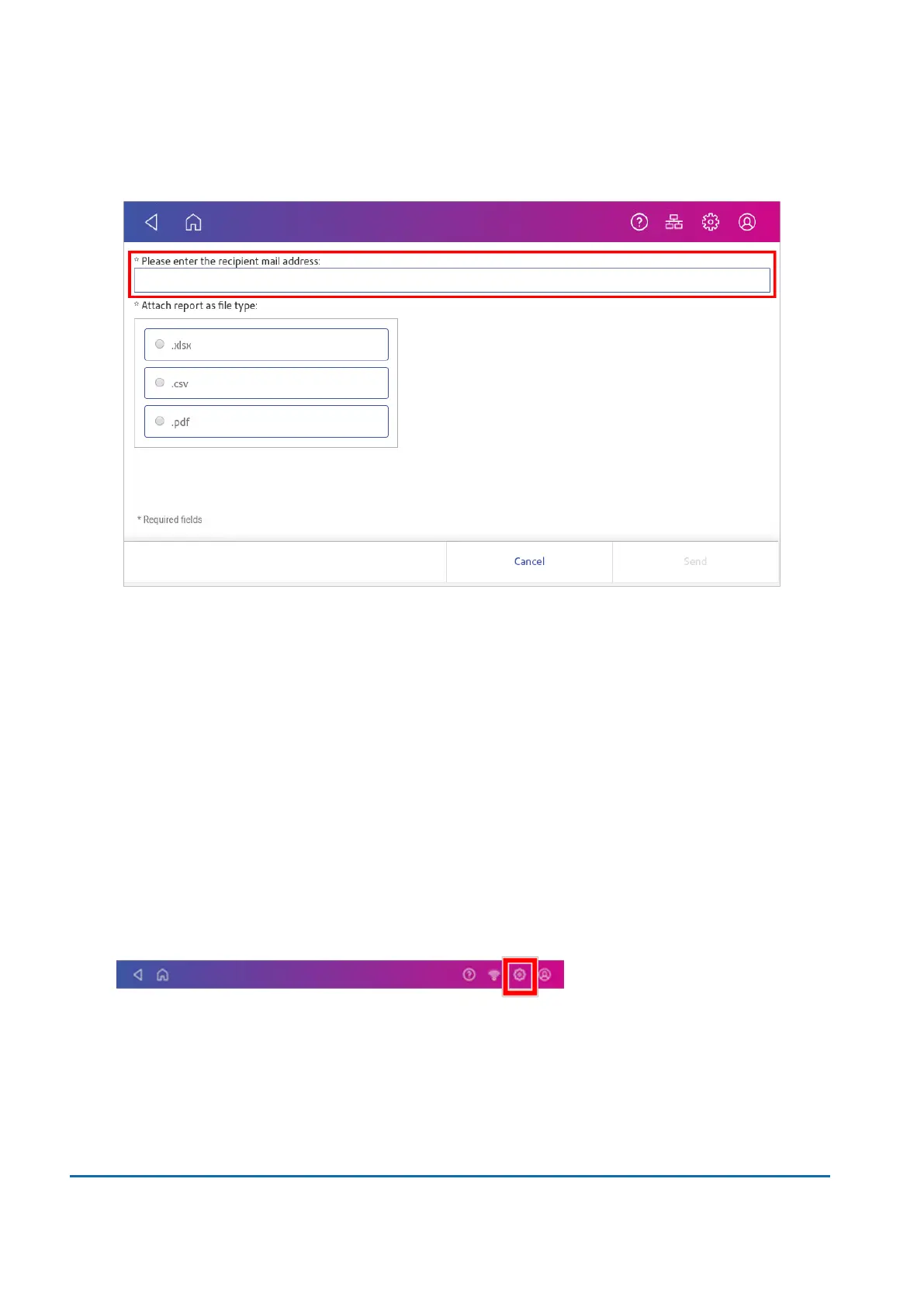
9. Tap in the Please enter the recipient mail address box and enter the recipient's email
address. The email address you enter will remain until you turn off then turn on the device.
10. Tap the file type you wish to send: xlsx (Excel), csv (comma-separated values), pdf (Portable
Data Format).
11. Tap Send. The report appears from no-reply@pb.com.
12. Tap OK when Email Sent appears.
13. Tap the back arrow to return to the Home screen or Cancel twice to return to the Manage
Accounts screen.
Turning off Auto Receipt prompts
You can stop your device offering you a receipt after you print each Special Delivery or Signed For
mailpiece.
1. Tap Settings from the Home screen.
2. Tap Tracking Services.
3. Tap Prompt me to print tracking receipts to toggle between On and Off.
4. Press Home to return to the Home screen.
9 • History and Reports
Pitney Bowes User Guide March 2023 109










 To Next Page