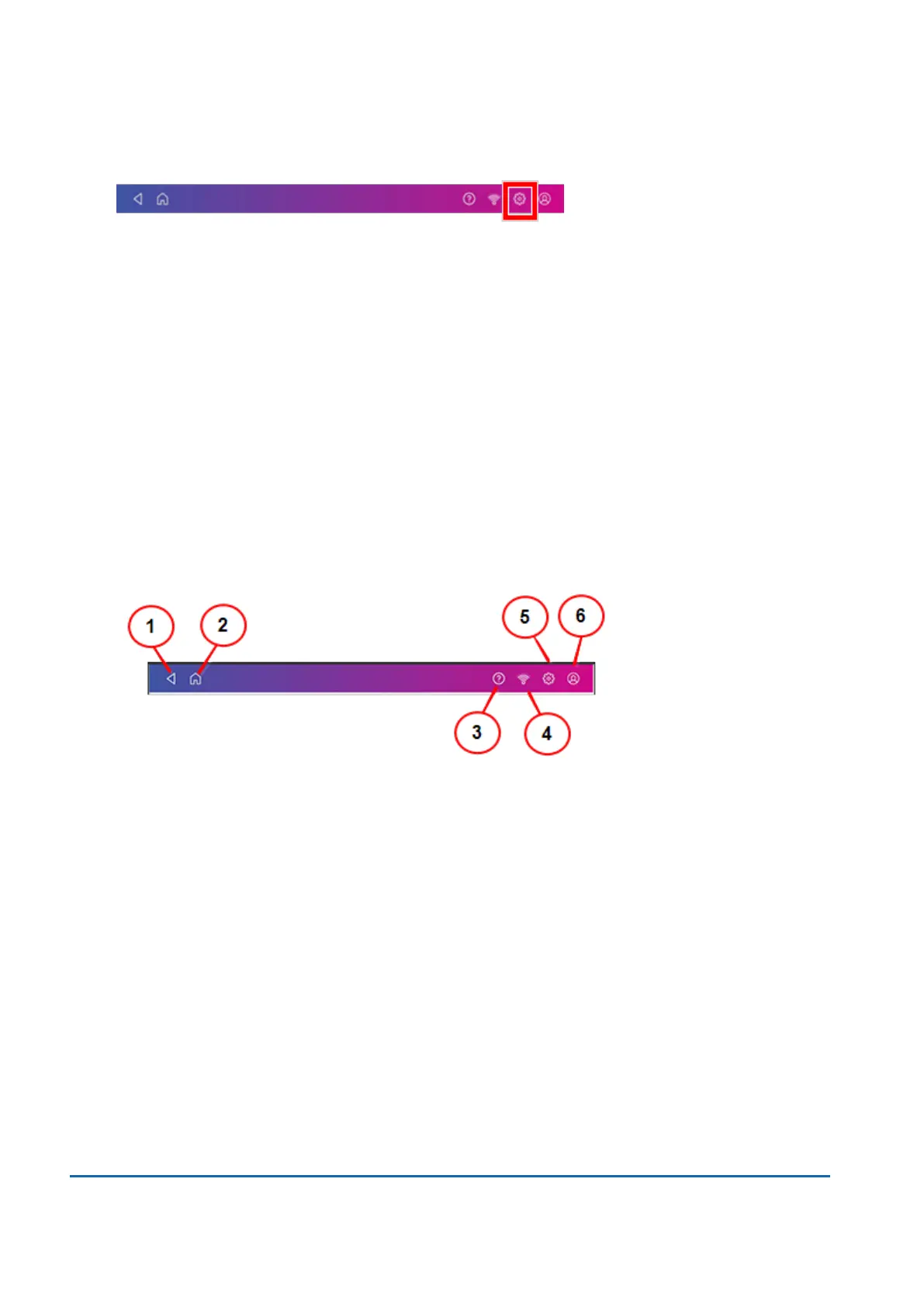
1. Tap Settings.
2. Tap Display Brightness in the Device & Network section of the screen.
3. Move the slider to adjust the brightness.
4. Tap the back arrow or Home to exit the Settings screen.
Using the Toolbar
The toolbar is located at the top of every screen.
Use the toolbar to:
l
View and change settings and default values for your device.
l
View online help.
l
View information for your network type and wireless signal strength.
1. Back - Return to the previous screen.
2. Home - Return to the Home screen from any screen.
3. Support - Search support content and get help on how to perform tasks.
4. Network - View the current network type (wireless or wired) status and strength (for wireless
connection). Allows you to turn wireless connection on or off. The icon here shows a wireless
connection.
5. Profile - Lock your device when you have enabled the security PIN.
6. Settings - View or change your device and app settings. This includes changing the screen
brightness, setting sound levels, and viewing wireless or wired connection information.
13 • Settings
Pitney Bowes User Guide March 2023 135










 To Next Page