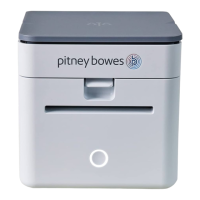
Connecting your PitneyShip Cube
1. When asked, "How do you want to connect your PitneyShip Cube?" select With wi-fi.
2. If you have previously connected your PitneyShip Cube to your phone, click Yes. If you have not
connected your PitneyShip Cube to your phone, click No. You must connect your PitneyShip
Cube to your phone before you can connect it wirelessly to your computer. To connect your
PitneyShip Cube to your phone:
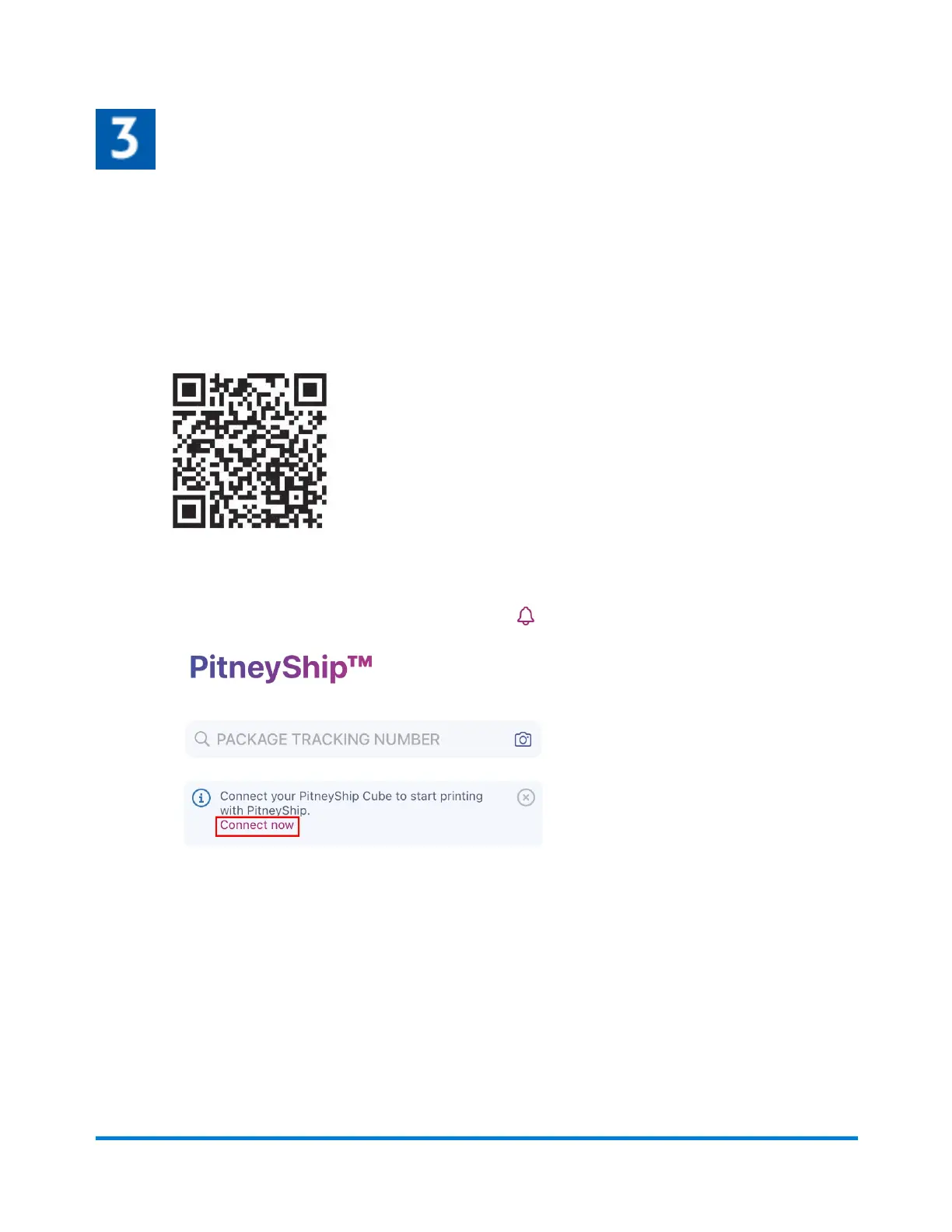
a. Download the PitneyShip mobile app. Scan the QR code below, or search for PitneyShip -
Ship and Track in your app store.
b. Log in using your PitneyShip account email and password.
c. On the home page, tap Connect now.
d. Tap Yes if your PitneyShip Cube has a slow blinking light. If your PitneyShip Cube has a fast
blinking light, or is showing a different LED color, tap No.
e. Review the app permissions and tap Next.
f. Tap Join to connect the PitneyShip mobile app to the PitneyShip Cube Wi-Fi network.
g. Select your Wi-Fi network and enter your Wi-Fi password. If you do not see a list of Wi-Fi
networks, tap Refresh list and select your Wi-Fi network.
h. Your PitneyShip Cube is now connected to your network. Tap Next.
i. Close the PitneyShip mobile app and return to your computer to continue the installation.
j. Click Next.
1 • Installation
Pitney Bowes User Guide June 2023 20







 To Next Page