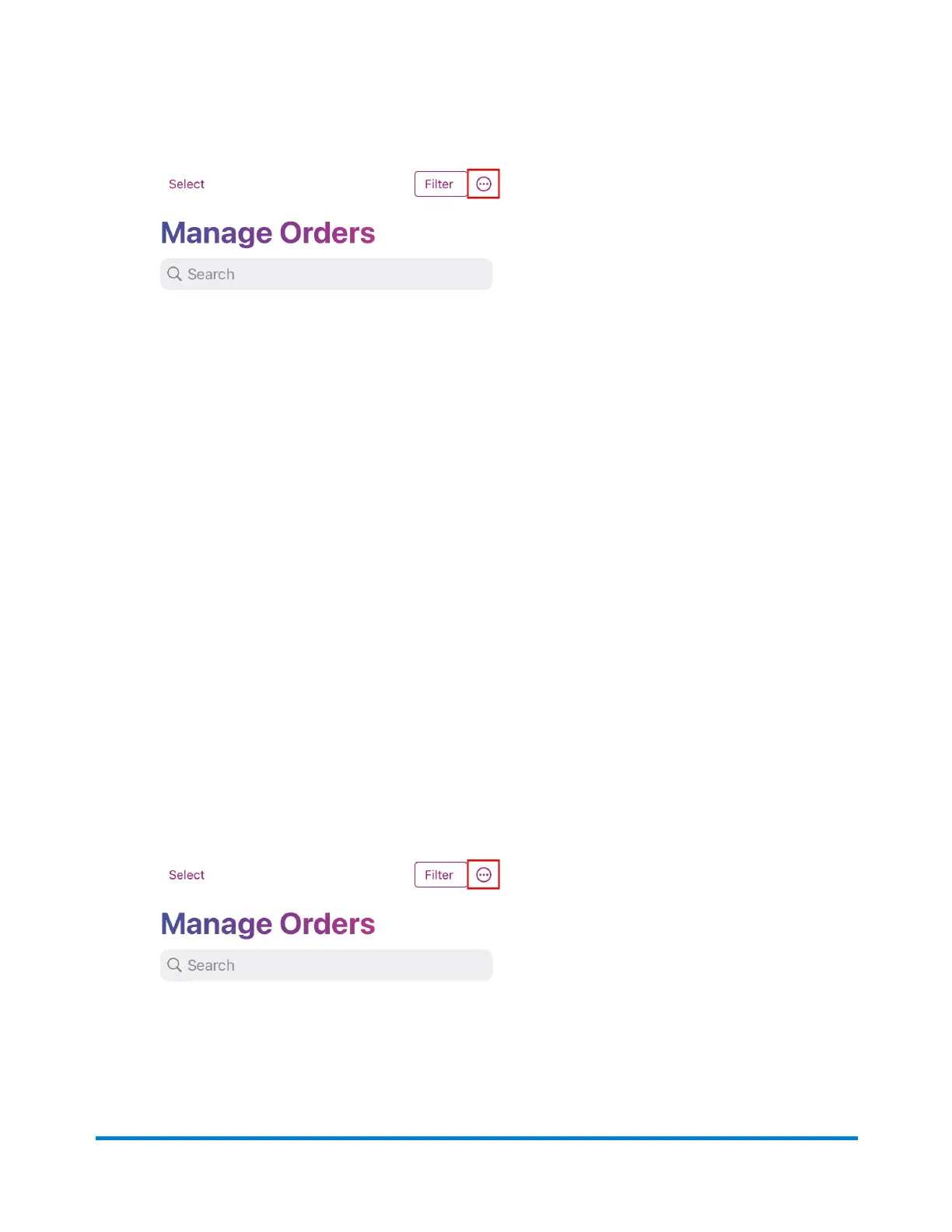
1. From the Home screen, tap Orders.
2. Tap the ellipses on the Manage Orders page.
3. Tap Add Store.
4. Tap the eBay icon from the list of stores.
5. Enter your email or username and tap Continue.
6. Enter your password and tap Sign-In.
7. The PitneyShip mobile app will connect to your store. Once the connection is complete, tap
Next.
8. (Optional) Select your default carrier settings and tap Done. Tap Skip This Step to exit and
complete your store's connection.
9. You will now be on the Manage Orders page. Swipe down to sync your orders.
Connecting your Shopify store to thePitneyShip
mobile app
Connecting your Shopify store to PitneyShip mobile app allows you to manage data between both
platforms.
1. From the Home screen, tap Orders.
2. Tap the ellipses on the Manage Orders page.
3. Tap Add Store.
4. Tap the Shopify icon from the list of stores.
Pitney Bowes User Guide June 2023 96
9 • PitneyShip mobile app








 To Next Page