Performing a test print
1. Click Print to perform a test print.
2. Tap No if the test print was unsuccessful. Then, tap Print Again. If the second test print was
unsuccessful, please contact us using the contact options.
3. Tap Yes if your test print was successful.
4. Tap Get Started. PitneyShip will now set up your experience. This could take a few minutes to
complete.
Your PitneyShip Cube setup is now complete.
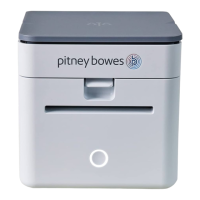
Installing PitneyShip Cube on a Mac using a wireless
connection (existing user)
These instructions will guide you through a first-time installation of your PitneyShip Cube on a Mac
device as an existing PitneyShip user. These instructions are for users wanting to connect their
PitneyShip Cube using a Wi-Fi connection. Before you begin your installation, you will need your
mobile device to establish a Wi-Fi connection. .
1. Opening the box and unpacking
2. Logging in to your PitneyShip account
3. Connecting your PitneyShip Cube
4. Performing a test print
1 • Installation
Pitney Bowes User Guide June 2023 52







 To Next Page