Tracking a Shipment in the PitneyShip mobile app
You can use PitneyShip mobile app to track shipments that you have created in PitneyShip, as well as
any package for which you have a tracking number.
To track a shipment that was sent through PitneyShip:
1. If the shipment you wish to track is listed under History on the Home screen, tap on it there.
Tip: Swipe down on the History tab to refresh the list.
2. If the shipment you wish to track is not listed under History, tap More > History, then tap on the
package you wish to track.
To track a package for which you have a tracking number:
1. On the Home screen, enter the tracking number in the Package Tracking Number field.
2. To speak the tracking number instead of typing it, tap the microphone icon in the Package
Tracking Number field and say the tracking number.
3. Tap the search button on the phone's keyboard.
4. If you have a barcode, tap the camera icon in the Package Tracking Number field and point
the phone's camera at the barcode. The tracking details automatically appear.
Connecting your Amazon store to the PitneyShip
mobile app
Connecting your Amazon store to the PitneyShip mobile app allows you to manage data between both
platforms.
To add your Amazon store to the PitneyShip mobile app:
1. From the Home screen, tap Orders.
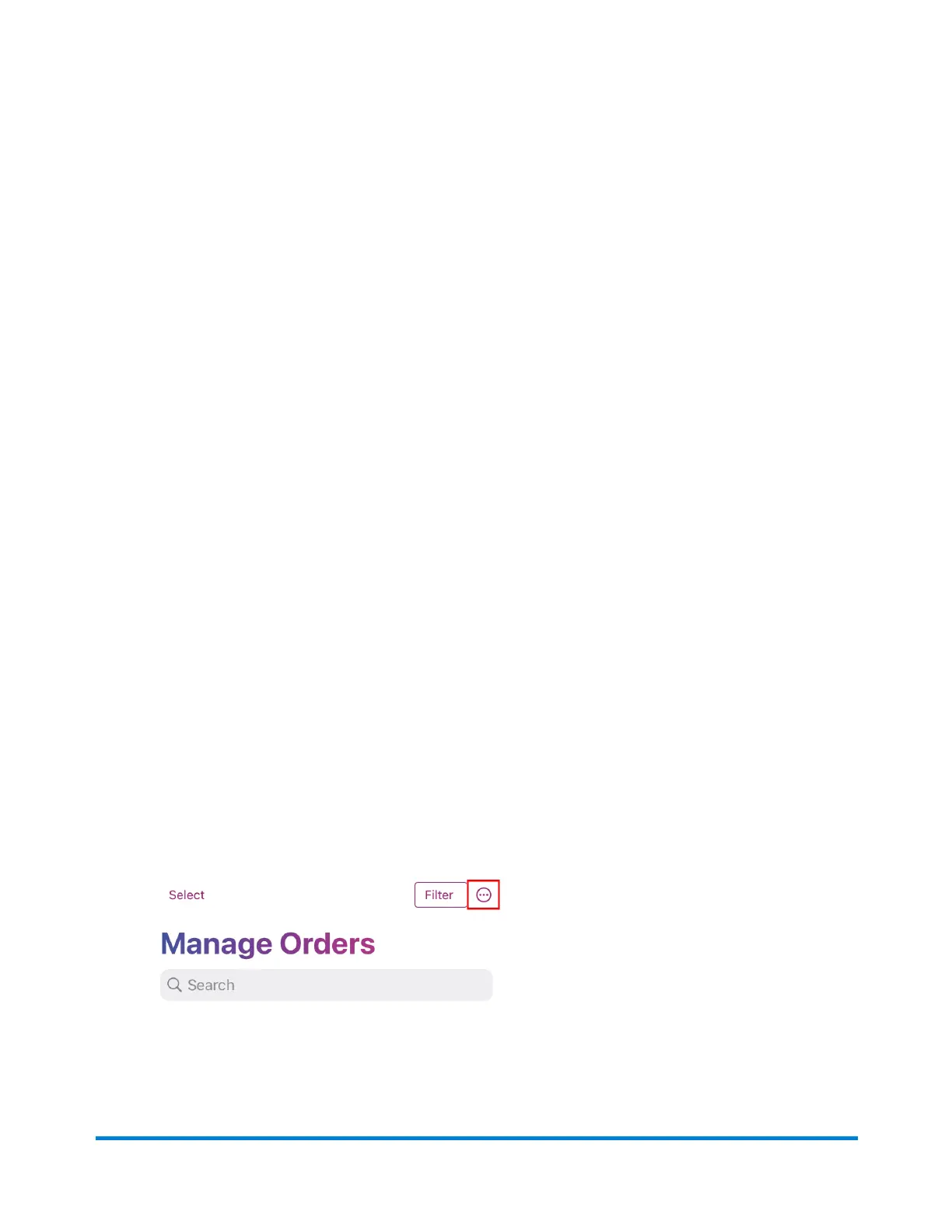
2. Tap the ellipses on the Manage Orders page.
3. Tap Add Store.
Pitney Bowes User Guide June 2023 94
9 • PitneyShip mobile app







 To Next Page