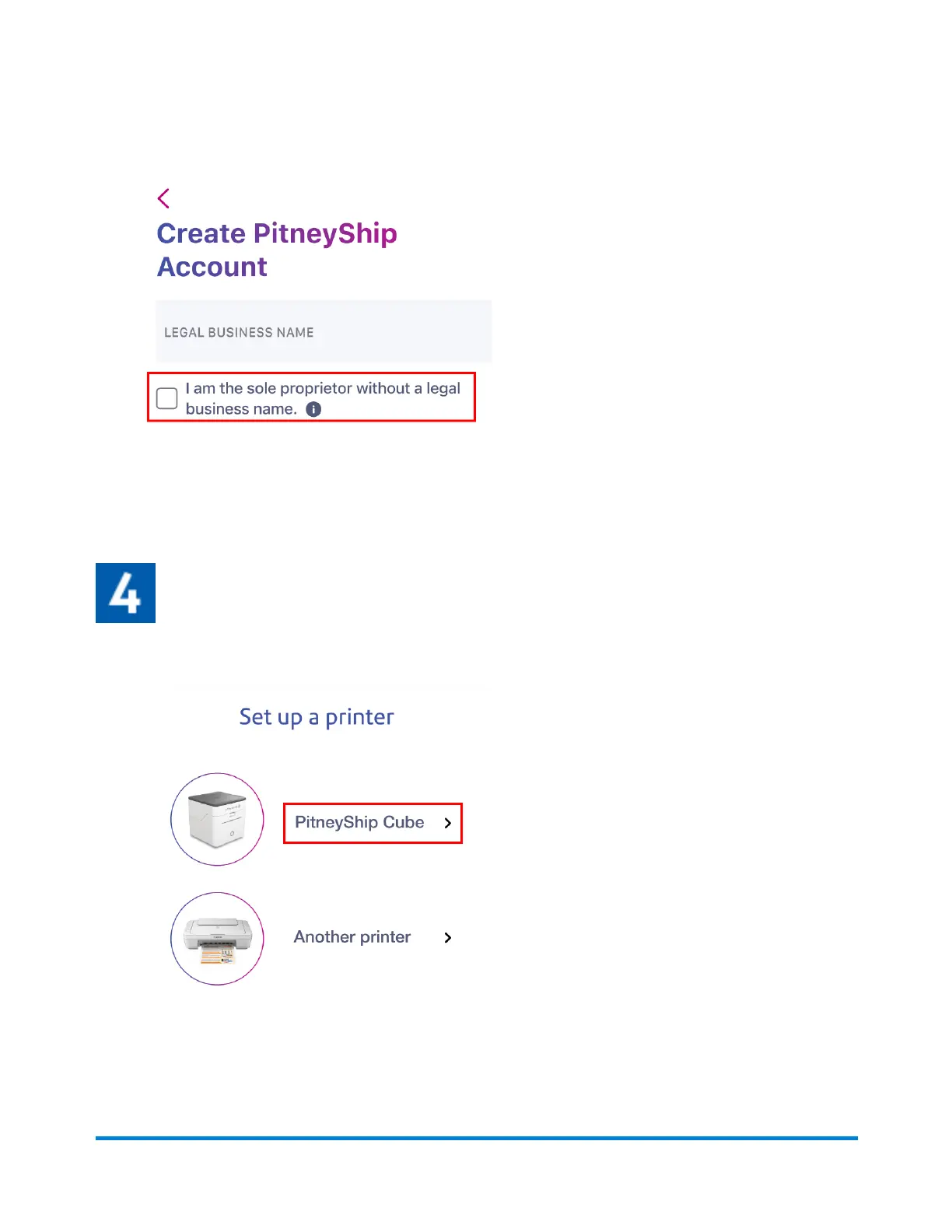
4. Fill in your account details, then tap Next.
5. Fill in your Legal Business Name. If you do not have a legal business name, tap the I am the
sole proprietor without a legal business name check box.
6. Fill in your business address fields.
7. Tap Create Account.
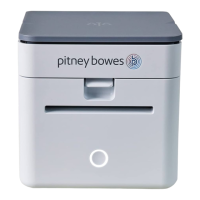
8. Your PitneyShip account creation is complete. Tap Next to set up your PitneyShip Cube.
Connecting your PitneyShip Cube
1. On the Set up a printer screen, tap PitneyShip Cube.
2. Tap Next.
3. Select your Wi-Fi network from the list of available networks, then tap Next. If you do not see a
list of Wi-Fi networks, tap Refresh list and select your Wi-Fi network.
Pitney Bowes User Guide June 2023 61
1 • Installation







 To Next Page