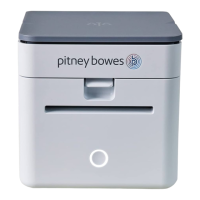
8. When asked, "How is this printer going to be attached?" you must select USB. Follow the
instructions to connect the PitneyShip Cube USB cord to the computer. Then power on the
PitneyShip Cube.
9. Once the PitneyShip Cube is powered on, click Next to install the Plug and Play printer.
10. Click Next.
11. Then click Finish. The files will then install.
12. Click Close when the Wizard is complete.
13. Ensure that you have installed DeviceHub on the new computer. See Installing DeviceHub for
PitneyShip and PitneyShip Cube.
Mac
1. Log in to PitneyShip or PitneyShip Pro on the additional computer.
2. Select Support & Cases and download the PitneyShip Cube driver.
3. When the install window opens, click Continue.
4. Click Install.
5. If prompted, enter your Mac password and select Install Software. The software will then
download. This download could take a few minutes.
6. Once successfully installed, select Close.
7. Connect the PitneyShip Cube USB cable to your Mac computer.
8. Connect the PitneyShip Cube power cord.
Pitney Bowes User Guide June 2023 75
3 • Downloads and Drivers







 To Next Page