88
Photo Viewer
You can view a photo file through the Photo Viewer.
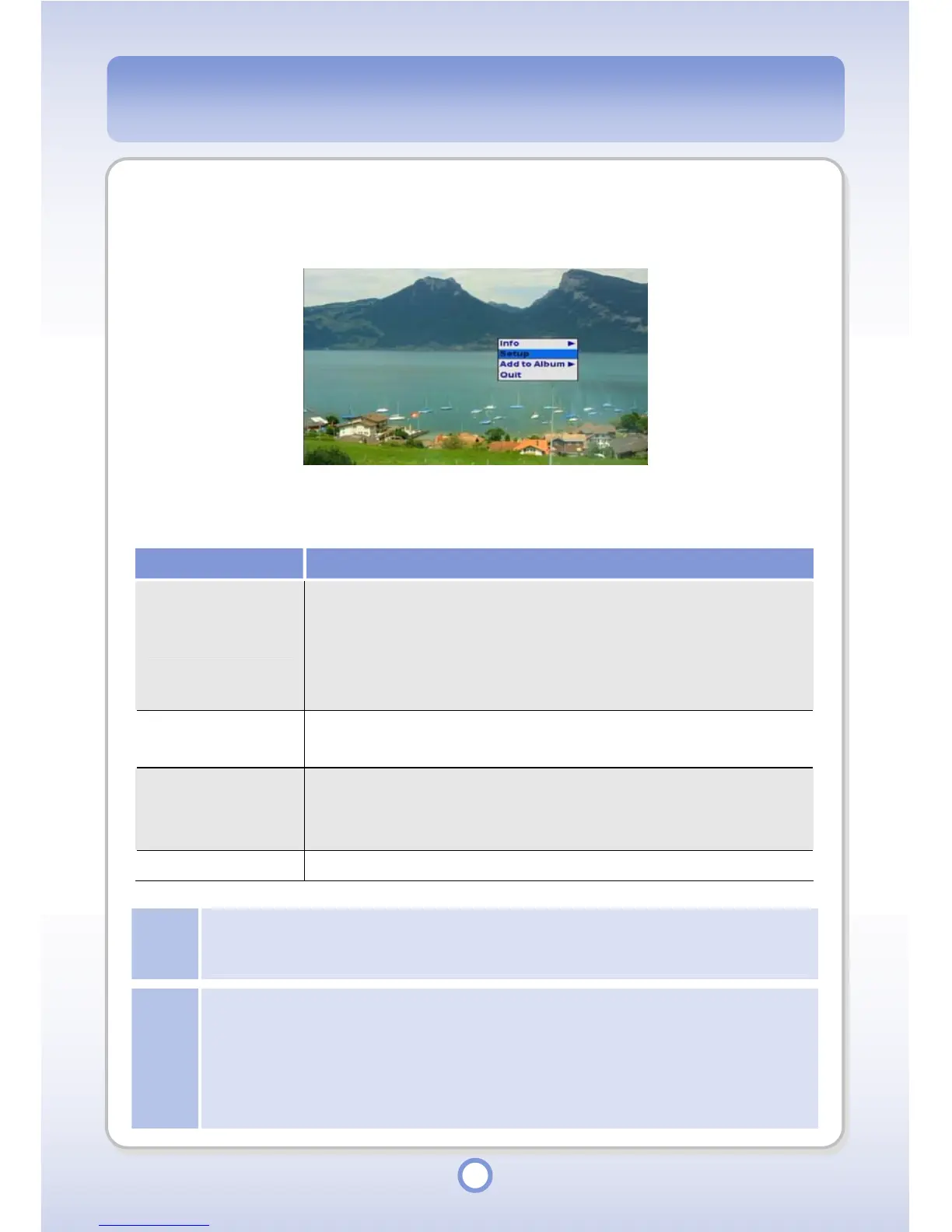
When you press the <MENU> button in the Photo Viewer, a pop-up menu providing the
following functions appears
Item Description
Info
You can view information about photo files.
●
Exif: Select to view detailed information about photo files, such as
size, date created, manufacturer, model, exposure time, etc.
●
Histogram-Y: Select to view a luminance distribution graph.
●
Histogram-RGB: Select to view a color distribution graph.
Setup
You can set up the photo settings. For more detailed information,
refer to “Photo Setup” on page 107.
Add to Album
You can add a photo file to an album.
●
Default Album: Select to add to the default album.
●
Select Album: Select to select an album and add to the album.
Quit You can exit the Photo Viewer.
Note
Adding a photo file to an album
To add a photo file to an album, the album and photo file must be in the same storage device.
Otherwise, you cannot add a photo file to the album.
Note
Photo Order and Zoom-in/Zoom-out Ratio Display
In the Zoom (Zoom-in/Zoom out) screen, the order and zoom in/zoom out ratio are
displayed as follows.
Example) (2/50) Normal 25(%): The photo file is the second out of 50 photo files in the folder.
The current screen size is Normal and the size of the currently displayed image is 25% of its
original.


 To Next Page