GETTING STARTED 2Owner’s Manual
13
Overview Getting
Started
Controls and
Connections
Cascading
Units
Technical
Information
Studio One Artist 2.2
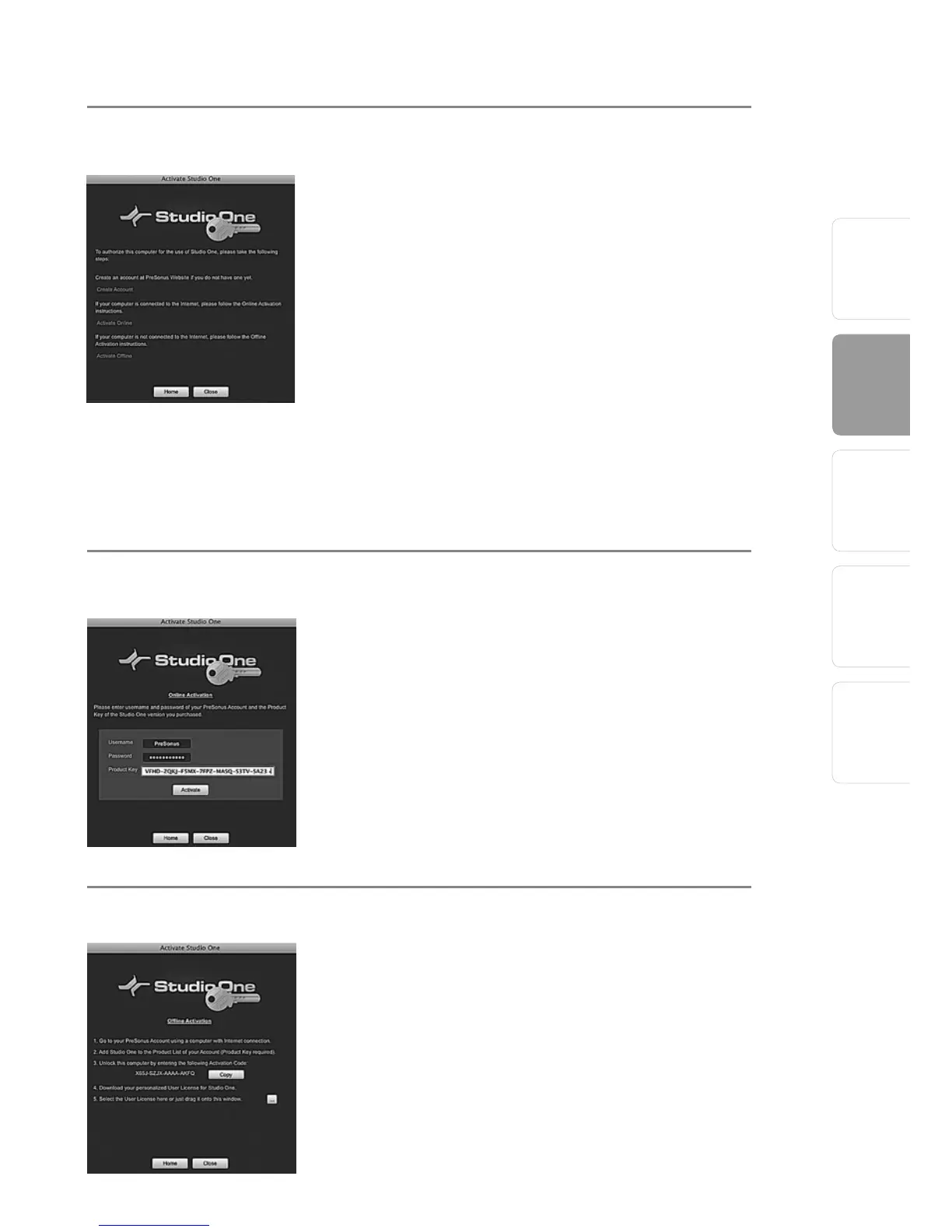
Create a User Account
After installing Studio One Artist, launch the
program, and the Activate Studio One menu will
appear. If you are a new Studio One user, you will
need to create a user account. Follow the Create
Account link if your computer is connected to the
Internet. Once you have created your account,
continue to Activating Studio One Artist Online.
If your computer is not connected to the Internet,
visit the Studio One product page at www.
presonus.com on an Internet-connected computer
to create your account. After you have created
your account, skip to Activating Studio One Artist
Offline.
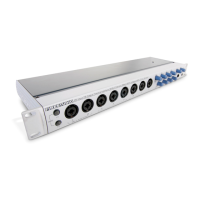
Activating Studio One Artist Online
Now that you have created a user account, you can
activate your copy of Studio One Artist. Launch
Studio One Artist, and the Activate Studio One
menu will appear.
Click on the Activate Online link and enter your
previously created account Username, Password,
and the Product Key you received with the Studio
One Artist installation disc. Click on the Activate
button to finish the activation process.
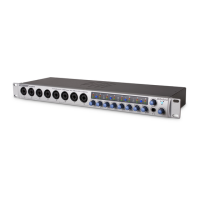
Activating Studio One Artist Offline
Once you have created a user account, launch
Studio One Artist. From the Activate Studio One
Menu, click on the Activate Offline link. Follow the
instructions to log in to your previously created
user account, register the product, and obtain a
license file.




 To Next Page