Overview Getting
Started
Controls and
Connections
Cascading
Units
Technical
Information
2 GETTING STARTED PreSonus
™
FireStudio
™
Mobile
28
Overview Getting
Started
Controls and
Connections
Cascading
Units
Technical
Information
2.2 Studio One Artist
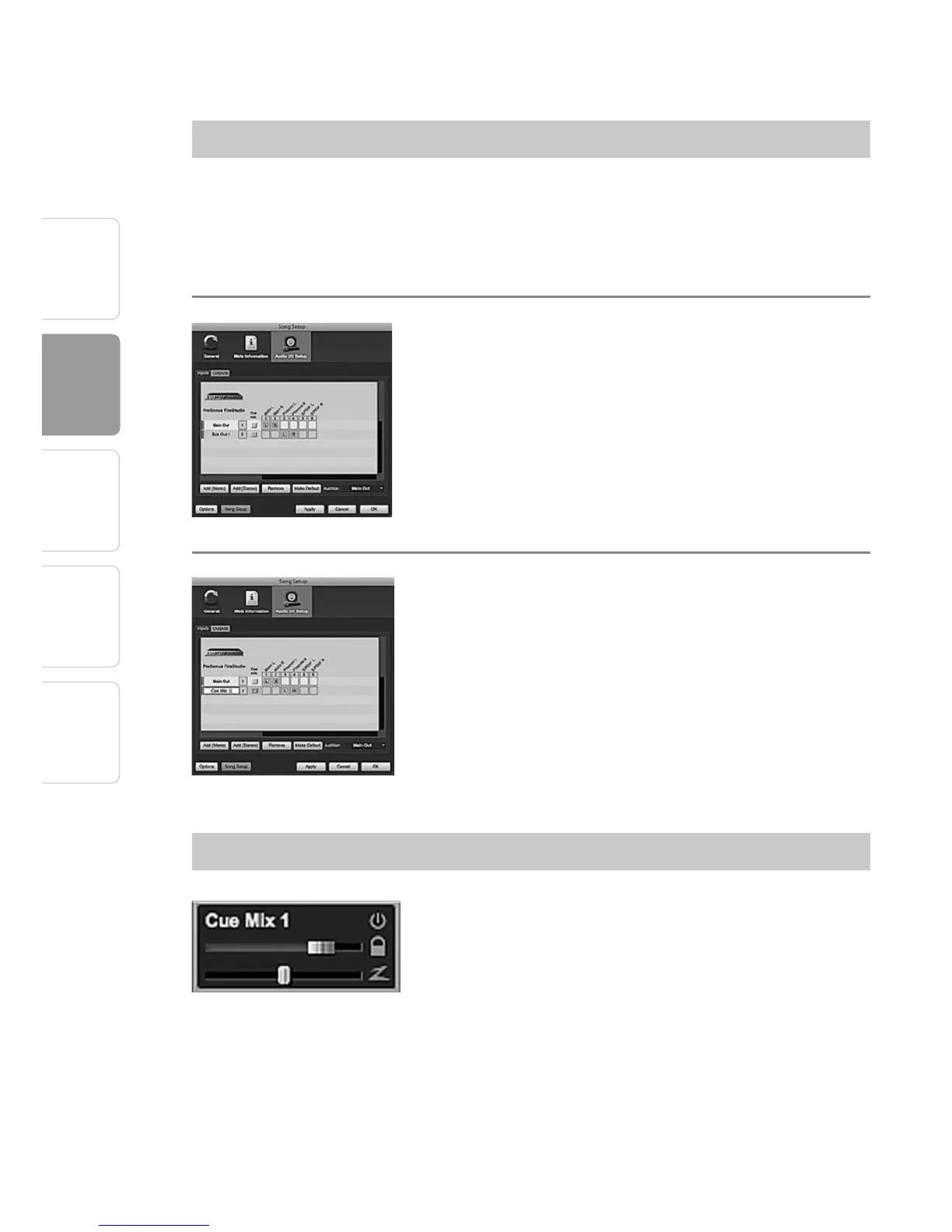
Creating a Cue Mix
1 You can create a Cue Mix and send it to any output
on your FireStudio Mobile. You simply need to create
an output bus and enable Cue Mix. To begin, create
a new Song, open the Song|Song Setup.
2 Click on the Audio I/O Setup icon, switch to the Out-
puts tab, and add a new Stereo Output channel.
3 Specify that this output is a cue-mix output by
clicking on the channel’s Cue Mix checkbox. You can
create a cue mix for any or all of your FireStudio Mo-
bile’s available stereo outputs (Mains, Headphones,
and S/PDIF). You can customize each Cue Mix name
by double-clicking on the default name.
When you are finished, click “Apply” and then “OK” to
exit.
The Cue Mix Object
Once you have created a Cue Mix output, you will
notice a special Send object in the channels of the
Console. This Send object is called a Cue Mix object.
In the Small Console view, Cue Mix objects appear in
the far left column of the extended channel. In the
Large Console view, Cue Mix objects appear below
the Send device rack on each channel.




 To Next Page