GETTING STARTED 2Owner’s Manual
29
Overview Getting
Started
Controls and
Connections
Cascading
Units
Technical
Information
Studio One Artist 2.2
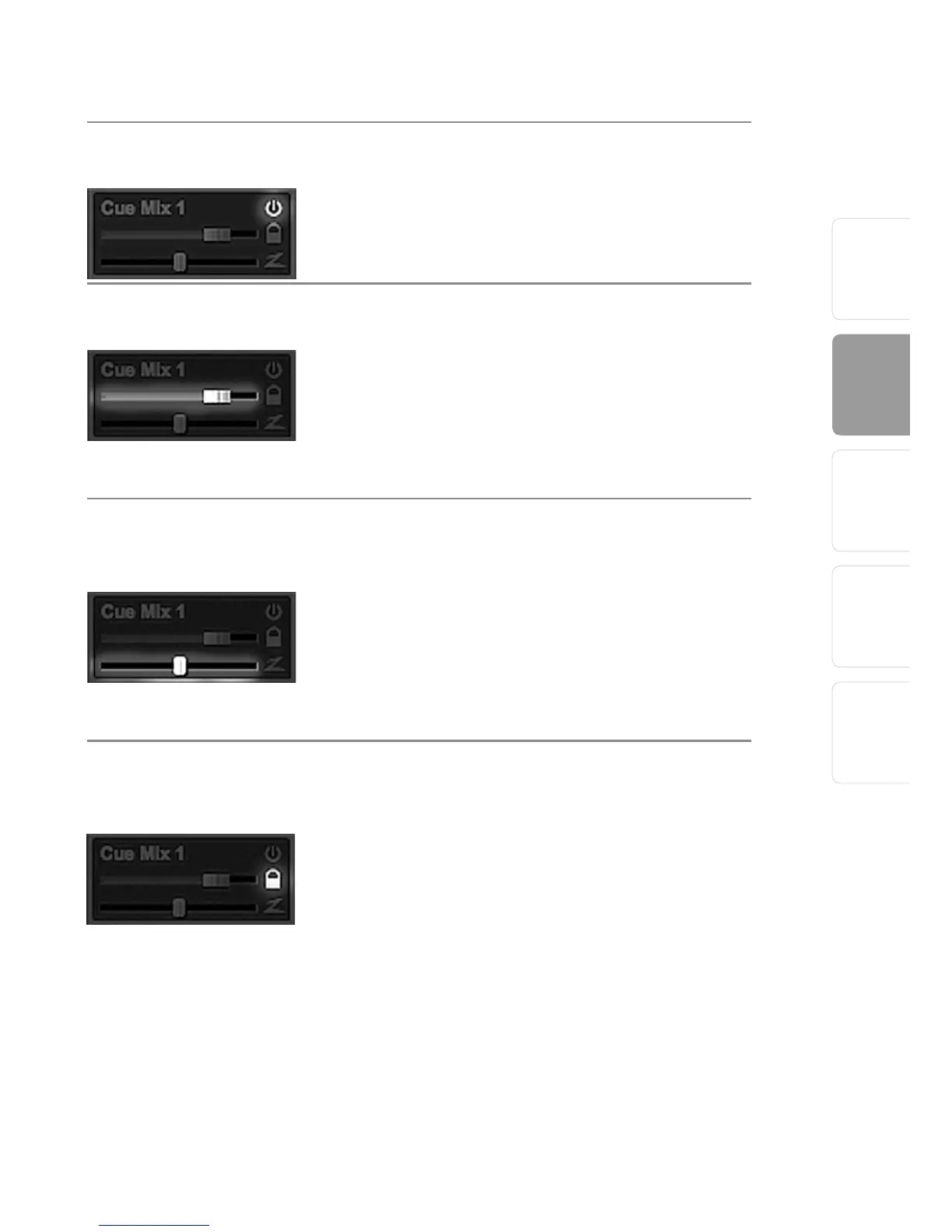
Activate Button Sends a Channel to the Cue Mix
To completely remove any channel from a cue
mix, simply deactivate the Cue Mix object for that
channel.
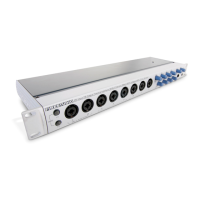
Horizontal Level Fader Sets the Volume of the Channel for the Cue Mix
By default this level will be identical to the level set
on the channel’s fader. Once you move the Cue Mix
level fader, the volume of that channel in the Cue
Mix will be independent of the main mix or any
other Cue Mix in the session.
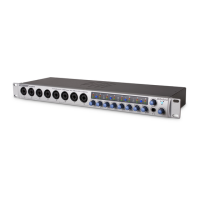
Horizontal Pan Fader Sets the Pan Position of the Channel
for the Cue Mix
By default, the pan position will be identical to the
position set in the main mix. Once you change the
pan position in the Cue Mix, the panning for that
channel will be independent of the main mix or
any other Cue Mix in the session.
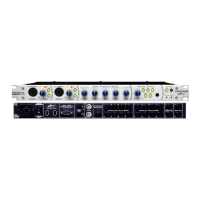
Lock to Channel Button Locks the Volume and Panning in the Cue Mix
Object to the Levels Set in the Main Mix
By default, the Lock to Channel button is enabled,
and level and pan values are locked to the Channel
level and pan faders. This means that each cue mix
will be identical to the main mix in the Console.
Changing the level or panning in the main mix
will change the level or panning in the cue mix.
However, changing the level or panning in the
Cue Mix object will unlock both settings, allowing
independent control of level and panning for
each channel in each cue mix. Thus, the level
and panning for channels in a cue mix can be
completely different from the related level and pan




 To Next Page