Overview Getting
Started
Controls and
Connections
Cascading
Units
Technical
Information
2 GETTING STARTED PreSonus
™
FireStudio
™
Mobile
30
Overview Getting
Started
Controls and
Connections
Cascading
Units
Technical
Information
2.3 Sample Hookup Diagrams
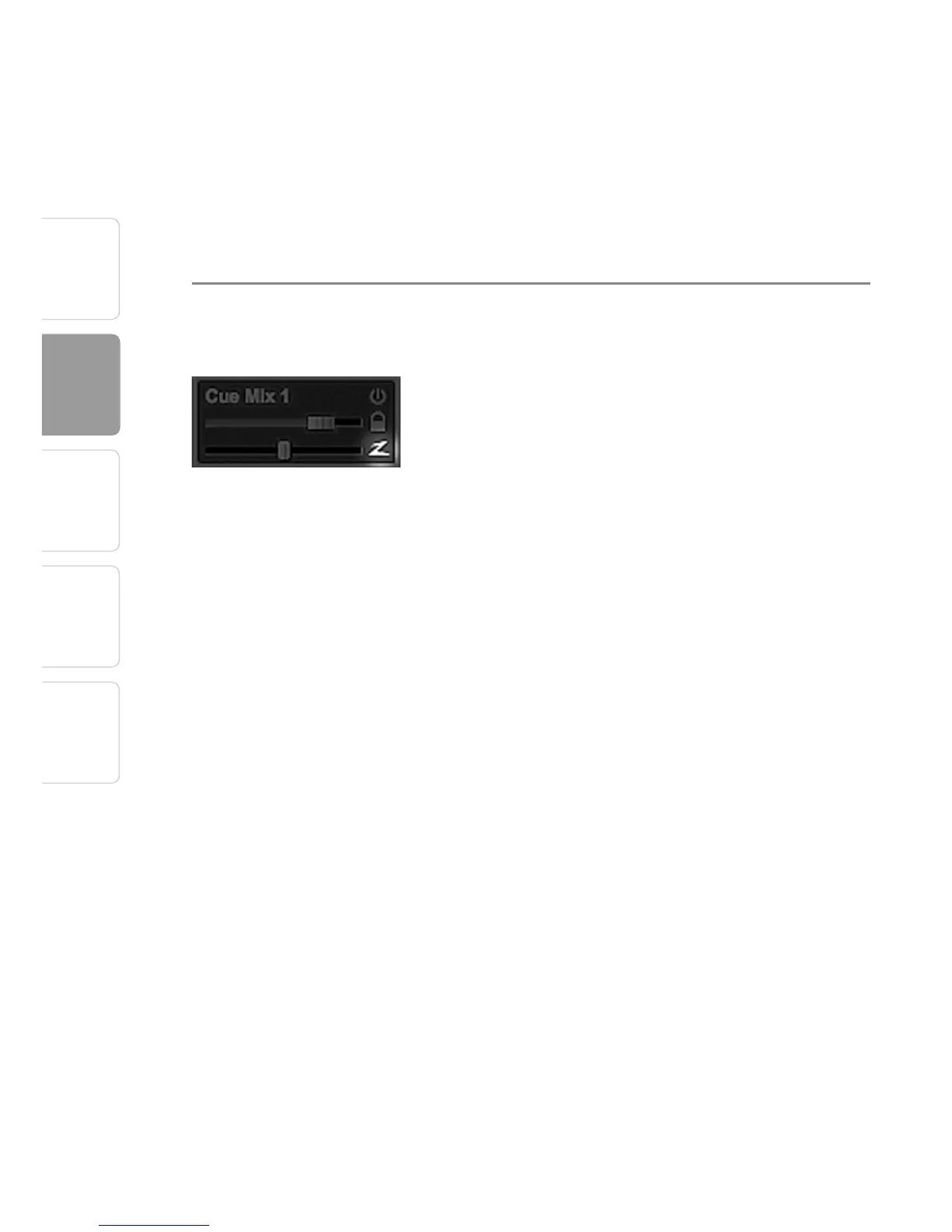
in the main mix. At any time, you can lock the cue-
mix level and pan back to the channel settings by
clicking on the Lock to Channel button.
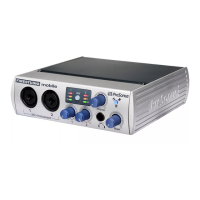
Zero-Latency Switch Enables Zero-Latency Monitoring for
FireStudio Mobile Inputs
Cue mixes are normally used in a recording
situation in which one or more live inputs need
to be monitored. FireStudio interfaces feature
internal hardware mixers that provide zero-latency
monitoring via the device window in the Universal
Control. While these mixers are easy to use, Studio
One makes it even easier by allowing you to control
the mixers from within the software. Using this
feature only involves clicking just this one button.
You will notice that when Studio One Artist launches,
the Device button on your Universal Control Launch
window reads “Studio One has control.” Any routing
that you would normally do in your Device window,
you can do in Studio One via the cue mix. For more




 To Next Page