29
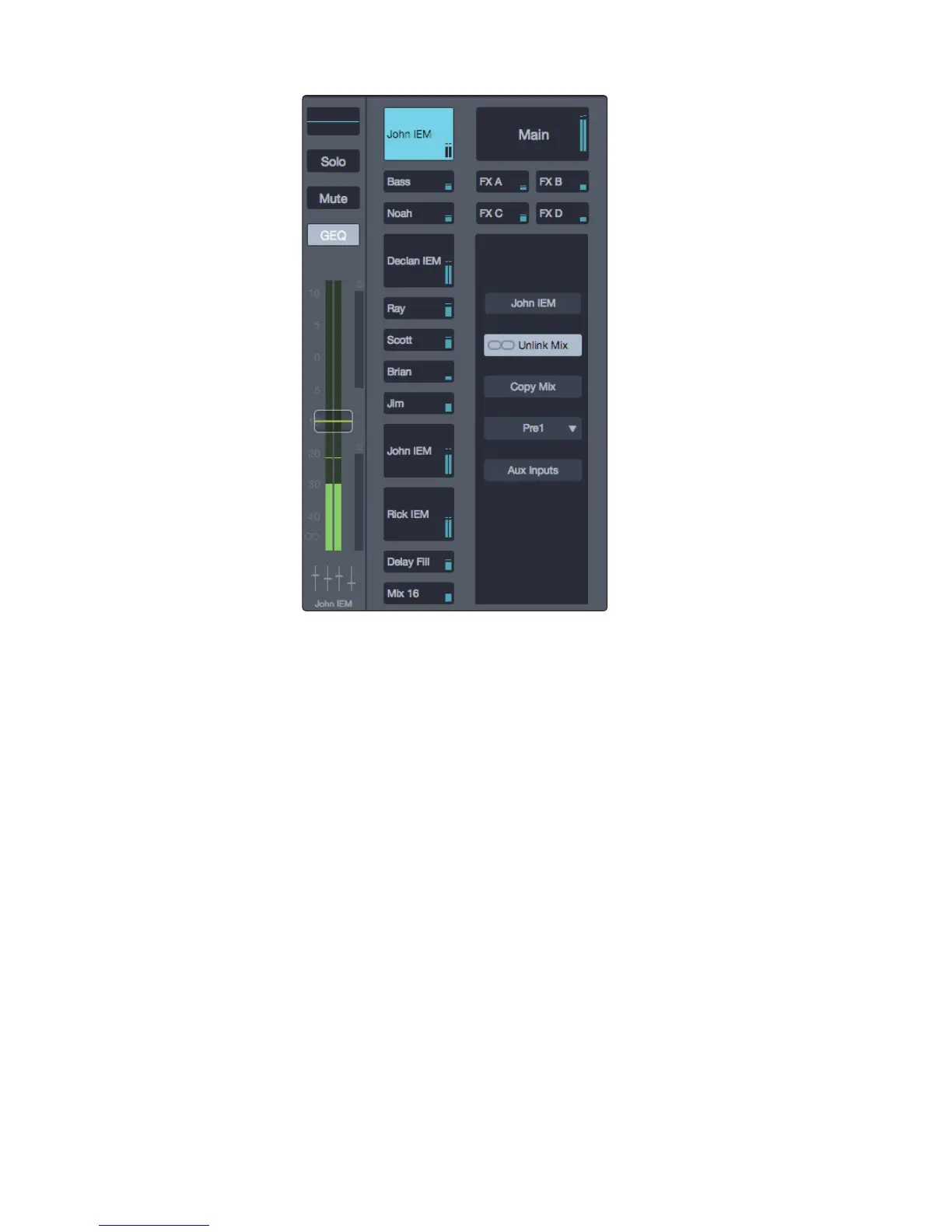
Mix Selection Area. This is where you select the mix that’s currently being
controlled by the channel faders. This is also where you’ll find the Mix Settings
area, which provides contextual information about the selected mix.
Mix Selection Buttons. These buttons select one of the 16 Aux Mix
buses and display the master send-level meter for the associated mix.
Main Mix Select Button. This is used for selecting the Main Mix bus.
FX Mix Select Buttons. These buttons open their
corresponding FX Bus (A, B, C, or D).
Mix Settings. The Mix Settings view offers the following settings
and functions for configuring the selected Mix bus.
Mix Name. Displays the name of the selected Mix bus. You can
change the name by clicking this area and typing the new one.
Stereo Link. This button is used for linking two adjacent
Mix buses, which creates a new stereo Mix bus.
Copy/Paste. This is for copying and pasting the
current Mix bus settings to other Mix buses.
To do this:
1. Click the Copy button on the selected Mix bus. This enters Paste mode.
2. Click the Mix Selection button for the Mix bus you’re going to paste
the settings into. See Mix Selection Buttons for more information.
3. Click the Paste button to paste to the selected mixes.
Mix Position. This drop-down menu lets you select one of the following
three signal routing options for the aux mixes: Pre 1 (pre-Fat Channel),
Pre 2 (post-Fat Channel and pre-fader), and Post (post-fader).










 To Next Page