43
Paste. Pastes the copied settings to the currently selected channel.
A/B Button. This button is used for switching between, or comparing,
two different Fat Channel settings. When you first switch from A to B, the
B version will have the same settings as A. Once you have changed the
settings, you can switch between the two different Fat Channel settings.
Close Button. Closes the Preset Editor.
Category Icon. This filters the preset list based on the Channel Type categories.
The list will automatically filter based on the selected Channel Type. You
can also manually change the category to view a different type, or to view
all presets, by selecting the icon and choosing a new option from the list.
Add Preset +. Saves the current settings to the selected preset slot.
EQ Micro View. Switches the Load Filter for the EQ on and off, which
determines whether or not the current EQ setting will be overwritten.
Gate Micro View. Switches the Load Filter for the noise gate on and off, which
determines whether or not the current gate setting will be overwritten.
Compressor Micro View. Switched the Load Filter for the
compressor on and off, which determines whether or not
the current compressor setting will be overwritten.
Load Button. This button loads a preset that
you’ve chosen from the Preset List.
Audition Button. This lets you audition (try out) a preset before
loading it and overwriting the current settings. While in Audition mode,
selecting a preset will immediately change the Fat Channel settings
to reflect the preset. If you like what you hear, press Load to write the
preset to the channel. If you want to change a setting, simply change
it in the Fat Channel and then press Load to load the preset with your
changes. If you don’t like what you hear, press Audition again to exit
Audition mode and return to your previous Fat Channel settings.
Reset. This resets the select Fat Channel to the factory default settings.
Preset List. Displays the list of available presets.
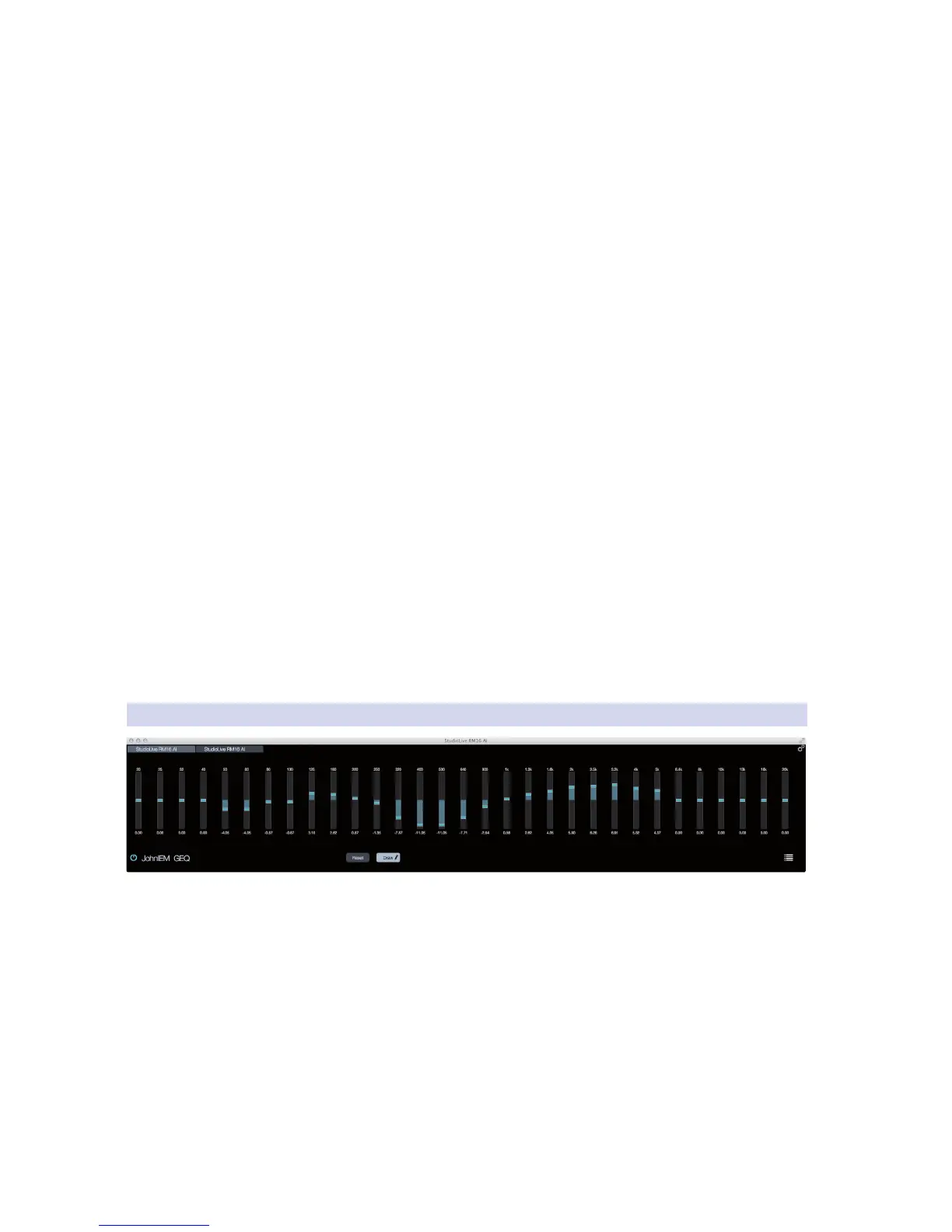
5.7.8 Graphic EQ
UC Surface offers graphic EQs for the first 12 mix buses, the
Main Left/Right bus, and the Mono output bus.
To open a graphic EQ (GEQ), click or tap the GEQ button
in the Flex Fader for the selected Mix bus.
Note: the Main L/R and Mono GEQs are both located in the same GEQ view. A button for
Main and Mono switches between the GEQs for the Main L/R and Main Mono buses.
On/Off Button. This turns the GEQ on and off for the selected channel.
Name. This displays the Channel Name for the GEQ.
31 Bands. Each instance of the GEQ offers 31 bands, ranging from 20
Hz to 20 kHz that are boosted or cut using a slider for each band.










 To Next Page