44
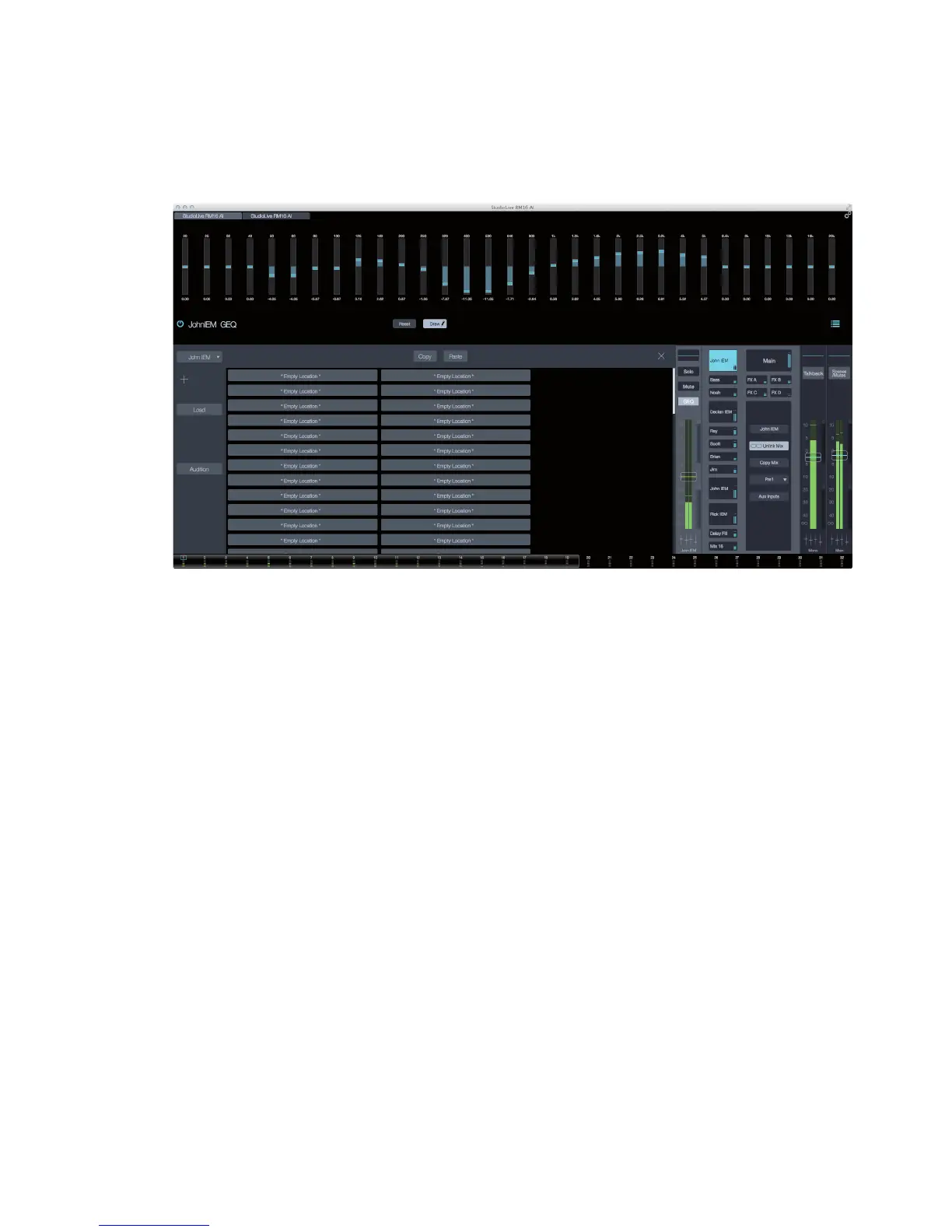
Gain Value. Each slider has its own Gain Value display located
immediately below, which displays the current value in decibels (dB).
Reset. This flattens the EQ curve by resetting all the sliders to 0 dB.
Draw. This switches the graphic EQ to Draw mode, which lets
you draw an EQ curve using your mouse, or finger.
Preset List/Editor Button. This button lets you access the
list of graphic EQ presets, as well as the features listed below
for loading, saving, auditioning, and copying them.
For more information about how these tasks are performed,
refer to refer to Working With Presets in section 5.8.
Mix Selection. Displays the currently selected mix. Click or touch
this area for a list of mixes that you can select and “jump” to.
Copy. Copies the current settings.
Paste. Pastes the copied settings to a selected channel.
Close Button. Closes the Preset Editor.
Add Preset +. Saves the current settings to the selected preset slot.
Load Button. This button loads a preset that
you’ve chosen from the Preset List.
Audition Button. This lets you audition (try out) an existing preset before
loading it and overwriting the current settings. While in Audition mode,
selecting a preset will immediately change the GEQ settings to reflect the
preset. If you like what you hear, press Load to write the preset to the channel.
If you want to change a setting, simply change it in the GEQ and then press
Load to load the preset with your changes. If you don’t like what you hear, press
Audition again to exit Audition mode and return to your previous GEQ settings.
Preset List. This displays the current or active preset
and provides a list of other available presets.










 To Next Page