49
5.10 Mute Groups
A Mute Group mutes and unmutes multiple channels
and buses with the press of a single button.
With the eight Mute Groups in UC Surface, you could, for example, assign the drum
mics to Mute Group 1, the instrumentalists to Mute Group 2, the background vocalists
to Mute Group 3, all the aux buses to Mute Group 4, and FX buses to Mute Group 5.
Then you can mute all of the drum mics with one button. When the lead
singer is introducing the band, you can mute all effects assigned to his vocal.
If the band goes on break, you can mute all channels at once. And when
it’s time to break down the stage and start unplugging things, you can just
lower the main fader and mute all stage monitors with one button.
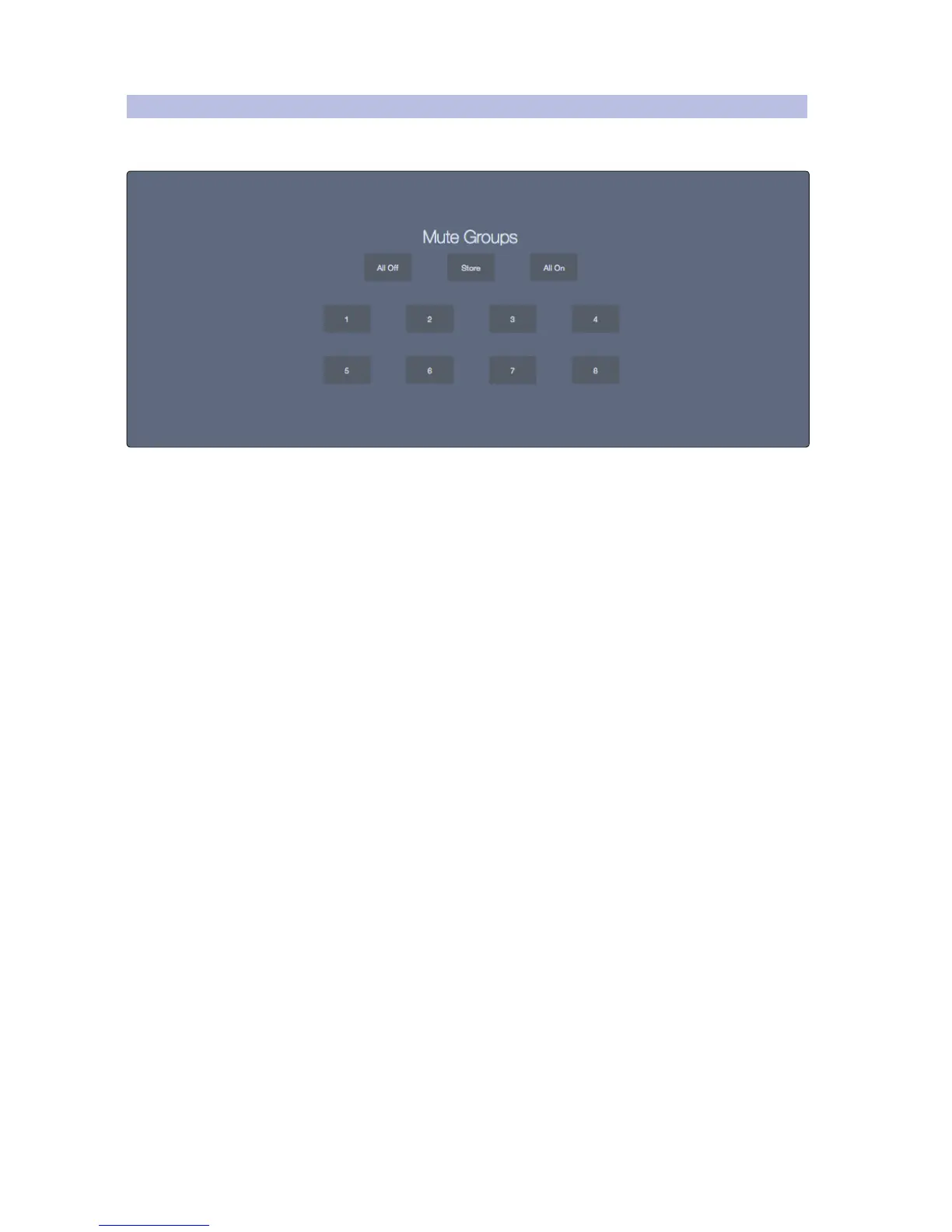
Mute Group Functions. The Mute Group window includes the following
functions for creating storing and recalling Mute Groups:
All Off Button. This button turns off all Mute Groups,
and all muted channels become “unmuted.”
Store Button. This button allows you to store the
current mute selections as a Mute Group.
All On Button. This button mutes every channel and bus
with a Mute button. Pressing it again “unmutes” them.
Creating a Mute Group. Once you’ve muted the channels and
buses you’d like to save as a Mute Group, you can store this
configuration by following the steps listed below:
1. Click or tap the Store button.
2. Choose the Mute Group location you’d like to store the scene in
by clicking or tapping one of the Mute Group buttons.
To recall (or load) a Mute Group, click or tap the corresponding Mute Group button.











 To Next Page