4-15
Setting Up the Access Point
Configuring Security Settings
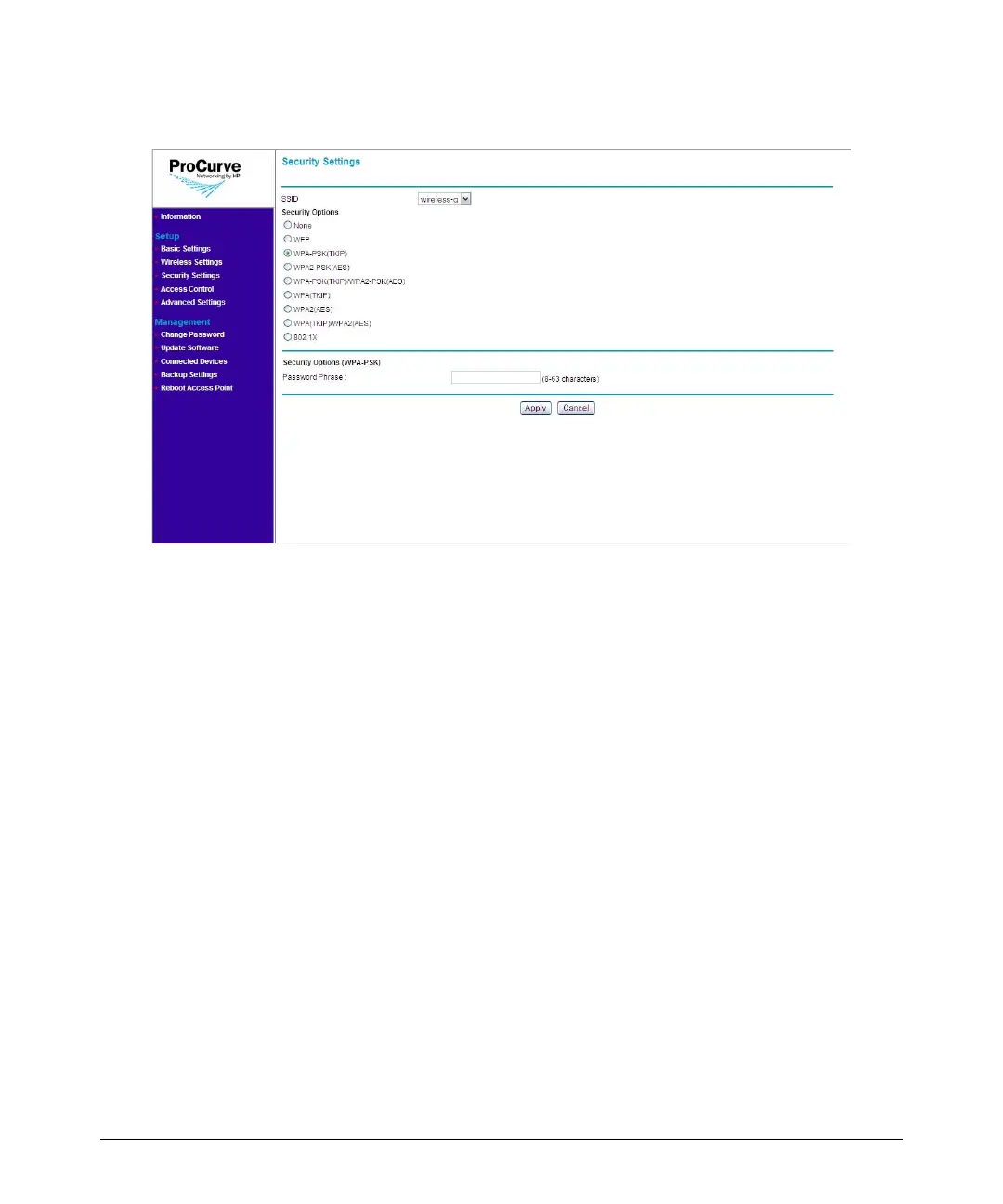
Figure 4-7. WPA-PSK (TKIP) Options
To use WPA-PSK (TKIP):
1. On the menu, click Security Settings. The Security Settings page
appears.
2. In SSID, select the SSID for which you want to set the security profile.
3. Under Security Options, click WPA-PSK (TKIP).
4. In the Password Phrase box under Security Options (WPA-PSK), enter
a string of at least 8 characters to a maximum of 63 characters. The string
that you enter here will be used as the shared secret key for WPA-PSK.
5. Click Apply to save your changes.
Configuring WPA2-PSK (AES)
WPA2-PSK (AES) employs a pre-shared key (PSK), which is used for an initial
check of credentials, and CCMP, an IEEE802.1X encryption method that uses
the Advanced Encryption Algorithm (AES).
To use this security profile, your wireless clients and devices must support
WPA.



 To Next Page