5-8
Managing the Access Point
Backing Up and Restoring Configuration
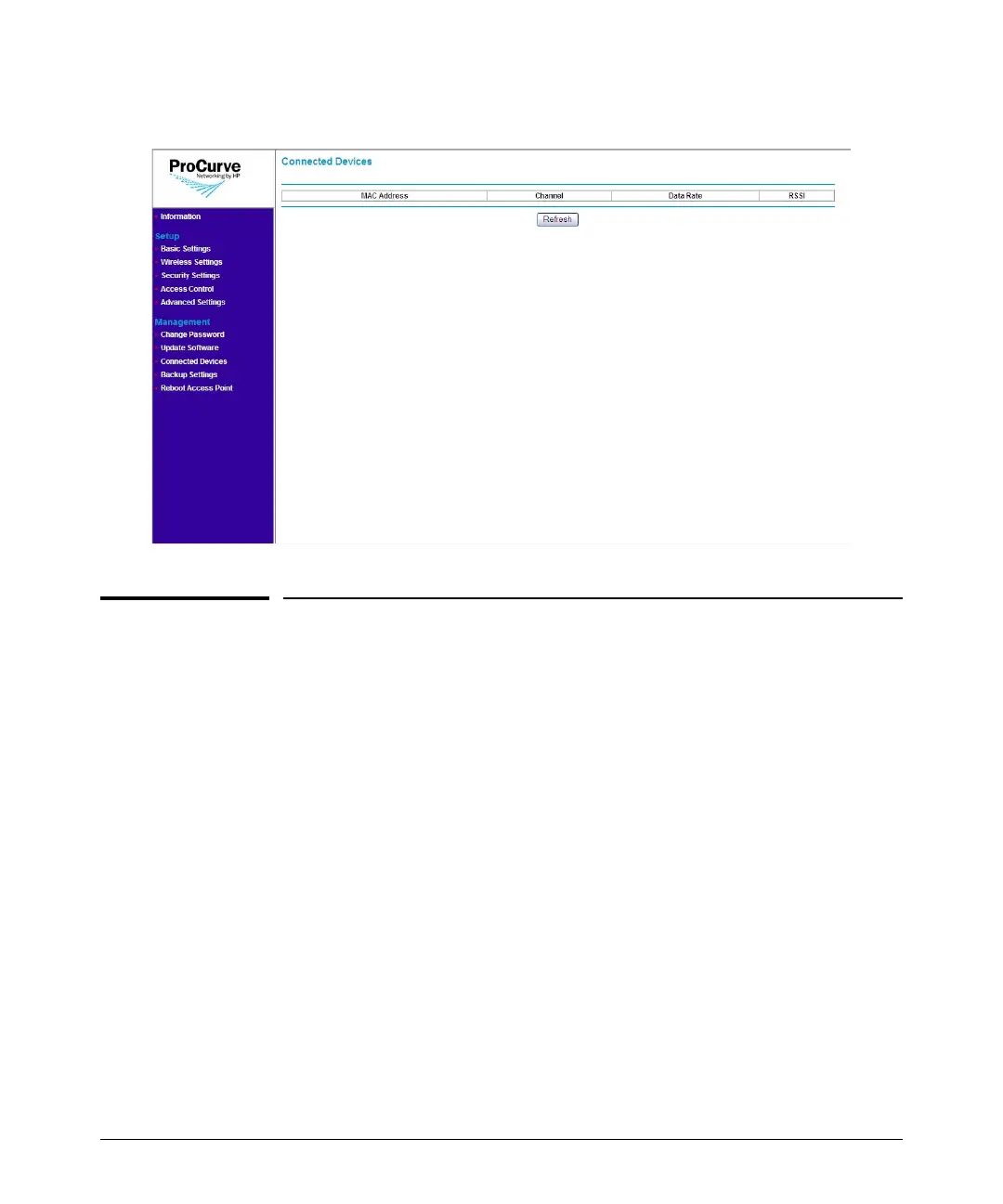
Figure 5-4. Connected Devices Page
Backing Up and Restoring Configuration
To back up the current access point configuration:
1. On the menu, click Back Up Settings. The Back Up Settings page
appears.
2. Click Back Up under Save a Copy of Current Settings. A browser dialog
box appears, as your browser attempts to download the configuration file
from the access point.
3. Click Save. The Save As dialog box appears.
4. Choose a location where to save the configuration file and, if you want,
change the file name. The default file name is AP10ag_backup.cfg. If
you are changing the file name, you should include the current date in the
file name for ease of identification.
5. Click Save.
6. Start Windows Explorer, and then browse to the location where you save
the configuration file, and then verify that it has been downloaded
successfully.



 To Next Page