42
CREATING A FIELD BOUNDARY, DO NOT APPLY ZONE, OR
APPLICATION ZONE
Field boundaries indicate the edges of a field.
Do not apply zones indicate an area in the field where application is not needed.
Application zone indicates the outside edges of the desired application area.
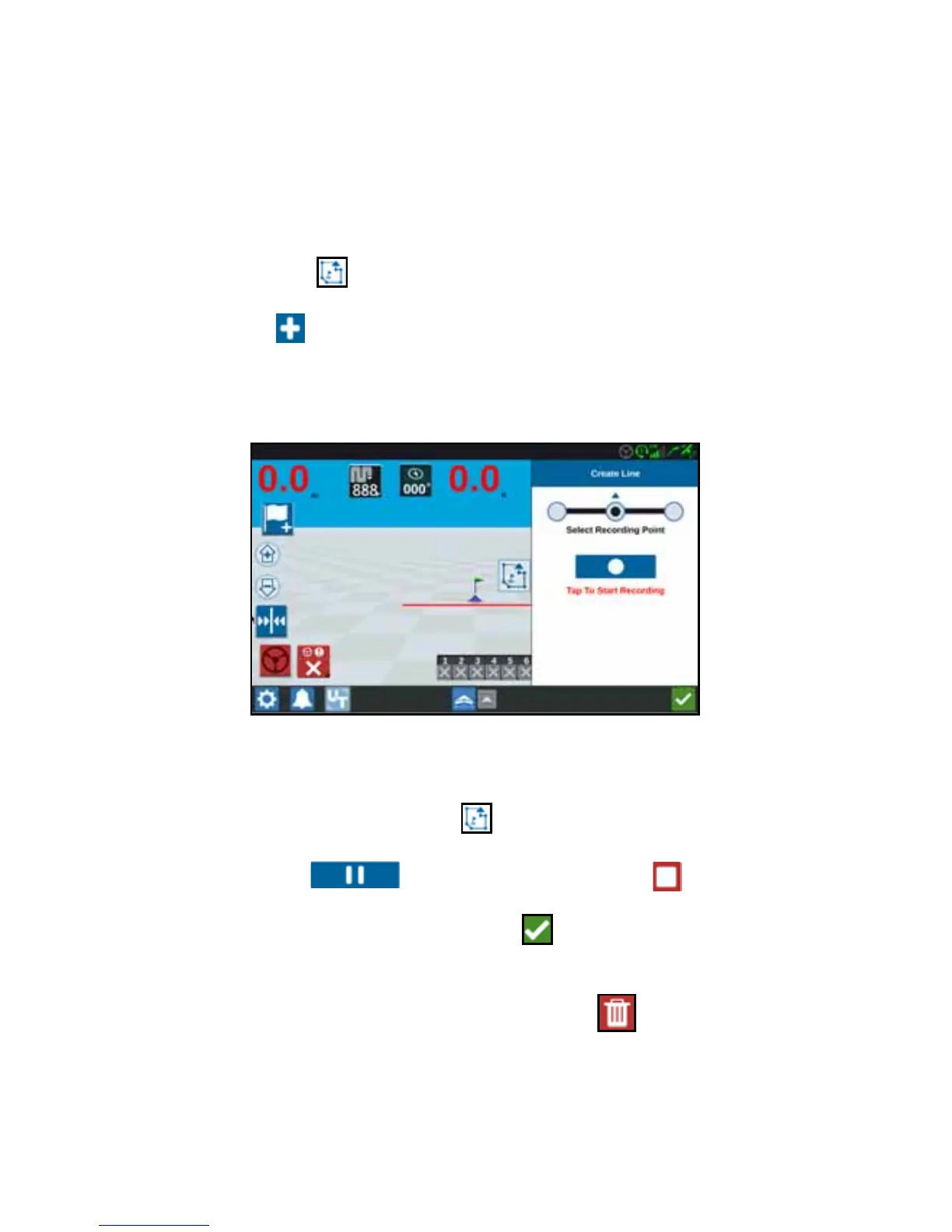
1. Select Scout Object icon.
2. Select the Add icon next to Scout Features.
3. Select the desired task.
4. Select the desired start recording point. It can be either centered with the
implement, or on either side of the implement.
5. Press Start Recording.
6. Drive the desired path/boundary.
7. When complete, select Scout Object .
8. Select either Pause recording or End Recording .
9. After selecting End Recording, press Accept to confirm the end of the job if
selected.
10. Enter a name for the feature. If desired, press Delete .



 To Next Page