driving aids ................................................
(up to the end of the DU)
lane departure warning ..............................
(current page)
safety distance warning .............................
(current page)
blind spot: warning signal ..........................
(current page)
emergency active braking..........................
(current page)
6.2
ENG_UD68540_5
Aides à la conduite (XNX - Renault)
Driving aids
DRIVING AIDS (1/4)
“Driving
assistance”
menu
From the main menu, press “Settings”,
then press the “Vehicle” tab. This menu
enables you to set up the driving aids.
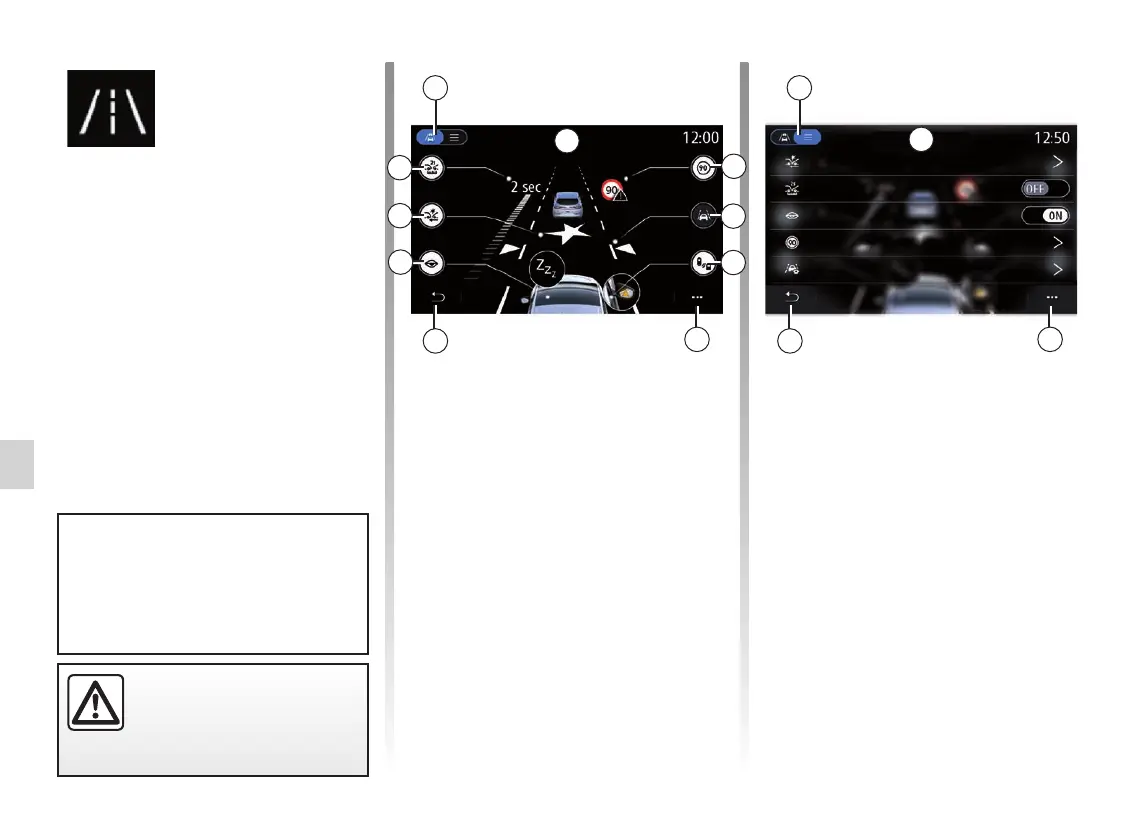
“Driving assistance” screen.
1 “Display mode”;
2 “Traffic sign”;
3 Lane;
4 Blind spot;
5 “Pop-up menu”;
6 “Back to previous page”;
7 “Fatigue”;
8 “Active braking” or “Advanced
Safety”, depending on the vehi-
cle;
9 “Following distance”.
“Display mode”
When you select a view mode 1, you
can choose interactive mode 10 or list
mode 11 which allows you to view all
“Driving assistance”.
Select the button for the option you
would like to activate or deactivate.
1
9
8
7
2
3
4
5
6
10
1
5
6
11
Active braking
Fatigue
Traffic sign
Lane assist settings
Following distance
For safety reasons, carry
out these operations when
the vehicle is stationary.
Some settings have to be modi-
fied while the engine is running in
order for them to be stored by the
multimedia system.
Following distance
Active braking
Fatigue
Traffic sign
Lane
Blind spot



 To Next Page