GB.19
ADD, MANAGE FAVOURITES
Add favourites
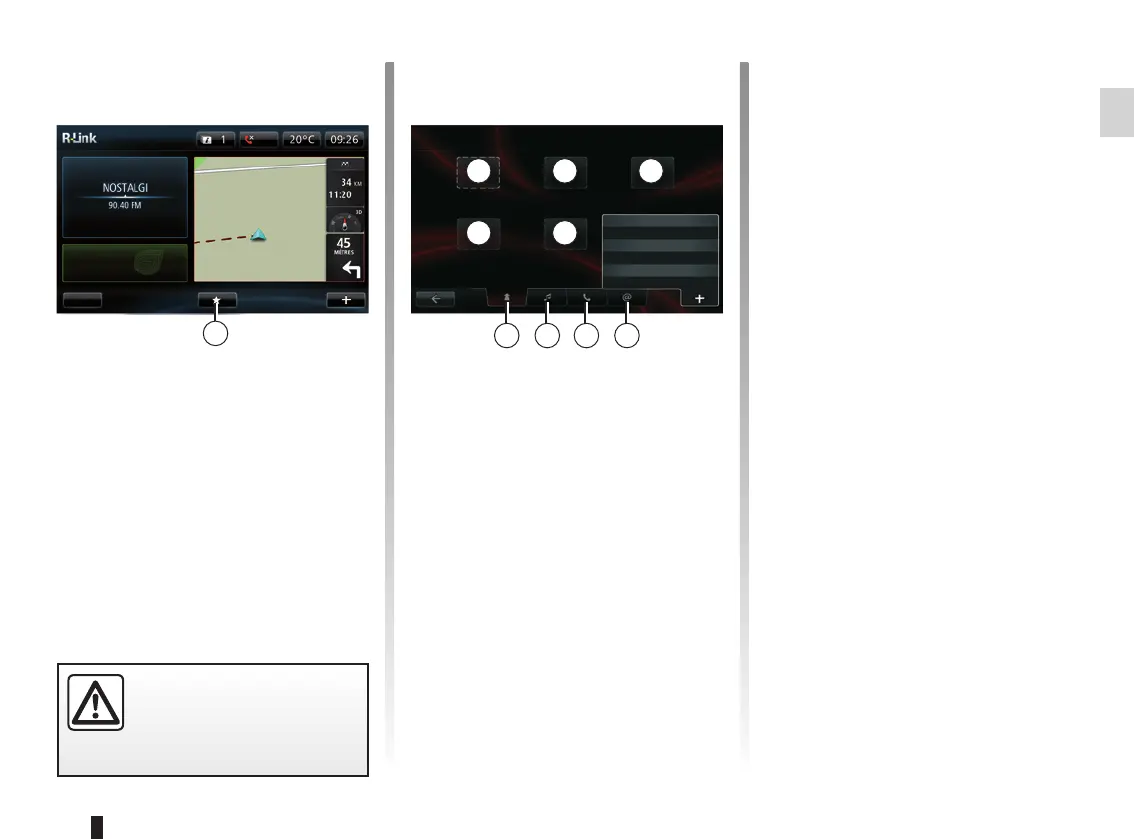
From the main screen, press 1. The
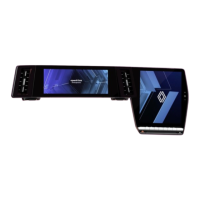
Favourites menu enables you to
manage four types of favourites:
– Navigation 2;
– Radio 3;
– Telephone 4;
– Applications 5.
Add a telephone favourite 4
Select an empty slot A or “+”, then “Add
Favourite”. Choose the favourite from
the list to add a contact. Please refer to
the “Managing the phonebook” section
for further information.
Note: A contact added as favourite re-
mains visible to any user of the vehicle,
whichever phone is connected.
Adding an applications favourite 5
Select an empty slot A or “+”, then “Add
Favourite”. Choose the favourite from
the list to add an installed application to
the favourites.
Delete favourites
To delete a favourite, press “+”, then
select the favourite and press “Remove
a Favourite”. A confirmation message
is displayed, press “Delete” to confirm.
You can delete all favourites by press-
ing “+”, then “Remove all Favourites”.
A confirmation message is displayed,
press “Delete” to confirm the deletion.
Add a navigation favourite 2
Select the first empty slot A or “+”, then
“Add Favourite”. Choose the favourite
from the list to add a saved destination
to the favourites.
Note: to add a navigation favourite,
you must first save an address in the
memory. Please refer to the informa-
tion on “Confirming a destination” in the
section on “Entering a destination”.
Adding a favourite radio station 3
Select an empty slot A or “+”, then “Add
Favourite”. Choose the favourite from
the list to add a preset radio (FM only)
to the favourites.
FM1
Menu
flow
Preset
1
A A A
A A
For safety reasons, carry
out these operations when
the vehicle is stationary.
Add Favourite
Remove a Favourite
Remove all Favourites
2 43 5
Favourites - Navigation


 To Next Page