11
Preparations for Use >> Read This First
1
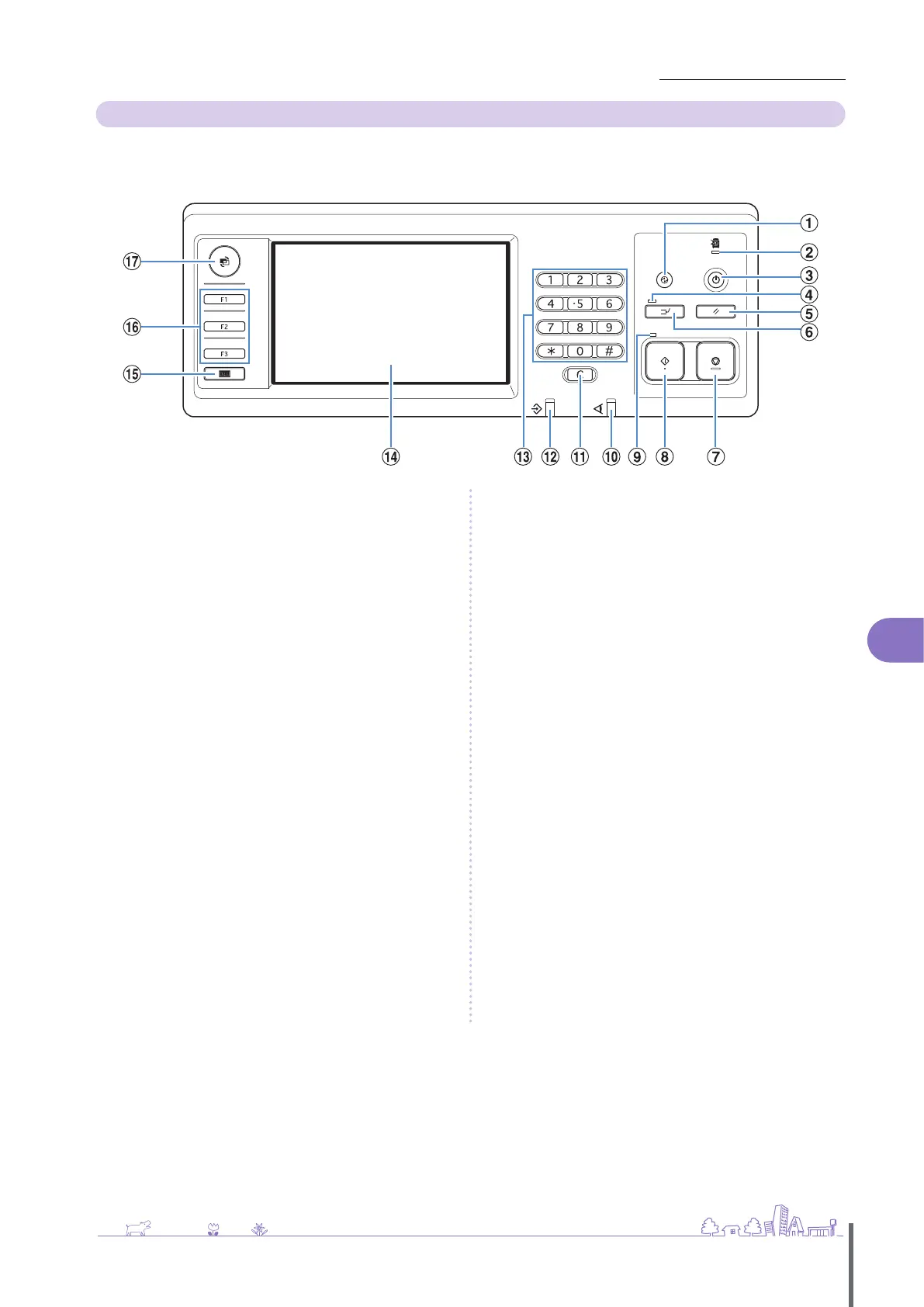
Operation Panel
Various operations and settings can be performed using the operation panel.
You can also identify the machine status or errors such as paper jamming from the lamp colors and whether the lamps light
up or ash.
① Wake up Key
Lights up when the machine is in the backlight OFF or sleep
status. Press to make the machine ready for operation.
Press to enter the power saving mode manually after a job is
nished.
② Main power Lamp
Lights up when the main power is “ON”.
③ Sub power Key
Use to turn the power ON and OFF. Lights up when the
power is ON. To switch to OFF, press and hold.
④ Interrupt Lamp
Lights up during copy interrupt.
⑤ RESET Key
Press to return the settings to their default.
⑥ Interrupt Key
Press to temporarily stop the job that is in progress and
execute a dierent job.
⑦ STOP Key
Press to stop the job that is in progress.
⑧ START Key
Press to start an operation.
⑨ Start Lamp
Lights up when the START key is ready to be used.
⑩ Error Lamp
Flashes in red when an error occurs.
⑪ Clear Key
Press to clear letters or numbers that have been entered.
⑫ Data receive Lamp
Flashes in green when data is being received.
⑬ Numeric Keys
Press to enter numbers.
⑭ Touch Panel
Use to perform operations or settings.
This panel also displays information such as error messages
and conrmation messages.
⑮ Counter Key
Press to display the total number of copy or print sheets.
⑯ Function Keys
Use as shortcut keys for moving to the mode by registering
modes or functions. They are registered in the administrator
settings.
⑰ MODE Key
Press to switch to the mode screen.
ComColor Series Basic Guide 02 ComColor Series Basic Guide 02










 To Next Page