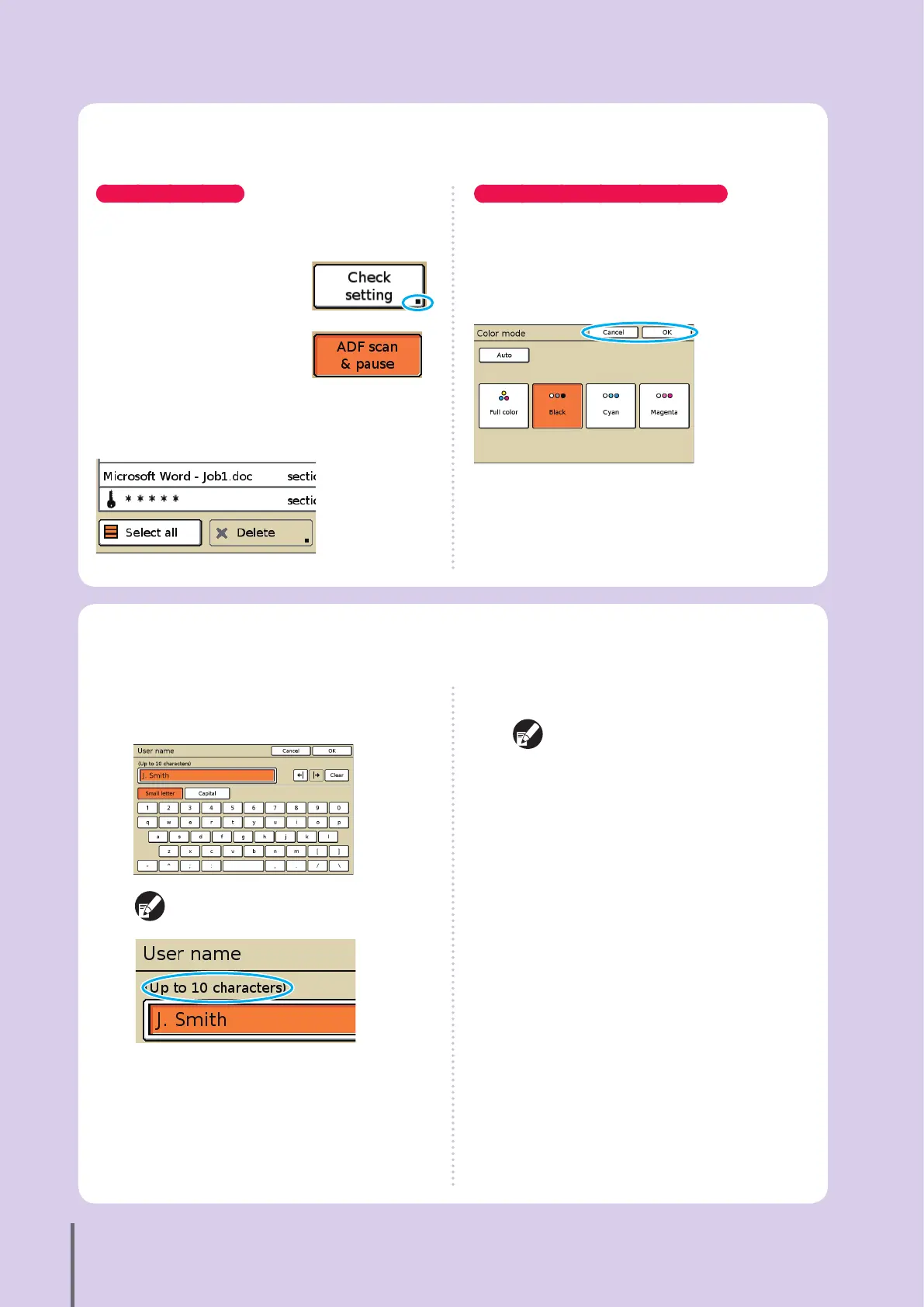
Selecting Buttons
To select a button on the touch panel, touch the button
with your nger.
“■” displayed in the lower right corner
of a button indicates that pressing the
button will display another screen to
complete settings.
If “■” is not displayed, the button
activates or deactivates the function
each time it is pressed. Active
functions are displayed in orange.
Buttons that are not available under the current
conditions are grayed out. You can select these buttons
when the required conditions are met.
Conrming or Canceling Settings
When [OK] is displayed on a settings screen, you must
press [OK] to save the settings information. If you do
not press [OK], the settings information may be
discarded.
To cancel settings information you have completed,
press [Cancel].
Basic Touch Panel Information
This section describes basic information to know when using the touch panel.
1
Press each character you want to enter.
To move the cursor, press [➡l] or [l➡]. To erase the
character on the left of the cursor, press [Clear].
Any input restrictions are indicated above the
text input eld.
2
Press [OK] when input is complete.
To cancel information you have entered, press
[Cancel].
Entering Text
When entering user names or passwords, enter the required information on the text input screen.
ComColor Series Basic Guide 02










 To Next Page