60
Basic Workow
Load the original
Select scanner
mode
Complete the
scanning
settings
Press the [START]
key
To cancel scanning jobs, press the [STOP] key.
The screens displayed vary depending on what optional equipment has been connected and how you have completed settings.
Make sure the machine is in scanner mode.
Some items may not be displayed, depending on how the administrator has congured the settings. For details, ask your
administrator.
•
•
•
Data from paper originals scanned with the machine in
scanner mode can be downloaded to a computer, saved
on a USB ash drive*, or sent as an e-mail attachment.
*
A USB port may not be
provided, depending on
the machine.
Scanning Operations
Saving Scan Jobs on a Computer
Save data from scanned originals to network computers
connected to the machine.
Tip:
Scanned data can be saved on the printer’s internal hard
disk or a USB ash drive the same way. Select where to
save scanned data in step 4.
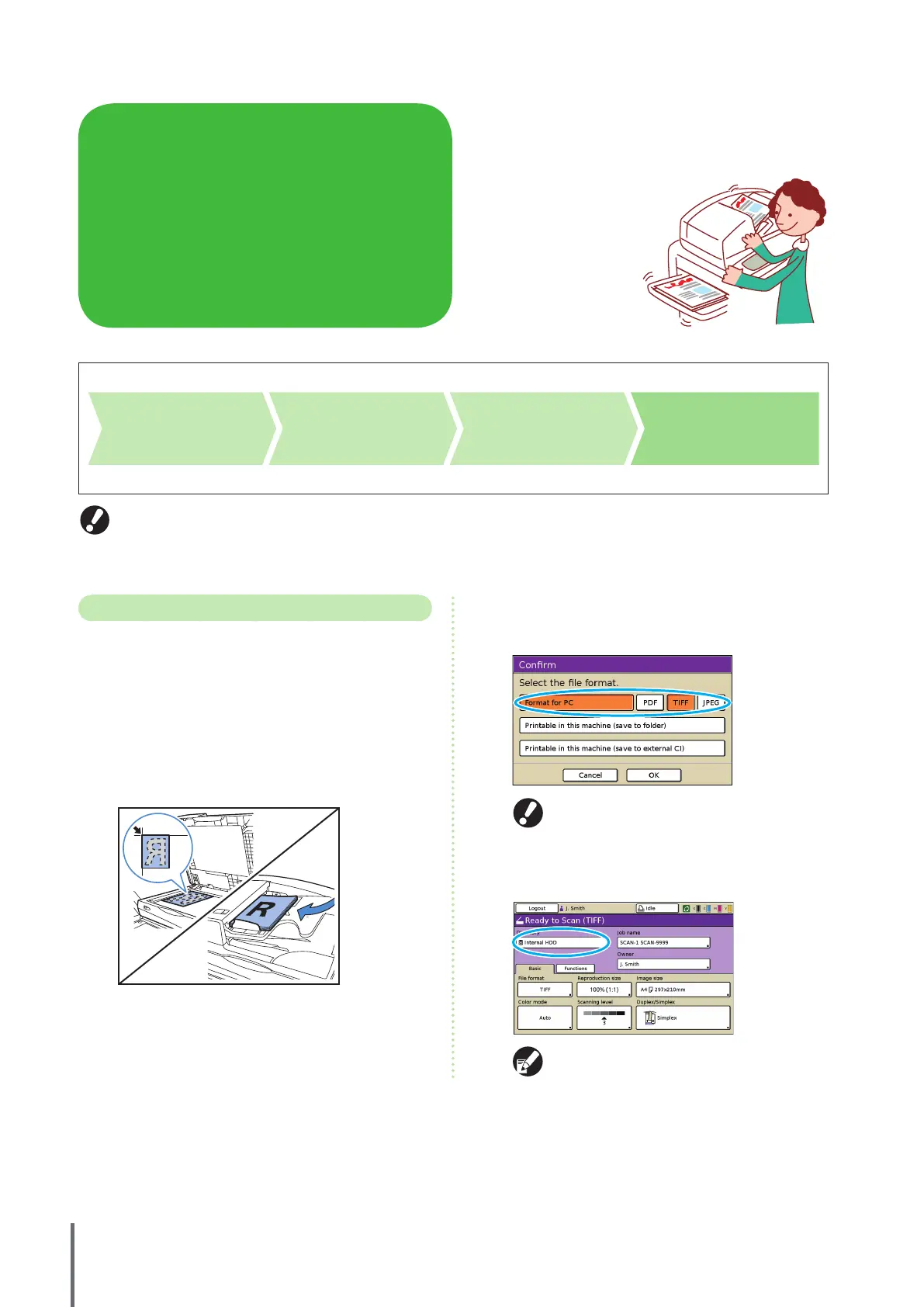
1
Load the original.
Load the original on the platen glass or in the ADF.
2
On the conrmation screen, select [Format for PC]
and press [OK].
Also at this time, select [PDF], [TIFF], or [JPEG] as the format.
This screen may not be displayed, depending on
the administrator settings.
3
Press [Directory].
When saving scanned images on a USB ash drive,
insert the device.
ComColor Series Basic Guide 02



 To Next Page