68
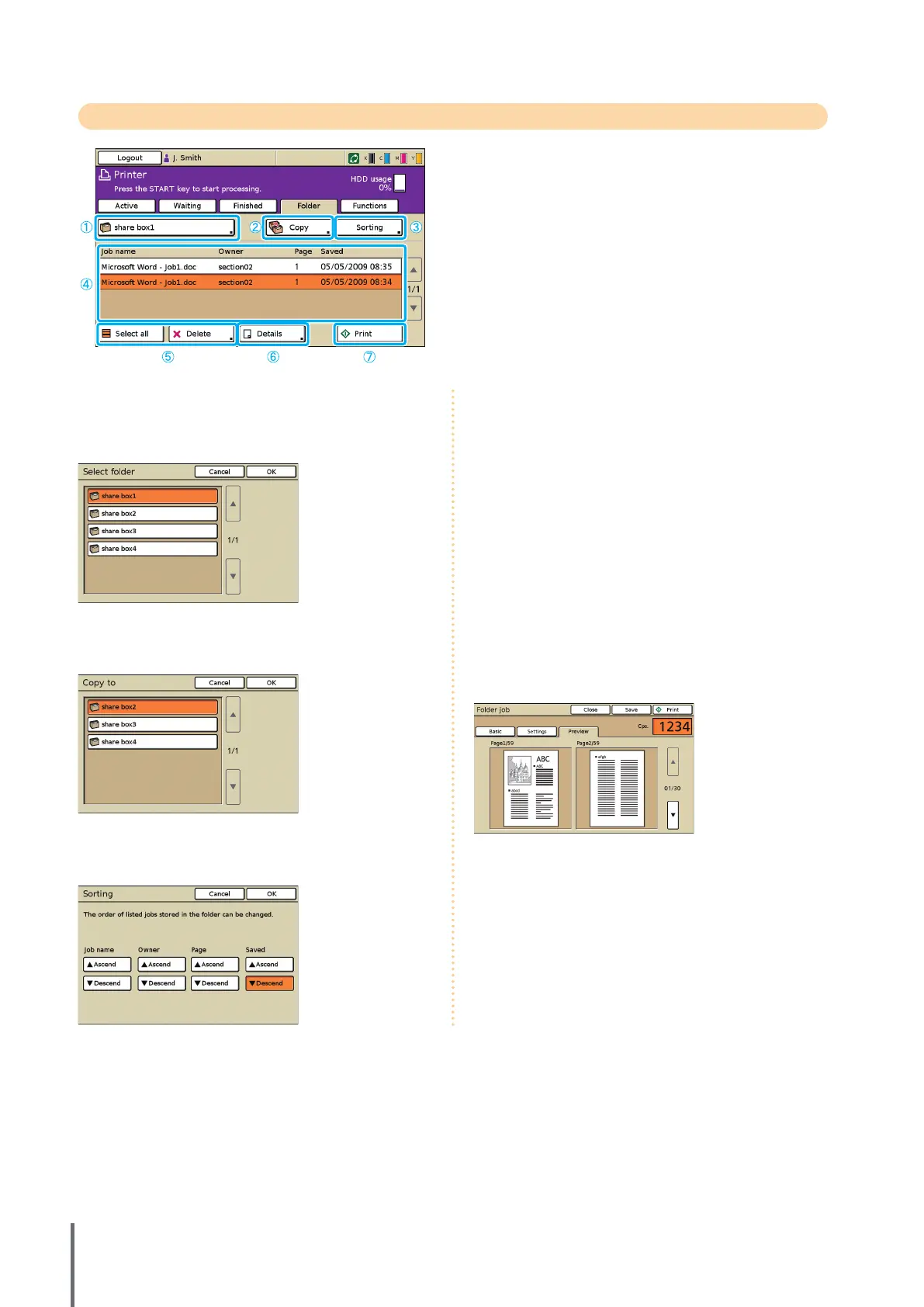
Folder Screen
Lists jobs saved in the job folder.
Selecting a job and pressing the [START] key displays the job
on the [Active] screen, after which the job will be printed.
① Select folder button
Indicates the currently selected job folder.
Pressing the button will display the [Select folder] screen,
enabling you to select a folder.
② [Copy]
Copy the selected job to another folder.
③ [Sorting]
Sort listed jobs according to your specied conditions.
④ Job list
On this screen, check the job and owner name, saved date,
and other details. This list shows jobs in the currently
selected folder.
⑤ [Select all], [Delete]
See “Active Screen” (p. 66).
⑥ [Details]
Basic Screen
See [Details] under “Finished Screen” (p. 67).
Settings Screen
S
ee [Details] under “Active Screen” (p. 66).
Preview Screen
Shows the preview of the job that is selected in the folder.
⑦ [Print]
See “Waiting Screen” (p. 67).
●
●
●
ComColor Series Basic Guide 02










 To Next Page