59
Scanning >> Scanner Mode Screens
4
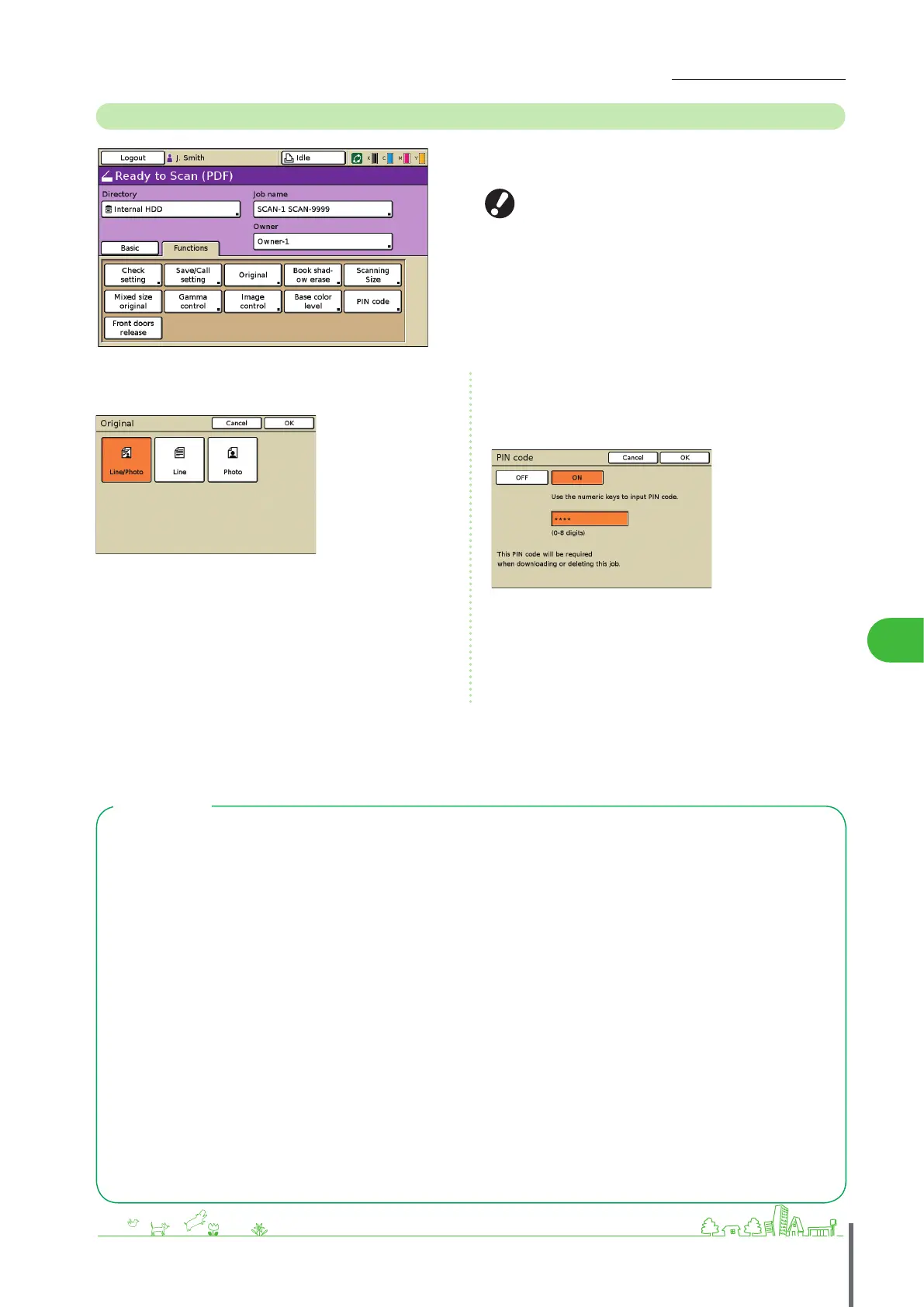
Functions Screen
Shows user-adjustable settings. Complete advanced scanning
functions on this screen.
The following functions are also used in other modes
besides scanner mode. They are described in Chapter 3,
“Copying,” in “Functions Screen” (p
. 41).
Check setting
Save/Call setting
Book shadow erase
Scanning size
Mixed size original
•
•
•
•
•
Gamma control
Image control
Base color level
Front doors release
•
•
•
•
[Original]
Specify settings matching the type of original.
[Line/Photo]
Settings optimized for originals with both text and photos or
graphics.
[Line]
Settings optimized for originals with text only.
[Photo]
Settings optimized for originals with photos or graphics only.
[PIN code]
Specify a PIN code for scanning jobs.
For details, see “Assigning PIN Codes to Scanning Jobs,”
(p
. 62).
File Format
On the conrmation screen in scanner mode, you can choose either [Format for PC] or [Printable in this machine].
Choose a suitable format for your needs.
Format for PC
The following three le formats can be used on a
computer.
PDF
This format is recommended for browsing on a
computer.
Because the le size is small, it is often used for
distributing materials such as pamphlets and
manuals.
TIFF
This format is suitable when importing images
with a scanner, and when editing or processing
images. It is often used when exchanging data
between multiple applications.
JPEG
This format is suitable for the compressed saving
of images imported with a scanner, and images
imported from video.
●
•
•
•
Printable in this machine
This is an original RISO format that is used to print
in this machine.
These les can be stored in folders on the machine
or in an external controller.
●
ComColor Series Basic Guide 02 ComColor Series Basic Guide 02










 To Next Page