16
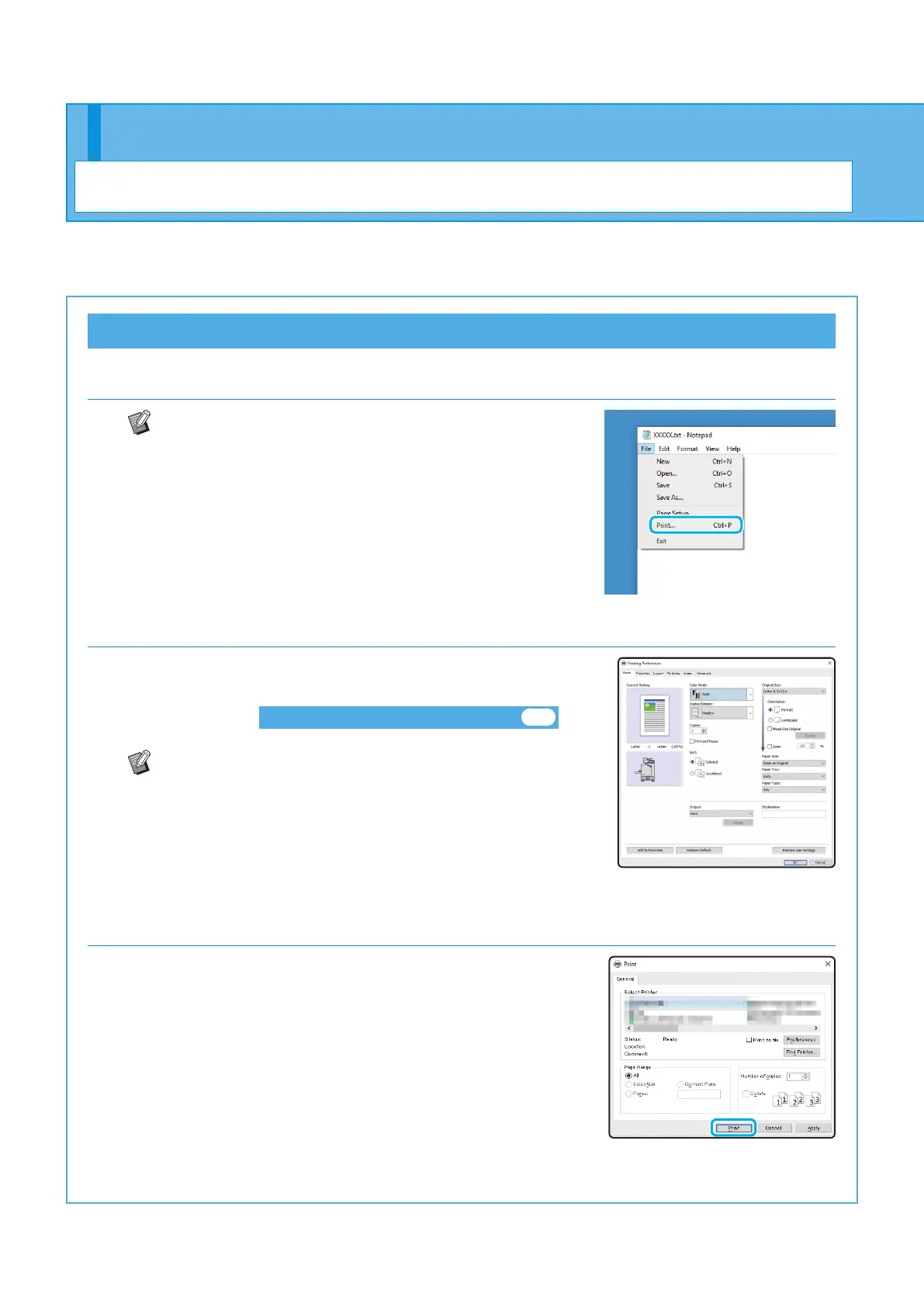
In this section, the procedure for printing from the Microsoft
®
Windows
®
10 Notepad application is described as an
example.
Sending Data to This Machine
1. Click [Print...] in the [File] menu.
The menu and button names are dierent depending on
the application that you use.
2. Click [Preferences], and check the settings.
After conrming the settings, click [OK] and close the printer
driver screen.
About the Various Printing Functions►► p.20
Registering frequently used settings can be useful. You
can call up the specied values* just by clicking
[Restore user settings]. For more information, see the
"User's Guide".
* The specied value is indicated as a value that has
been changed from [Printer Properties].
3. Click [Print].
The print data is sent to this machine.
Printing
Getting Started
ComColor FT Series Quick Guide



 To Next Page