12
Conguration.
Connectingtoyourcomputernetwork-cont.
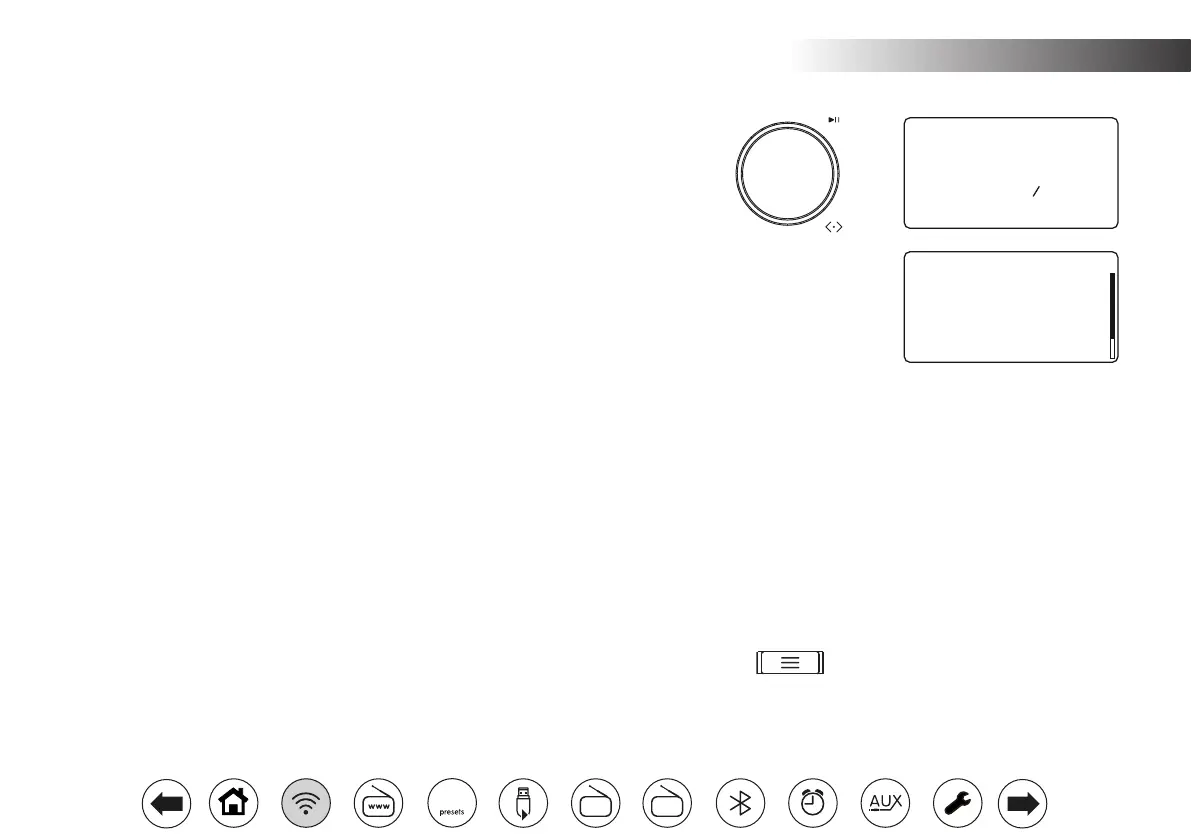
2. The radio will enter the Network Settings Wizard and will display 'Scanning...'. The
radio will automatically scan both 2.4GHz and 5GHz WiFi bands. After a short while
the display will show a list of the available WiFi networks.
3. You will rst need to identify your network in the list of network names presented
by the Network Wizard. If no networks are found then you may have to get your
broadband router working (please see the instructions supplied with it) or you may
be too far from the router.
When the radio nds your WiFi network, it displays the Network Name (SSID) for
the network on the screen. This is a name that is allocated to the WiFi from your
router by the person who set up the network - for example: 'Jones family' or 'Paul's
network'.
Routers supplied by Internet Service Providers often have the default name of the
WiFi network provided on a label or card for easy reference (e.g. BTHub-1234,
VM1234567).
If the router supports WiFi Protected Setup, then '[WPS]' will be shown in front of
the SSID.
It is quite likely that your radio will nd more than one WiFi network, in which case
you should choose your network from the list.
4. Rotate Tuning to see the SSID for each WiFi network that has been found. If your
network is shown proceed to step 6 on the next page. If it is not shown then proceed
to step 5, also on the next page.
If you make a mistake at any point, use the Menu button to go back to the previous
screen.
Network Settings
Network Wizard
Scanning...
Jones family
[WPS] Paul’s network
VM1234567
Z Brown
[Rescan]
[Manual config]
SSID
FM
DAB
60


 To Next Page