46
• iOS - Download from Apple App Store
• Android
TM
- Download from Google Play
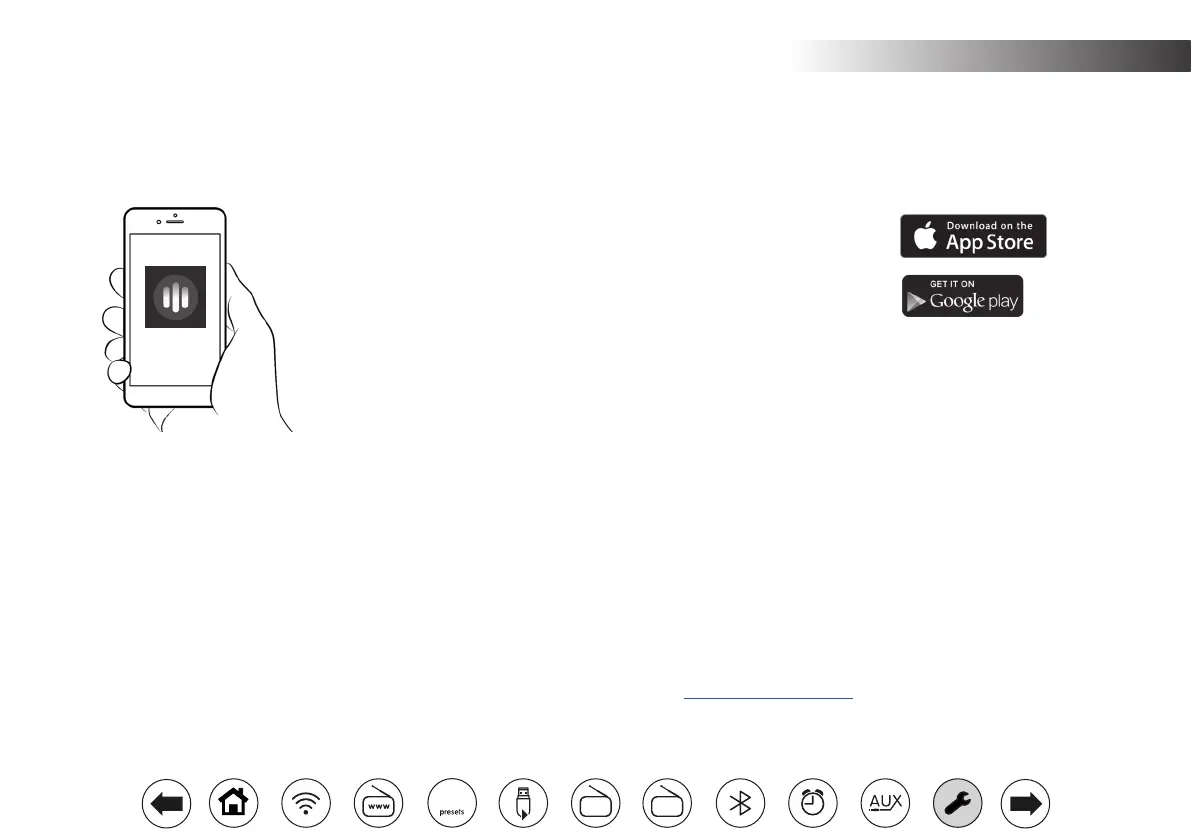
There may be more than one app called Oktiv. The app needed is OKTIV
from Frontier Smart Technologies, which has the logo as shown on the left.
Note: At the time of writing a device using Android version 8.0 or later, or
iOS version 13.0 or later, is required to use Oktiv.
If you already have the Oktiv app installed on your device ensure that you have the latest version.
1. Ensure the radio is active and connected to the same WiFi router as your smart device.
2. Launch Oktiv and select your device from the Discover screen.
3. To connect to a different device select 'Settings' - 'Connected audio devices' - 'Add Connected audio', and then select your device from the Discover
screen.
4. You can now use Oktiv to control many of the functions of your radio remotely, including changing the mode (use), searching for stations, adding
and selecting presets, searching a USB device, and controlling the volume.
Please refer to the developer's website for guidance on how to use the latest version -
https://support.oktiv.app
UsingtheOktivapp
Download and install the Oktiv app on to your Android or iOS device.
If you have already have an older Roberts Smart Radio which uses the UNDOK app, you may prefer to continue using that app instead, although you
would not then have access to the newer features privide by Oktiv. At the time of writing, Oktiv does not support older Roberts Smart Radios.
Information.
FM
DAB
60


 To Next Page