32
Video Operations
7. When you nish entering the name, use the
[VALUE] knob to select “SAVE,” then press the
[VALUE] knob.
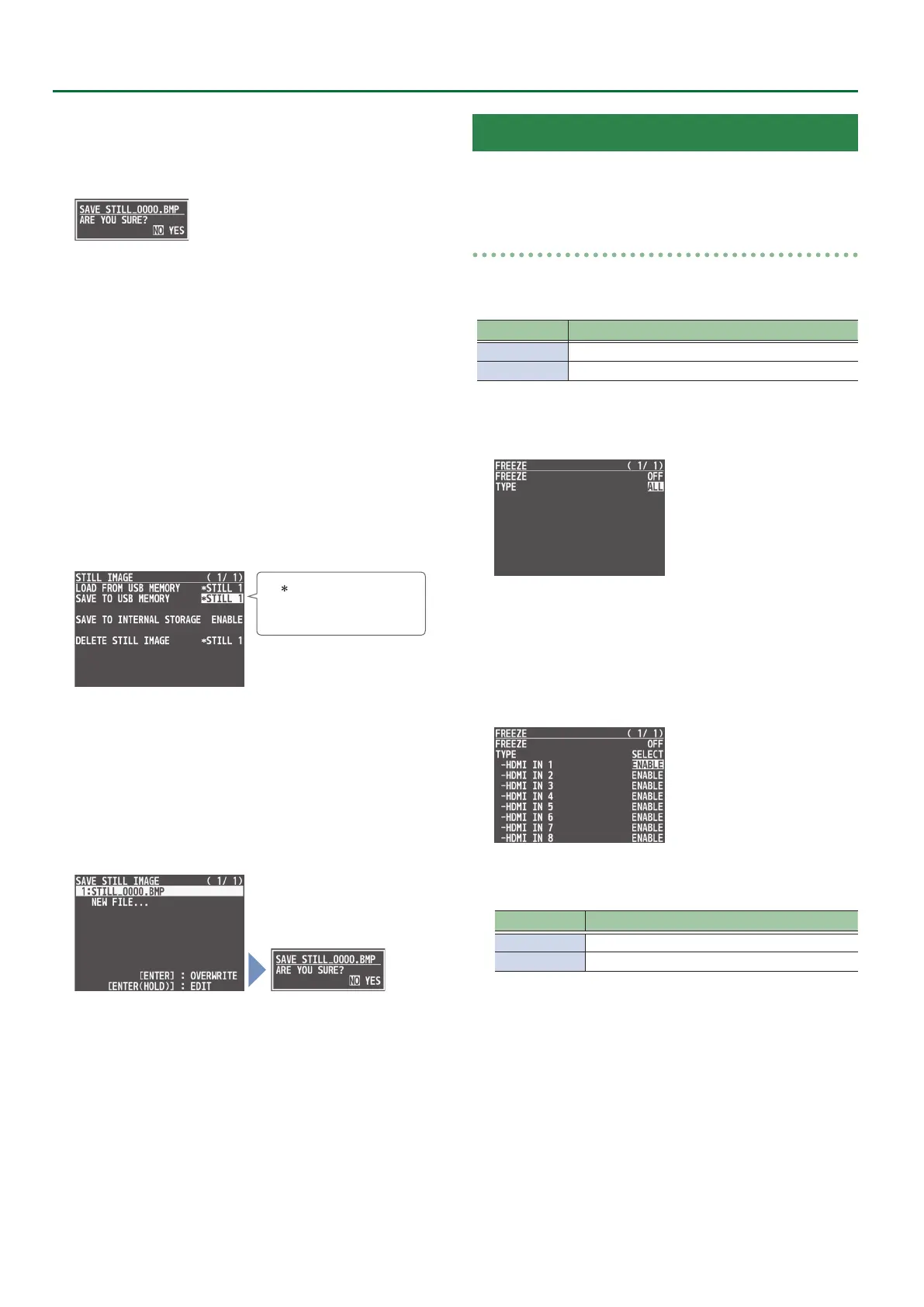
A conrmation message appears.
* If you decide to cancel, press the [EXIT] button.
8. Use the [VALUE] knob to select “YES,” then press the
[VALUE] knob.
The still image is written to the USB ash drive.
9. Press the [MENU] button to quit the menu.
Overwrite-saving a still image le
1. Connect the USB ash drive to the USB MEMORY
port.
2. Select the [MENU] button 0 “STILL IMAGE” 0
“SAVE TO USB MEMORY,” and press the [VALUE] knob.
A “ ” symbol is displayed for
memory where a still image
is already saved.
3. Use the [VALUE] knob to select the memory
(STILL 1–8) for the still image that you want to save,
and press the [VALUE] knob.
The SAVE STILL IMAGE screen appears.
4. Use the [VALUE] knob select the le to overwrite,
and press the [VALUE] knob.
A conrmation message appears.
* If you decide to cancel, press the [EXIT] button.
* If you long-press the [VALUE] knob, the edit screen opens with the
le name and le format preserved.
5. Press the [VALUE] knob.
The le (.V08) is newly saved on the USB ash drive.
6. Press the [MENU] button to quit the menu.
Freezing Input Video (Freeze)
This temporarily pauses the incoming video.
You can apply transition eects and visual eects during a video
freeze.
Setting the freeze mode
There are two freeze modes: “ALL” and “SELECT.”
* With the factory settings, “ALL” is selected.
Mode Explanation
ALL Freezes all video that is being input.
SELECT Freezes only the specied input video.
1. Press the [MENU] button0”FREEZE”0select
“TYPE,” and press the [VALUE] knob.
2. Use the [VALUE] knob to select “ALL” or “SELECT,”
and press the [VALUE] knob.
If “SELECT” is selected
3. Use the [VALUE] knob to select “HDMI IN 1”–“HDMI
IN 8,” and press the [VALUE] knob.
4. Use the [VALUE] knob to select “ENABLE” or
“DISABLE,” and press the [VALUE] knob.
Value Explanation
ENABLE The input video freezes.
DISABLE The input video does not freeze.
5. Press the [MENU] button to quit the menu.


 To Next Page