33
Video Operations
Applying a Fade to the Output Video (Output Fade)
You can apply a fade to the output video.
This lets you make the main output video fade to a black (or white) picture at times when you want to suppress video output, such as during
intervals in a presentation, event or band performance.
Applying a Fade-out
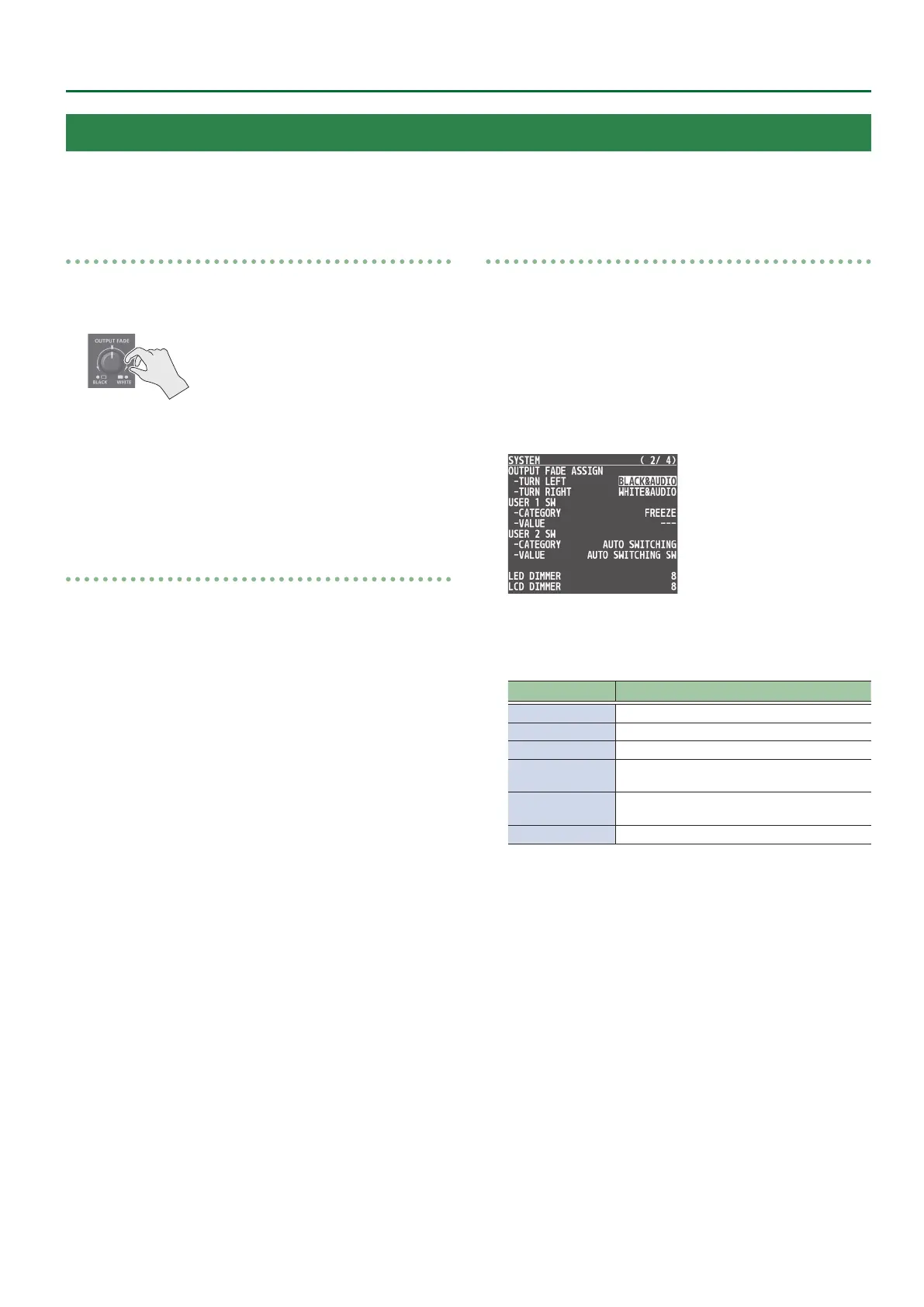
1. Turn the [OUTPUT FADE] knob all the way clockwise
or counterclockwise.
Turning the [OUTPUT FADE] knob clockwise performs a fade-out
to white, and turning the knob counterclockwise performs a fade-
out to black (factory setting).
Applying a fade makes the indicators to the left or right of the
knob ash.
Applying a Fade-in
1. Return the [OUTPUT FADE] knob to its center
position.
The indicator stops ashing and lights up steadily, and output
starts.
Specifying the function of the [OUTPUT FADE] knob
You can assign the following functions to the [OUTPUT FADE] knob.
5 Fade the output video.
5 Adjusts the volume of the output audio.
5 Output a specied still image.
1. Press the [MENU] button0“SYSTEM”0select
OUTPUT FADE ASSIGN “TURN LEFT” or “TURN
RIGHT,” and then press the [VALUE] knob.
2. Use the [VALUE] knob to select the function of the
[OUTPUT FADE] knob, and then press the [VALUE]
knob.
Value Explanation
BLACK Fade out to black.
WHITE Fade out to white.
AUDIO Adjust the volume of the output audio.
BLACK&AUDIO
Simultaneously apply the fade-to-black and the
output audio volume adjustment functions.
WHITE&AUDIO
Simultaneously apply the fade-to-white and
the output audio volume adjustment functions.
STILL 1–8 OUTPUT Output the specied still image.
3. Press the [MENU] button to quit the menu.



 To Next Page