63
Other Features
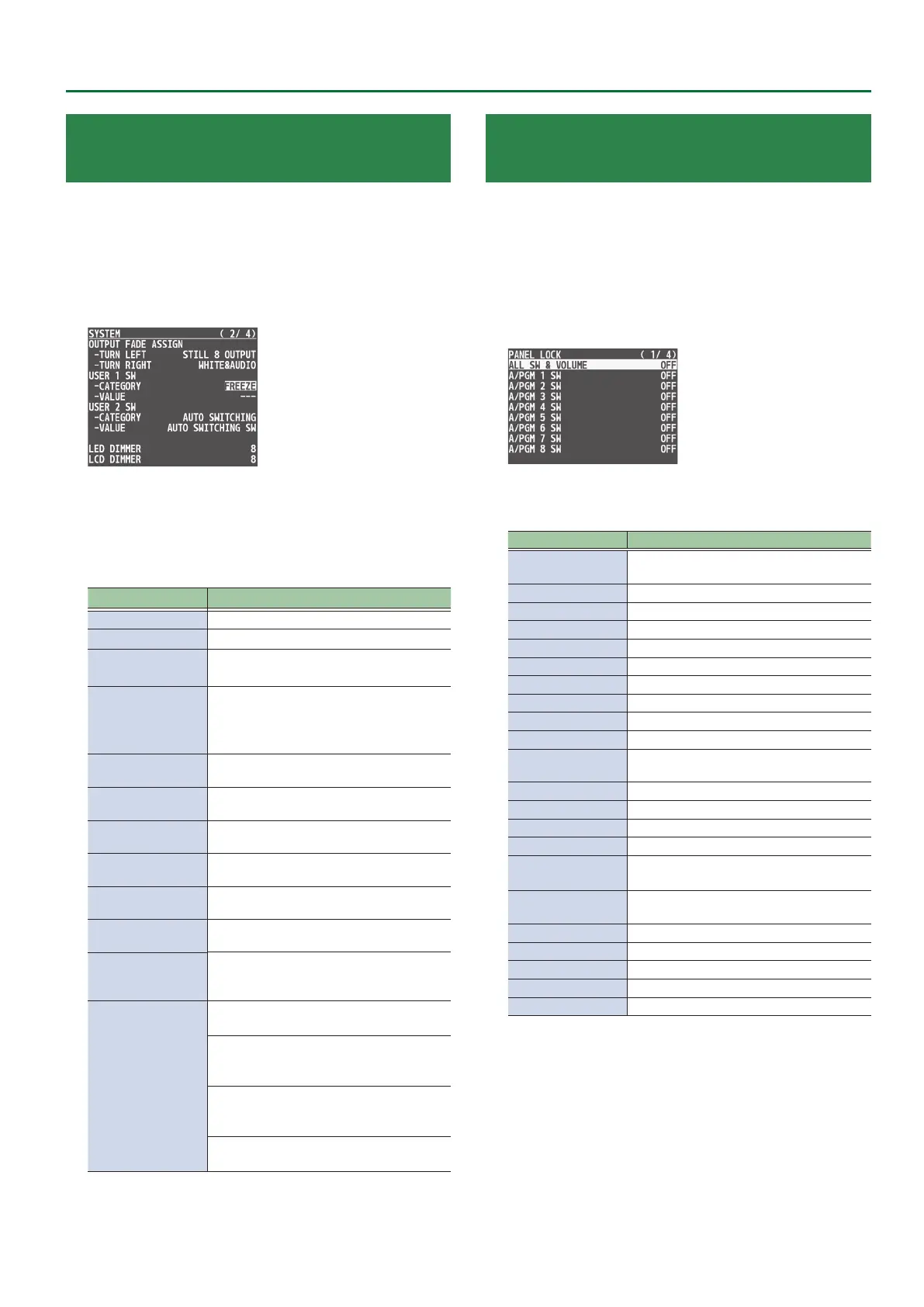
Assigning the Functions of the USER [1]
[2] Buttons
* With the factory settings, the freeze function is assigned to the
USER [1] button and the auto switching function is assigned to the
USER [2] button.
1. Press the [MENU] button0“SYSTEM”0select
USER 1 SW or USER 2 SW “CATEGORY” and “VALUE,”
and press the [VALUE] knob.
2. Use the [VALUE] knob to select the function that
you want to assign to the USER [1] or [2] button,
and then press the [VALUE] knob.
CATEGORY
Value Explanation
N/A No function is assigned.
FREEZE Turns the freeze function on/o.
AUTO SWITCHING
AUTO SWITCHING SW:
Turns the auto switching function on/o.
BPM TAP
BPM TAP:
If AUTO SWITCHING is “BPM SYNC,” you can
set the BPM according to the tempo at which
you press the button.
INPUT ASSIGN
Each time you press a button, the video source
of the specied input channel switches.
STILL OUTPUT
Pauses the normal output, and preview/nal
outputs a cut of the still image.
AUDIO INPUT MUTE
Turns the mute function on/o for the input
audio.
AUDIO OUTPUT MUTE
Turns the mute function on/o for the output
audio.
INPUT SCAN
Each time you press a button, the INPUT 1–8
video changes in order.
MEMORY SCAN
Each time you press a button, preset
memories 1–24 are recalled in order.
REC CONTROL
Controls the recorder’s video record start/
stop if a recorder that supports HDMI REC
TRIGGER functionality is connected.
SEQUENCER
MODE ON/OFF:
Turns sequencer function on/o.
NEXT:
When the sequencer function is on, the same
operation as when you press the [AUTO] button.
PREVIOUS:
When the sequencer function is on, the same
operation as when you press the [CUT] button.
AUTO SEQUENCE:
Turns the auto sequence function on/o.
VALUE
Congures the detailed settings related to “CATEGORY.”
3. Press the [MENU] button to quit the menu.
Preventing Unintended Operation
(Panel Lock)
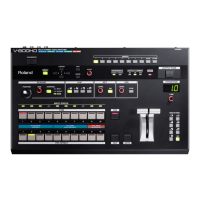
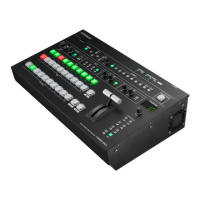
Here’s how you can lock the V-8HD’s buttons and knobs to prevent
unintended operation.
* The [MENU] button blinks when you try to operate a locked button,
knob or other control.
1. Press the [MENU] button0“SYSTEM”0select
“PANEL LOCK,” and press the [VALUE] knob.
The PANEL LOCK menu appears.
2. Use the [VALUE] knob to select a target for panel
lock, and press the [VALUE] knob.
Menu item Explanation
ALL SW & VOLUME
Turns on/o the settings of the following
buttons and knobs in a single action.
A/PGM 1–8 SW Cross-point A [1]–[8] buttons
B/PST 1–8 SW Cross-point B [1]–[8] buttons
CUT SW [CUT] button
AUTO SW [AUTO] button
MODE SW [MODE] button
AUX SW AUX [1]–[8] buttons
PinP 1 SOURCE SW PinP 1 [1]–[8] buttons
PinP 2 SOURCE SW PinP 2 [1]–[8] buttons
MEMORY SW MEMORY [1]–[8] buttons
MACRO SW
AUX / PinP SOURCE / MEMORY [1]–[8]
buttons
TRANSITION SW [TRANSITION] button
VIDEO FADER Video fader
SPLIT/VFX A BLOCK SPLIT/VFX [A] knob/button
SPLIT/VFX B BLOCK SPLIT/VFX [B] knob/button
PinP 1 BLOCK
PinP 1 [POSITION H] [POSITION V] knobs,
[PVW] [ON] buttons
PinP 2 BLOCK
PinP 2 [POSITION H] [POSITION V] knobs,
[PVW] [ON] buttons
DSK BLOCK DSK [LEVEL] [GAIN] knobs, [PVW] [ON] buttons
USER 1 SW USER [1] button
USER 2 SW USER [2] button
CAPTURE IMAGE SW [CAPTURE IMAGE] button
OUTPUT FADE [OUTPUT FADE] knob
3. Use the [VALUE] knob to specify whether panel lock
is applied (ON) or not applied (OFF), and press the
[VALUE] knob.
4. Repeat steps 2–3 as necessary.
5. Press the [MENU] button to quit the menu.


 To Next Page