9
Video Input/Output Settings
Adjusting Output Video
Here’s how to adjust the output image appropriately for the device
that’s receiving the V-8HD’s output.
MEMO
You can output a test pattern, useful for adjusting the image
quality of a display.
You use the [MENU] button0“SYSTEM”0“TEST PATTERN” to
specify the test pattern.
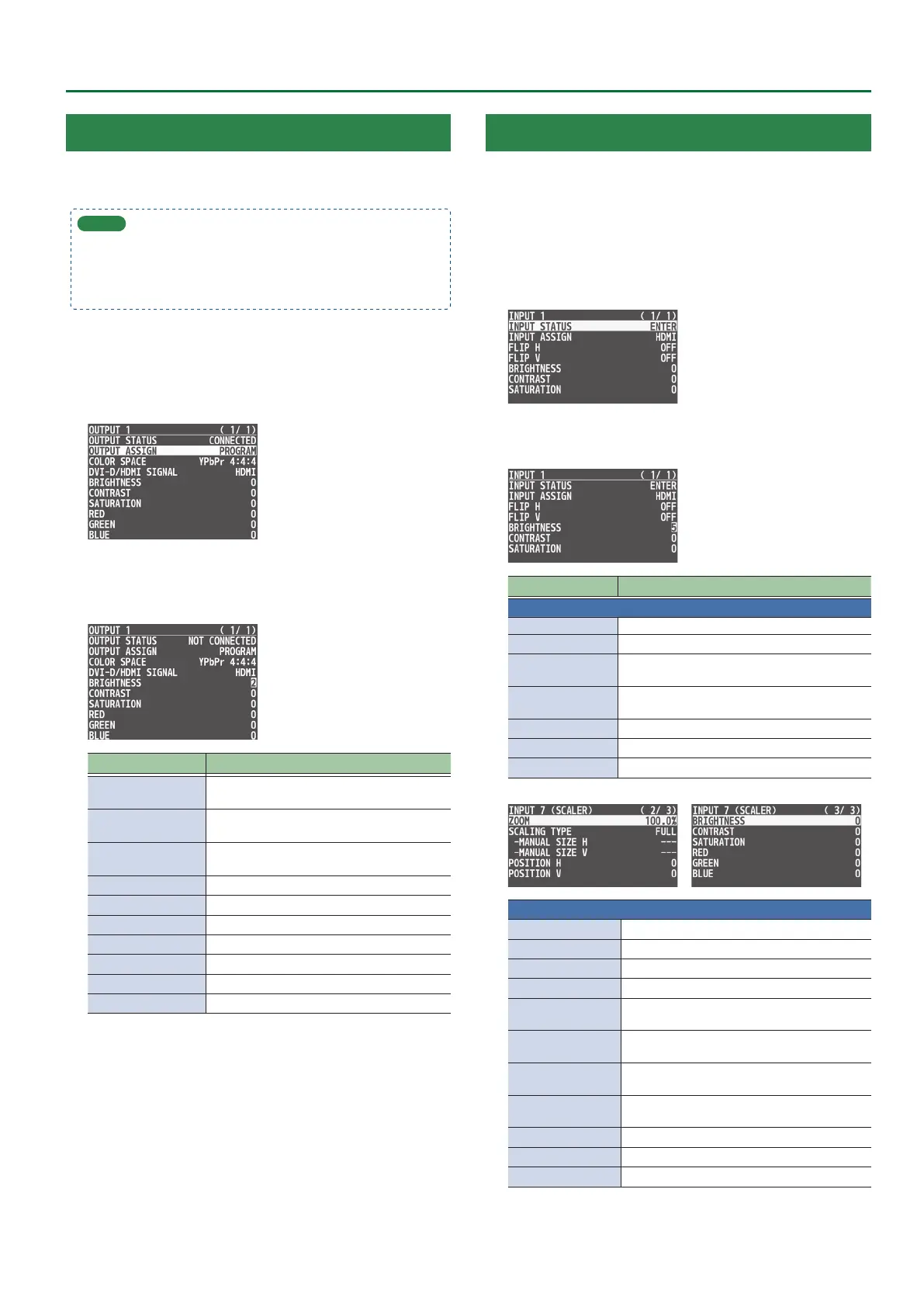
1. Press the [MENU] button0”VIDEO OUTPUT”0
select one of “OUTPUT 1” to “OUTPUT 3,” and press
the [VALUE] knob.
A menu for the selected output video appears.
2. Select a menu item, then turn the [VALUE] knob
to adjust the output video, and press the [VALUE]
knob.
Menu item Explanation
OUTPUT STATUS
Displays information about the output
connector.
OUTPUT ASSIGN
Species the video bus that is assigned to the
OUTPUT connector.
COLOR SPACE
Species the color space (system for
representing colors in video).
DVI-D/HDMI SIGNAL Species the output mode for HDMI output.
BRIGHTNESS Adjusts the brightness.
CONTRAST Adjusts the contrast.
SATURATION Adjusts the saturation.
RED Adjusts the red level.
GREEN Adjusts the green level.
BLUE Adjusts the blue level.
3. Press the [MENU] button to quit the menu.
Adjusting the Input Video
Here’s how to adjust the character of the video that’s input to INPUT
1–8.
For INPUT 7 and 8 connectors, you can also adjust the scaling.
1. Press the [MENU] button0”VIDEO INPUT”0
select one of “INPUT 1” to “INPUT 8 (SCALER),” and
press the [VALUE] knob.
A menu for the selected input video appears.
2. Select a menu item, then turn the [VALUE] knob to
adjust the input video, and press the [VALUE] knob.
Menu item Explanation
INPUT 1–8
INPUT STATUS Displays information about the input video.
INPUT ASSIGN Selects the input source.
FLIP H
If this is “ON,” the video is input with left and
right ipped.
FLIP V
If this is “ON,” the video is input with top and
bottom ipped.
BRIGHTNESS Adjusts the brightness.
CONTRAST Adjusts the contrast.
SATURATION Adjusts the saturation.
INPUT 7, 8
FLICKER FILTER If this is “ON,” ickering is reduced.
EDID Species the input format (EDID).
ZOOM Adjusts the zoom ratio.
SCALING TYPE Species the scaling type.
MANUAL SIZE H
Adjusts the horizontal size when scaling type
is set to “MANUAL.”
MANUAL SIZE V
Adjusts the vertical size when scaling type is
set to “MANUAL.”
POSITION H
Adjusts the display position in the horizontal
direction.
POSITION V
Adjusts the display position in the vertical
direction.
RED Adjusts the red level.
GREEN Adjusts the green level.
BLUE Adjusts the blue level.
3. Press the [MENU] button to quit the menu.


 To Next Page