28
Setting DPOF Print
The DPOF (Digital Printer Order Format) settings allow you to select photo stores on a SD
card. It is very convenient when you make a direct-print from a printer that supports DPOF.
Set DPOF for Printing a Single Image
1 Press Playback ( ) button.
2 Press Left-arrow (e) or Right-arrow (f) button to select the image to be printed.
3 Press <Menu/OK> button.
4 Press Down-arrow (▼) button to highlight “PRINTER ORDER” and press <Menu/OK>
button again to enter Printer Order submenu.
5 Press Down-arrow (▼) or Up-arrow (▲) button to
highlight “Single Image” and press <Menu/OK> button
to display the copy quantity dialog.
6 Press Up-arrow (▲) button or Down-arrow (▼) button
to setup the copy quantity.
7 Press <Menu/OK> button to apply the DPOF setting.
Set DPOF for Printing Multiple Images
1 Follow Step 1 to 4 of “Set DPOF for Printing a Single
Image”.
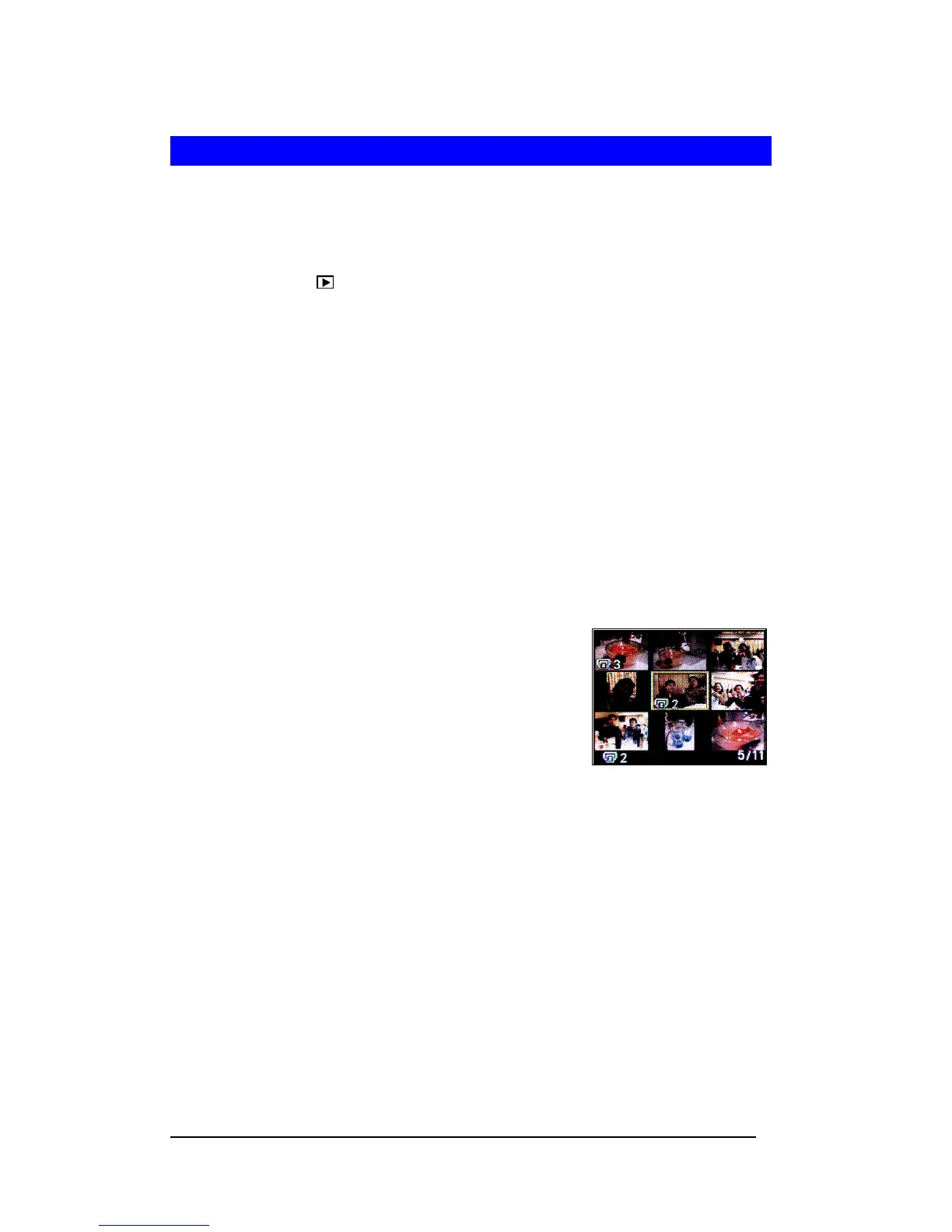
2 Highlight “Select” and press <Menu/OK> button to
display the 3x3 thumbnails.
3 Press Left-arrow (e) or Right-arrow (f) button to
highlight the image you wish to print on the thumbnail.
4 Press Up-arrow (▲) button or Down-arrow (▼) button to setup the copy quantity.
5 Repeat Steps 3 - 4 to set DPOF for other images.
6 Press <Menu/OK> button to apply the settings.
Set DPOF for Printing All Images in the Memory
1 Follow Step 1 to 4 of “Set DPOF for Printing a Single Image”.
2 Select “All Images” and press <Menu/OK> button to display the copy quantity dialog.
3 Repeat Step 6-7 of “Set DPOF for Printing a Single Image”.
Note : DPOF is not function in video mode.



 To Next Page