35
4
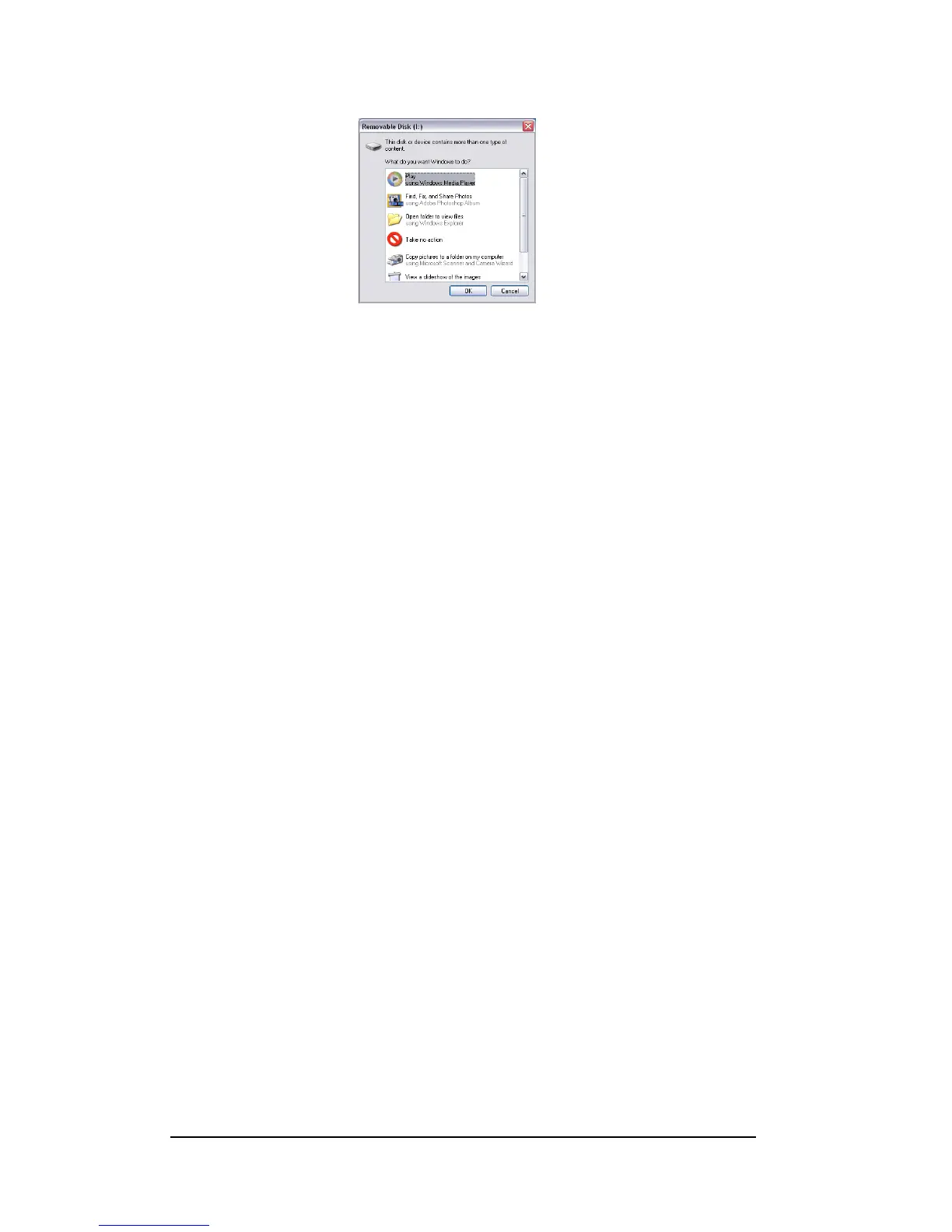
To download the files to your computer, highlight the files that you want to save, and
choose one of the following way to move your files
a. Copy & Paste
Right-click on the highlighted files with and select “Copy” from the resulting menu. Go
to the target location on your computer and right-click on it again, and select “Paste”
from the resulting menu
b. Drag & Drop
With both source and target locations on display, click and hold on the highlighted files
on source location. Drag the files to target location, and release the button.
How to Download Pictures via Ulead Photo Explorer
Follow the instructions below to transfer your digital files using third party applications.
1 Connect the camera to the computer.
2 Power on the camera
3 Launch Ulead Photo Explorer by clicking Start → Programs → Ulead → Ulead Photo
Explorer → Photo Explorer 8SE Basic.
4 Open the “Folders” from the top bar of the Photo Explorer screen.
5 Click Removable Disk (D:\) or the next available letter for the removable disk.
6 Open the folders “DCIM” → “nnnX330”.
7 The digital files are stored under this folder.
Note : Use Ulead Photo Explorer to open digital still images only. Use Ulead Video
Studio or Windows Media Player to open digital video files. For audio files, use Windows
Media Player or other audio software available.



 To Next Page