Advanced
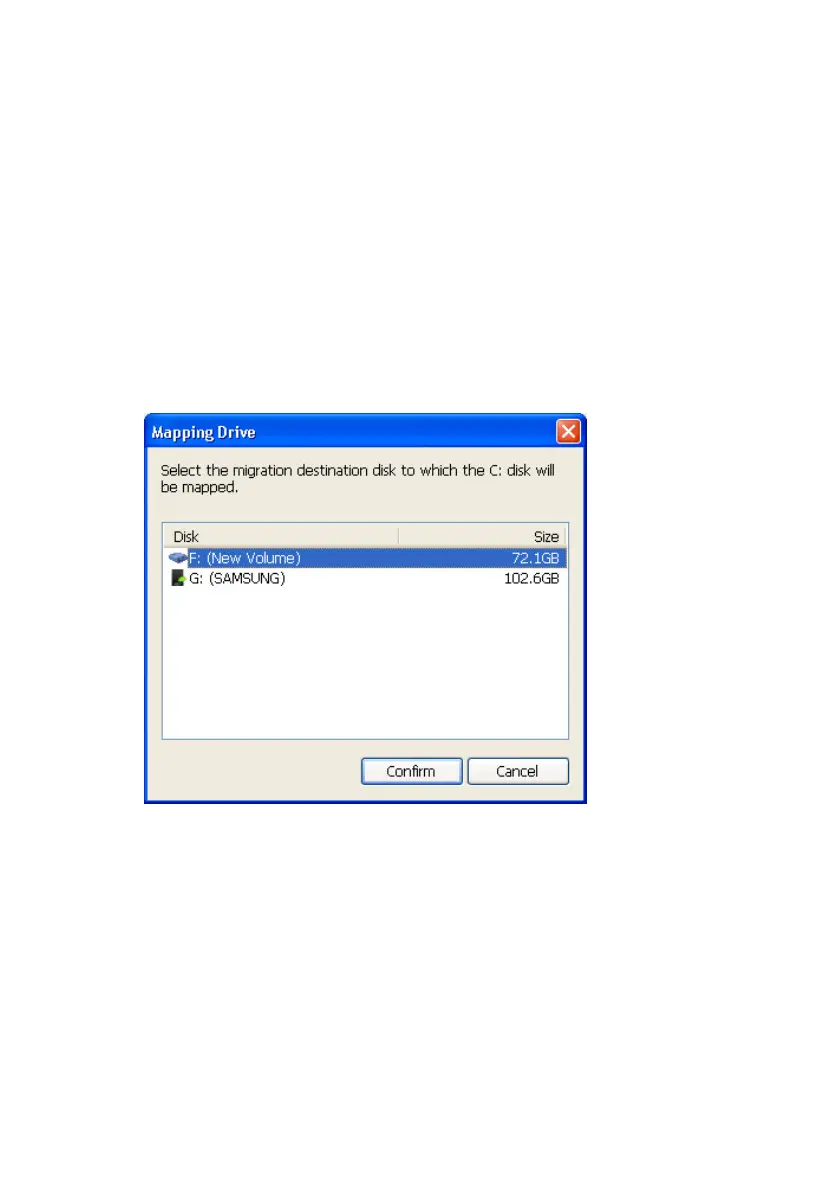
Next, identify the destination disk for the files. For
example, if you just got another computer, you may
choose to migrate the backed up information from
your Samsung External Hard Disk Drive to your new
computer.
7.
Choose a destination
8.
Click Confirm
From the pull-down menu, you may choose the
Default Destination or use New User Destination.
Figure 7-22 Choose the destination
Choose the destination
9. Click Confirm
10.
Click Start to begin the migration
The migration engine shows the progress of the
migration process.
After completion of the migration, you can see a list of
the migrated files in the View Details window.
11.
Click Close to close the details screen
Samsung Auto Backup User Manual Ver 2.0
72



 To Next Page