Advanced
Deleting Backed up Data
For data that should no longer be stored on the
Samsung External Hard Disk Drive, there are four
ways to run the Delete Wizard. After selecting the
folder or file to delete:
Option 1
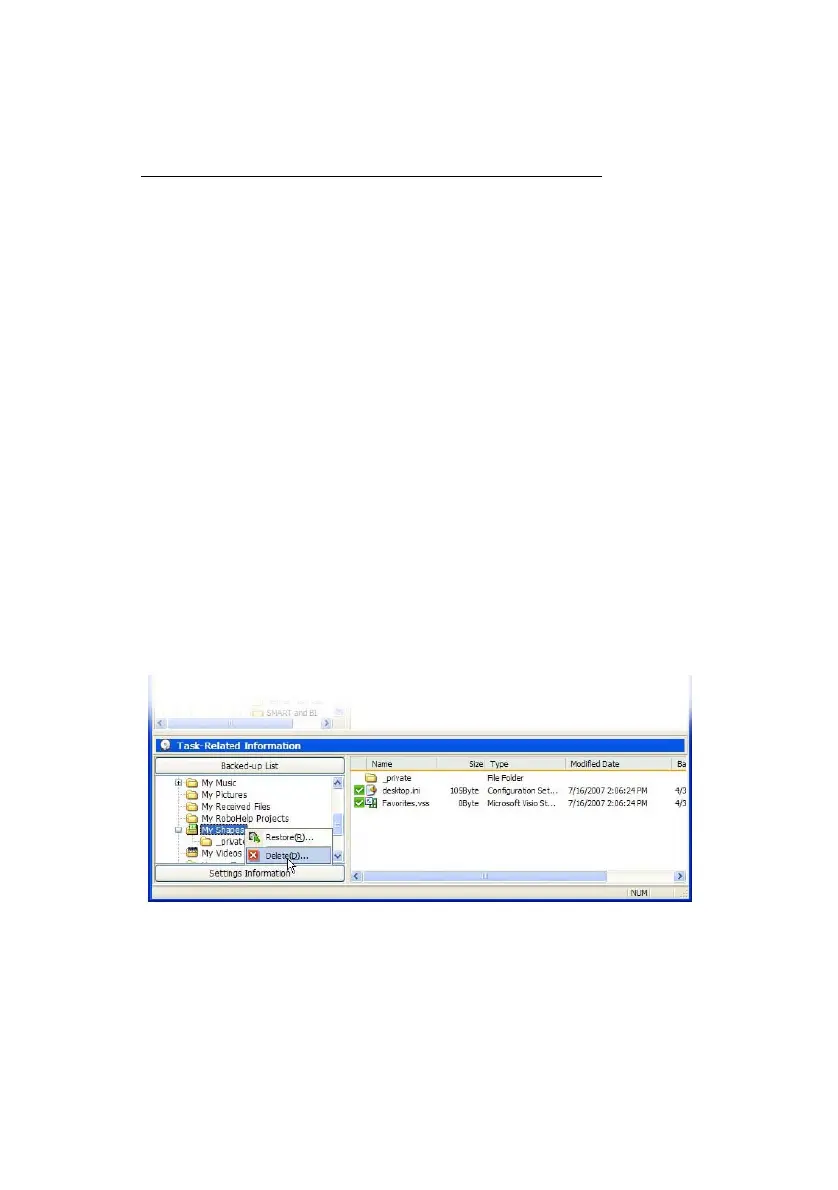
Right-click the selected item and select
Delete from the shortcut menu
Option 2
From the Menu bar, select Task -> Delete
Option 3
From the Tool bar click Delete
Option 4
Press Del on your keyboard
From the Samsung Auto Backup main window:
1.
Click the Delete icon
2.
Choose the folder or file to delete
3.
Click Delete
Figure 7-6 Deleting Files
From the Auto Backup File Deletion Wizard screen,
there are four different choices:
• Delete All Files
Deletes all the files and folders that have been selected.
Samsung Auto Backup User Manual Ver 2.0
54



 To Next Page